Lesson 6 of 146 min read
The sign-up page your customers use
Every step of the Clean Bin System sign-up page, from the address check to “You’re booked”, plus the waitlist and the settings behind it.
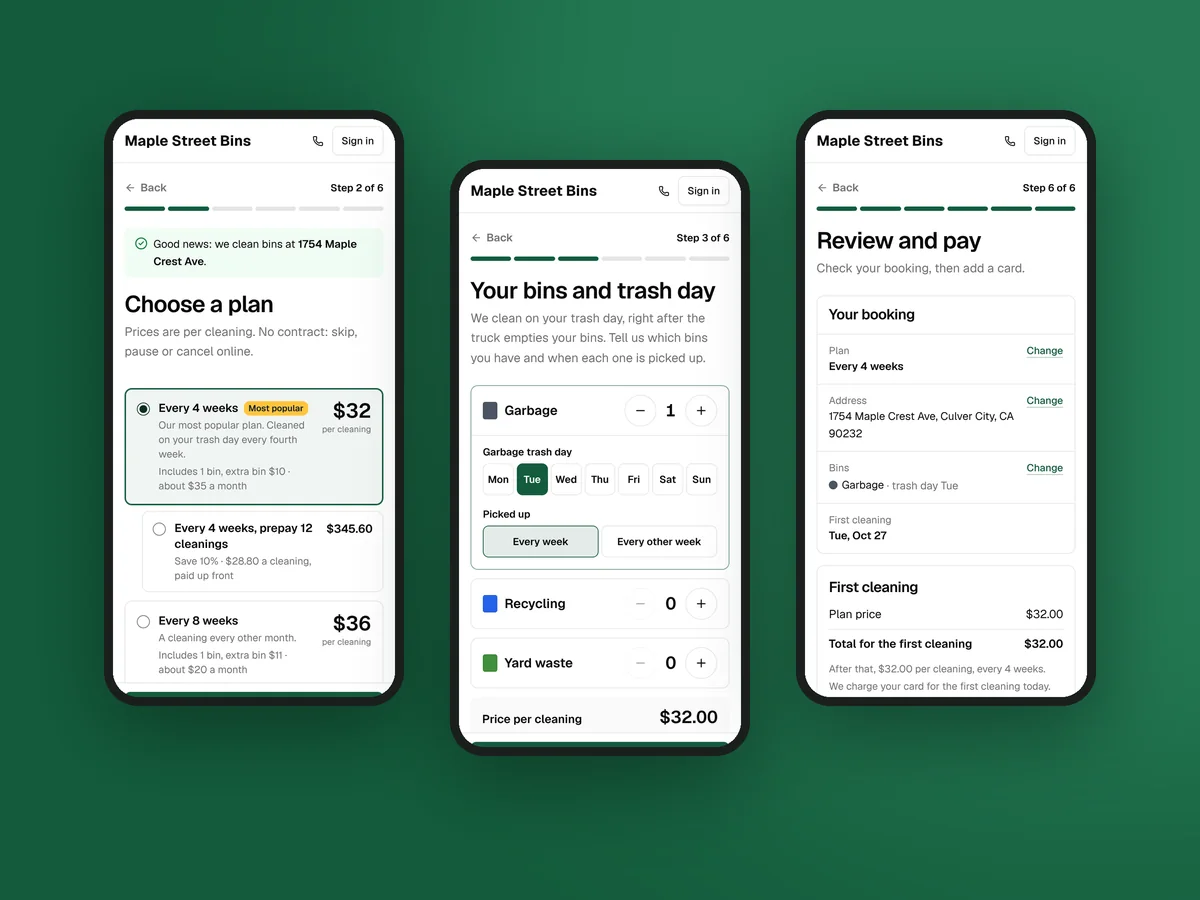
Your sign-up page is where customers book and pay without calling you. It runs at your own address, like yourname.cleanbinsystem.com, or on your own domain (Lesson 3). To see it the way a customer does, click Sign-up page at the bottom of the back-office menu.
Set it up before any marketing. The startup course’s order is a place to sign up and pay first, then the streets around you, then ads (first customers lesson). Every flyer, QR code and ad ends on this page.
Six steps, and no date to pick
The steps are Address, Plan, Bins, First cleaning, Your details and Payment. Customers can’t skip ahead, and their answers are saved as they go.
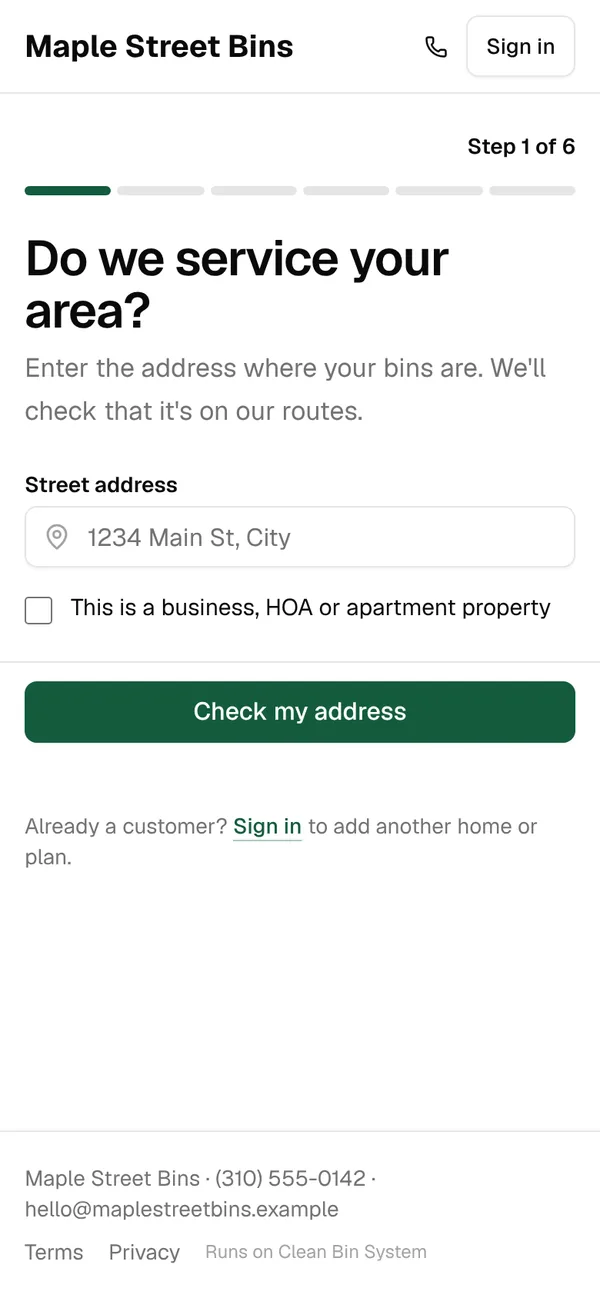
- Address. “Do we service your area?” The address is checked against your zones (Lesson 4). A box marks a business, HOA or apartment property.
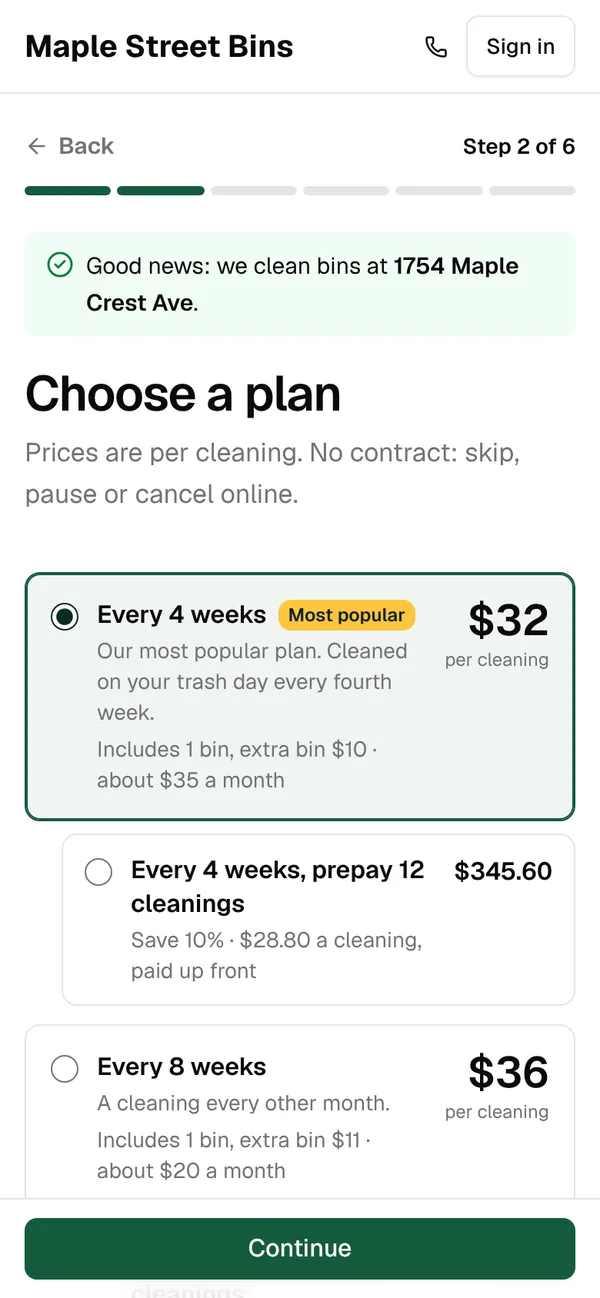
- Plan. Each card shows the price per cleaning, the bins included, the extra bin price and roughly what it comes to a month. Prepaid options sit under the plan they belong to.
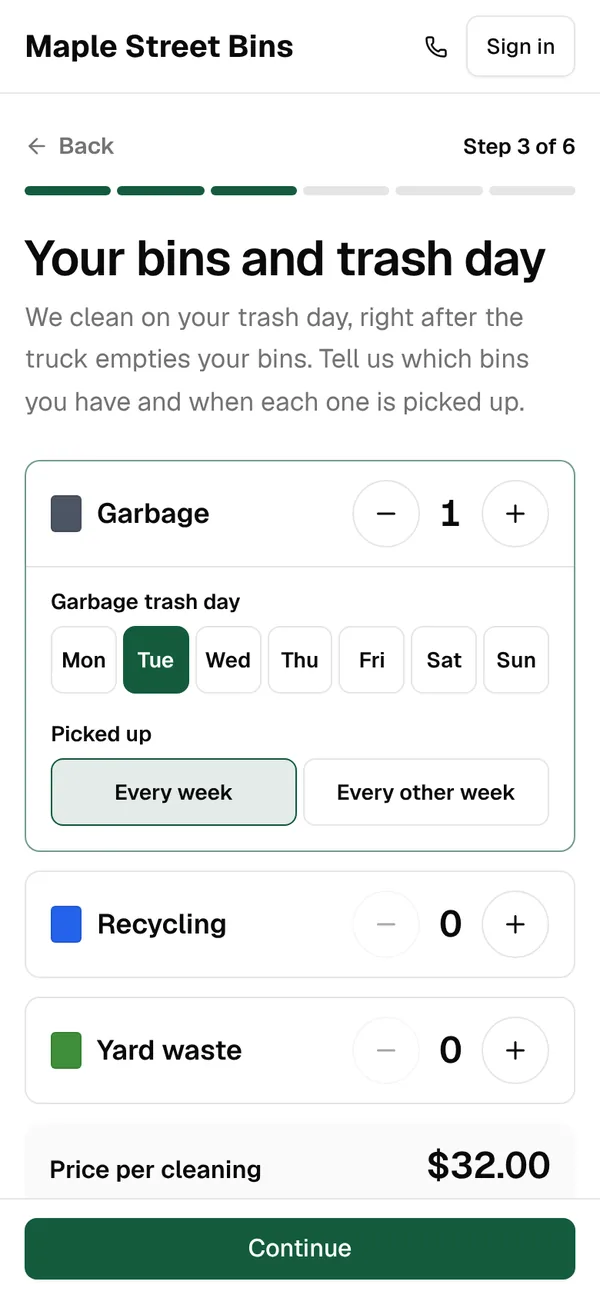
- Bins. For each kind of bin: how many, which day it’s picked up, and whether that’s every week or every other week. For every other week, the customer gives a recent pickup date, so you know which weeks the truck comes. The price updates as they go.
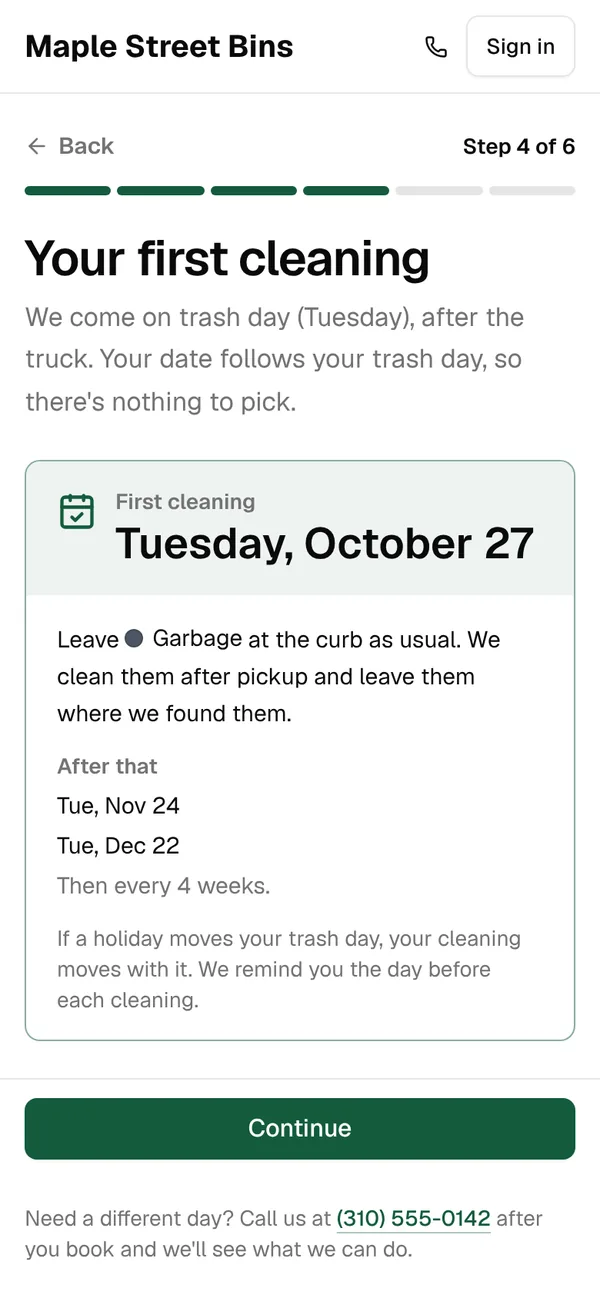
- First cleaning. There’s nothing to pick: “Your date follows your trash day.” The page shows the first date and the next two.
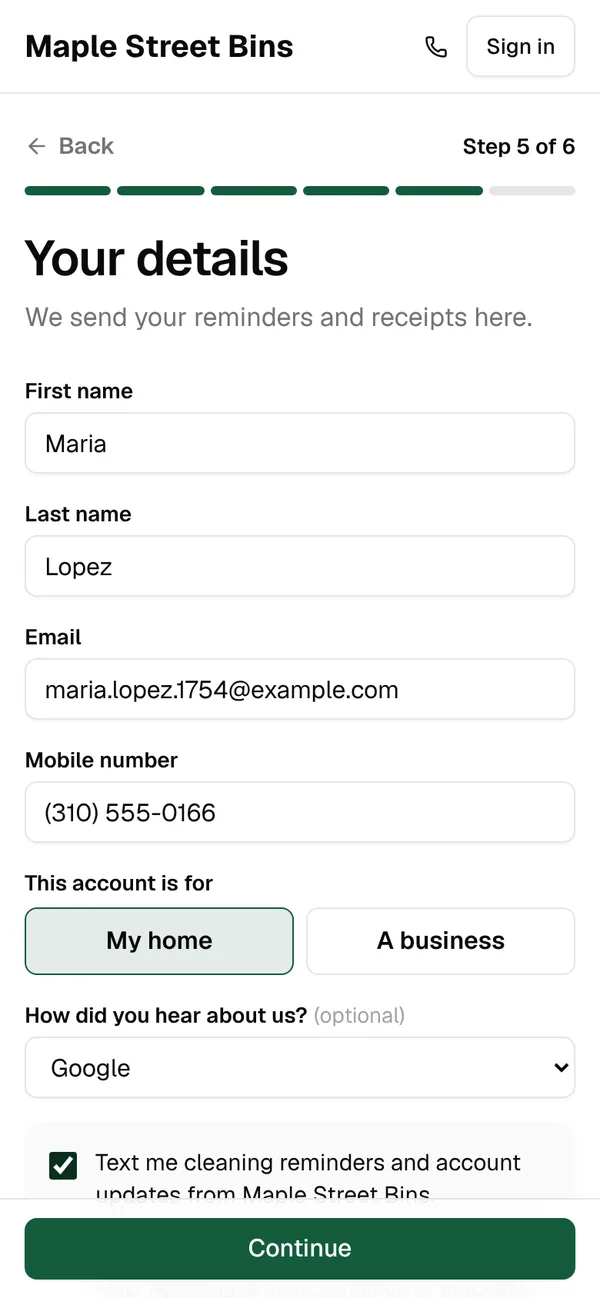
- Your details. Name, email and mobile number, home or business, “How did you hear about us?”, and two separate boxes: one for reminder and account texts, one for offers. A password is optional. Without one, they sign in with a link.
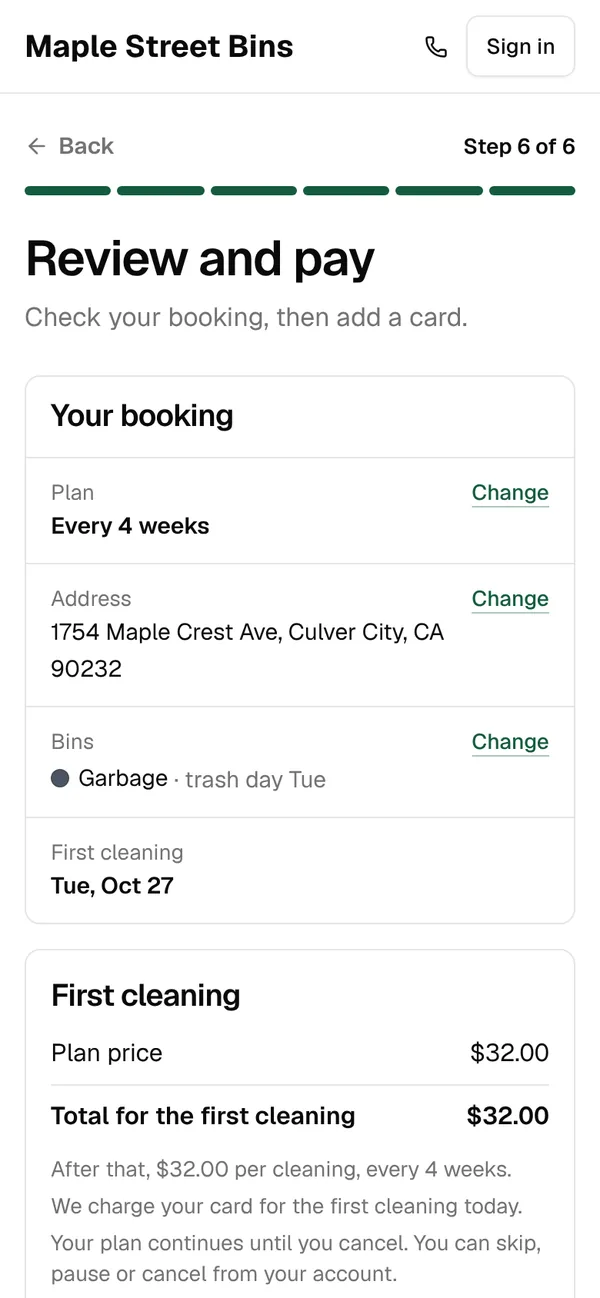
- Review and pay. The booking, with Change next to the plan, address and bins, then the price, one box for a coupon, gift card or referral code, and the card. Only the biggest discount applies.
Why no date picker? A cart is only reliably empty right after the truck, and you can’t move a customer to a “better” day, because their cart is full on every other day. So the first cleaning goes on their trash day, at least 2 days after booking by default, in the route group they join (Lesson 4). That can be a week or more away. If the zone’s first cleaning is booked by the office, the page says you’ll text them their first date within one business day instead.
Tip: The page tells customers who need a different day to call you after they book. You can move that cleaning from their page (Lesson 10).
You’re booked, or on the waitlist
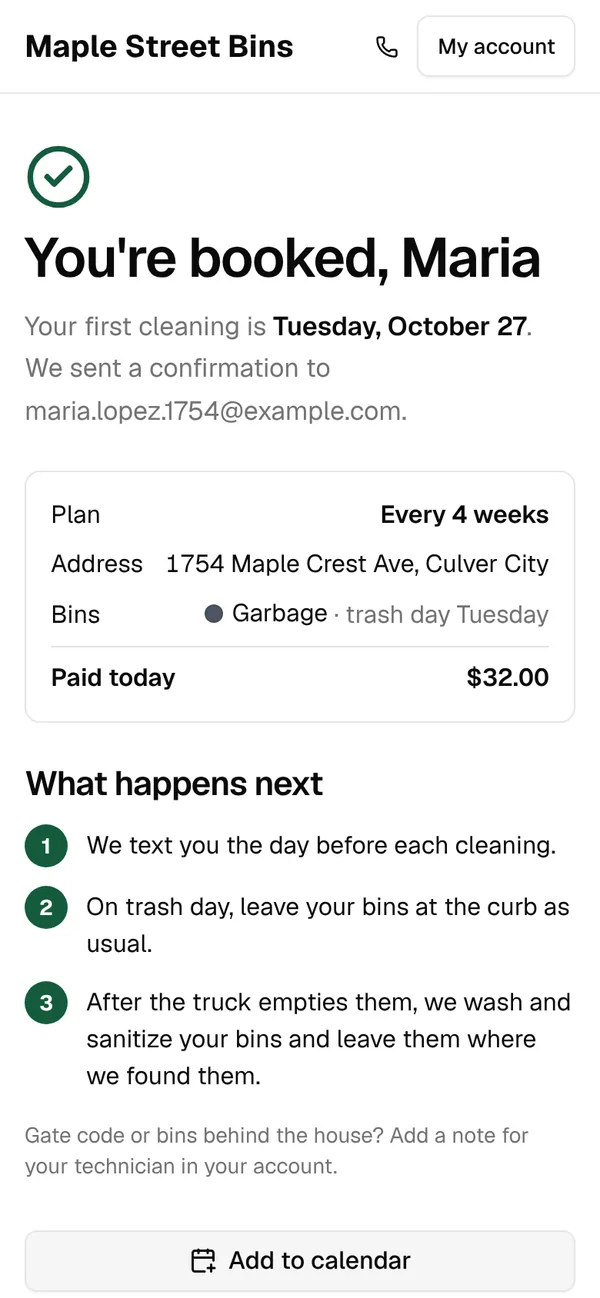
After paying, the customer sees “You’re booked” with the first date and what happens next: a text the day before, bins at the curb as usual, cleaned after the truck. Add to calendar saves up to six cleaning dates, and Go to my account opens their account. They get a welcome email, a welcome text if they agreed to texts, and a receipt when their card is charged. You get a “New customer” email.
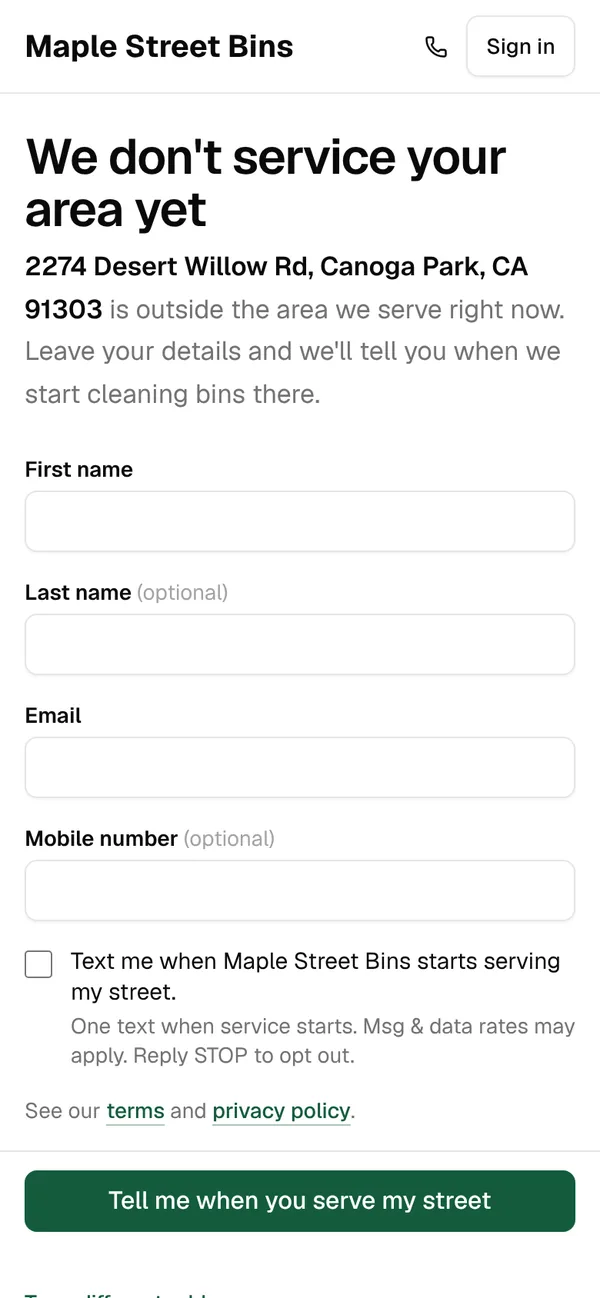
An address outside every zone gets “We don’t service your area yet” instead. The person leaves a name and an email or mobile number, and can tick a box for one text when you start serving their street. They land in Customers › Leads on the Outside our area tab (Lesson 12). Before you draw your next zone, look at where those leads cluster. When you reach their street, send them the Now serving your area message from Leads.
Watch out: Someone who stops after Your details isn’t lost. They get “Finish booking” reminders 20 minutes later, then at 24 and 72 hours, and show in Customers › Leads on the Didn’t finish booking tab. Online sign-ups that are never paid are canceled after 3 days.
The settings behind it
Everything below is on Business › Settings › Sign-up link, with one Save sign-up page settings button at the bottom.
Your link
The Sign-up funnel address goes behind the Book or Sign up buttons on your website, ads, flyers and truck. Copy copies it, and QR code for print makes a printable code. Each plan also has its own link for your pricing page (Lesson 5).

How did you hear about us?
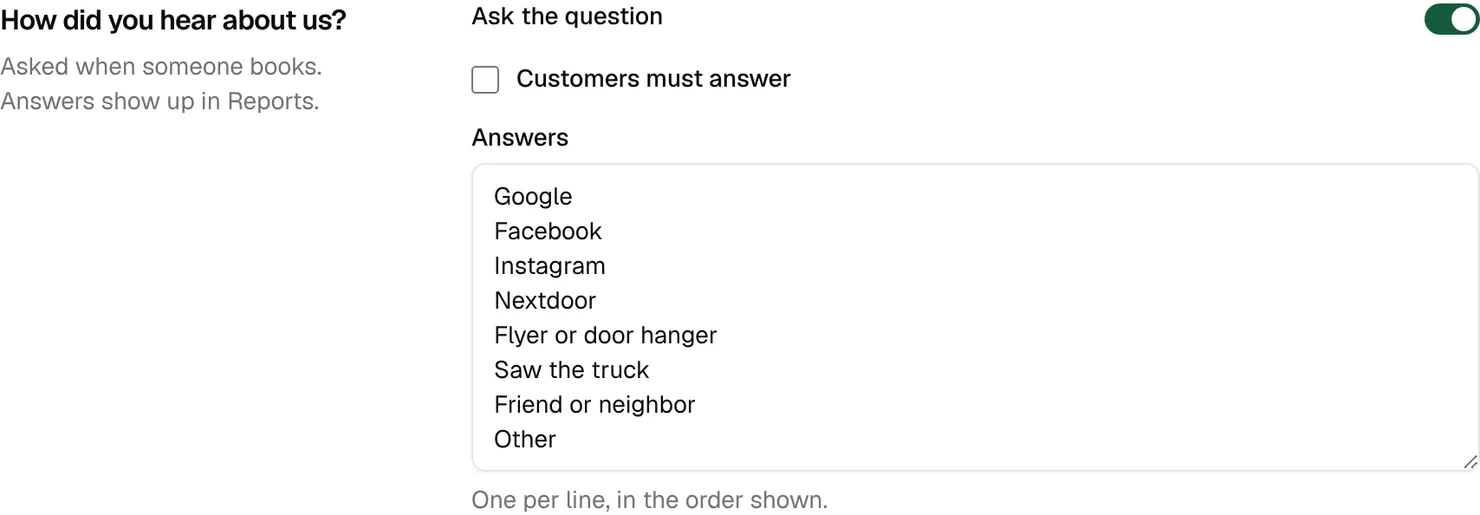
The question is on by default, with eight answers from Google to Other. Edit them one per line, and tick Customers must answer if you want every booking counted. The answers become a report (Lesson 13), so you can see whether the door hangers, the truck or Google brought people in before you spend more on any of them.
Signing up
Three switches decide what the last step asks for:
- Card required to book (on): turned off, people can book without a card and the office collects it later.
- Offer prepaid options (on): shows each plan’s prepaid bundles.
- Allow pay by invoice (off): customers can choose an invoice after each cleaning instead.

Keep the card required. A saved card is charged on schedule and retried by itself if it fails (Lesson 7). An invoice has to be opened and paid by hand after every cleaning.
Your pages and ad tracking
- Terms of service and Privacy policy: leave them empty and ready-made pages are used, written from your billing and cancellation settings. They’re linked from every step. For a recurring plan, federal law requires clear terms before you take billing details (licenses lesson). The same pages go with your texting registration, so settle them before you apply for a texting number (Lesson 11).
- Thank-you page: your own page after booking, useful for ad tracking.
- Google tag ID, Google Ads conversion label and Meta pixel ID: bookings then count as conversions in your ad accounts.
Tip: Before you share the link, book yourself on your phone with the test card (Lesson 2). You’ll see every screen and every message a customer gets.
The What customers see: signing up guide and the Your sign-up page settings guide in your Learning center cover every field and message.
Key takeaways
- Customers book in six steps and never pick a date: the first cleaning follows their trash day.
- Addresses outside every zone join a waitlist and become leads, which show you where to grow next.
- Unfinished bookings get “Finish booking” reminders and show up as leads.
- Keep Card required to book on, so every plan is charged and retried automatically.
- Ask “How did you hear about us?” so the reports show which marketing works.
FAQ
Can a customer pick their own first cleaning date?
No. The date follows their trash day. The page tells them to call you after booking if they need a different day, and you can move it from their page.
Where do I see people who started but didn’t finish?
In Customers › Leads, on the Didn’t finish booking tab. They also get “Finish booking” reminders by email, and by text if they agreed to texts.
Do I need my own terms and privacy pages?
No. Leave the boxes empty and ready-made pages are used, written from your billing and cancellation settings.
The page says an address is outside our area, but we serve it.
Check your zones. The address check uses them, and a zone with Zone is open turned off counts as outside (Lesson 4).