Lesson 12 of 147 min read
Leads, requests and referrals
Follow up unfinished sign-ups, quote power washing, reward referrals, sign up neighbors at the curb, and track QR codes and sources in Clean Bin System.
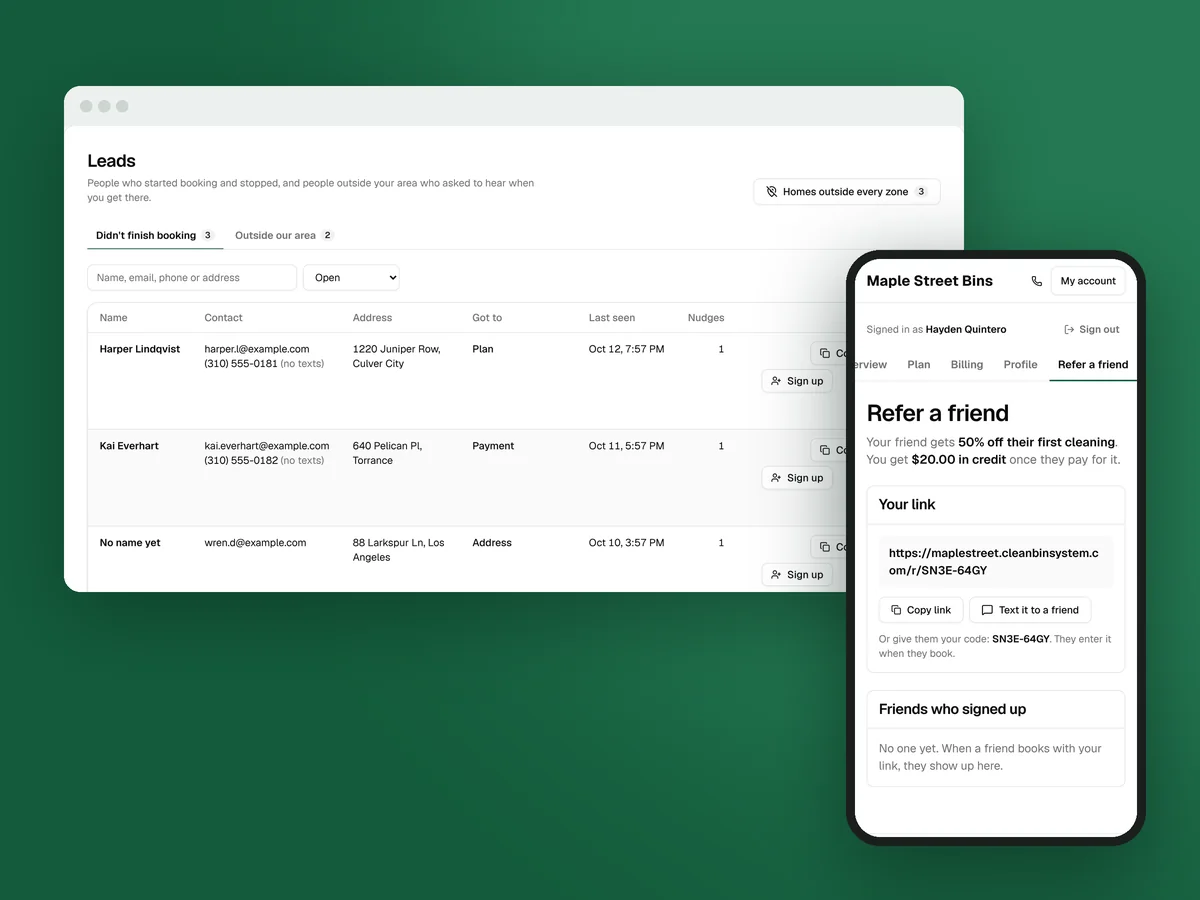
Bin cleaning grows street by street: one customer’s clean cart, a neighbor who asks about it, a door hanger on the house next door (first customers lesson). Clean Bin System catches each of those people and records where they came from, so you can spend your time and money on what actually brings customers in.
Leads: people who started and stopped
Customers › Leads has two tabs. Didn’t finish booking lists people who started on your sign-up page and stopped. Got to shows the step they reached, from “Address” to “Payment”, and Nudges counts the reminders they’ve had.
Those reminders go out by themselves: 20 minutes after someone stops, then 24 and 72 hours later, by email and, if they ticked the box, by text. Each links back to where they left off. They stop when the person books, or when you click Dismiss or Mark signed up.
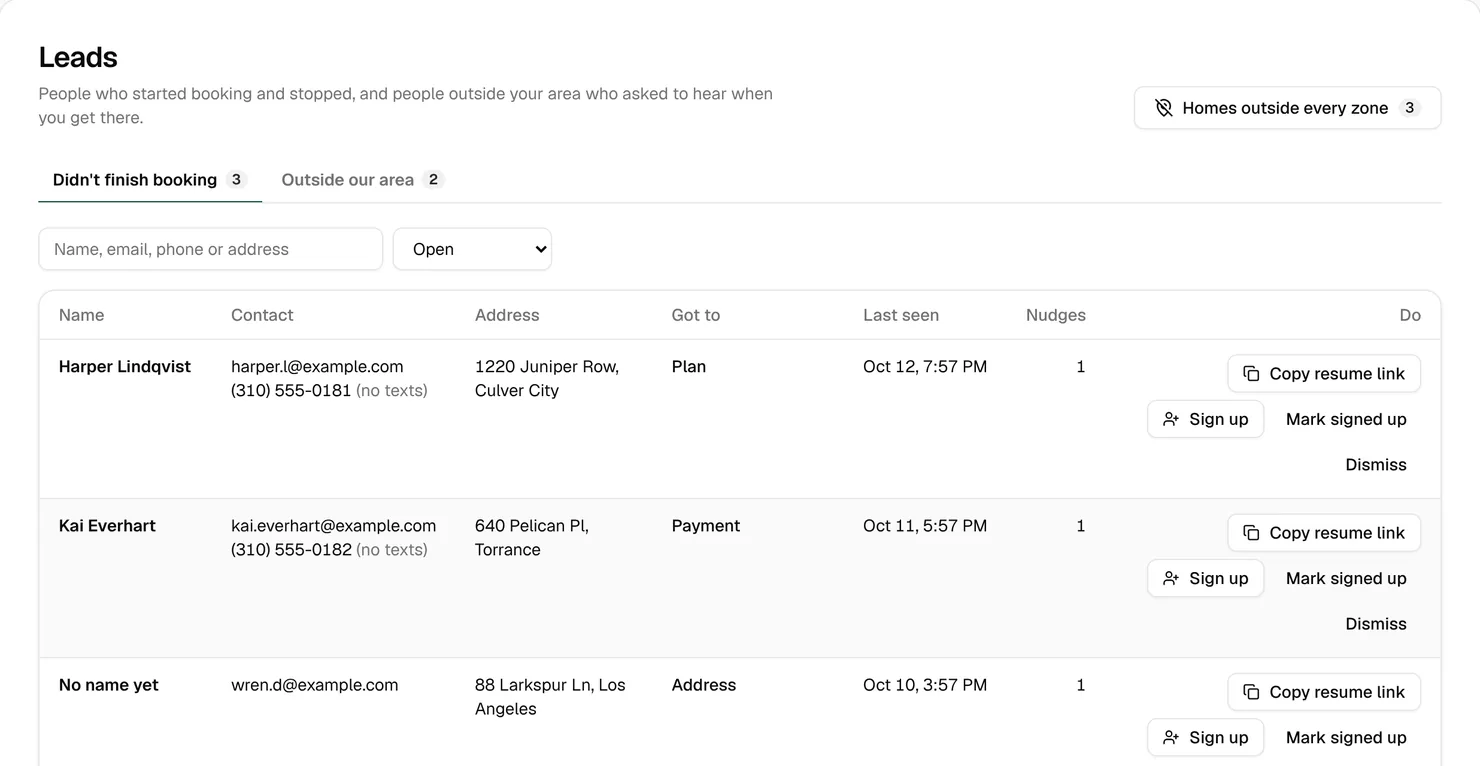
A lead with “No contact yet” only typed an address, so there’s nobody to remind, but it still tells you which streets are looking. For the rest:
- Got to “Payment”? They were nearly a customer, so call them. Sign up opens the add-customer form filled in from their booking.
- Rather text them yourself? Copy resume link and paste it into your own message.
- “Account made, not paid yet”? Click Open customer and add their card on the Money tab.
- Booked another way, or not interested? Mark signed up or Dismiss stops the reminders.
Tip: To stop these reminders for everyone, switch off the two Unfinished sign-up messages in Messages › Texts & emails (Lesson 11). The line under the table links there.
Outside our area lists people whose address was outside every zone and who left their details. When you grow a zone to cover them (Lesson 4), Zone now changes to Inside and the zone’s name. Click Tick the ones now inside, then Send to ticked, and each gets one Now serving your area text or email with a link to book. A town with a cluster of these is a good place for your next zone: it opens with customers waiting.
Service requests: work outside your plans
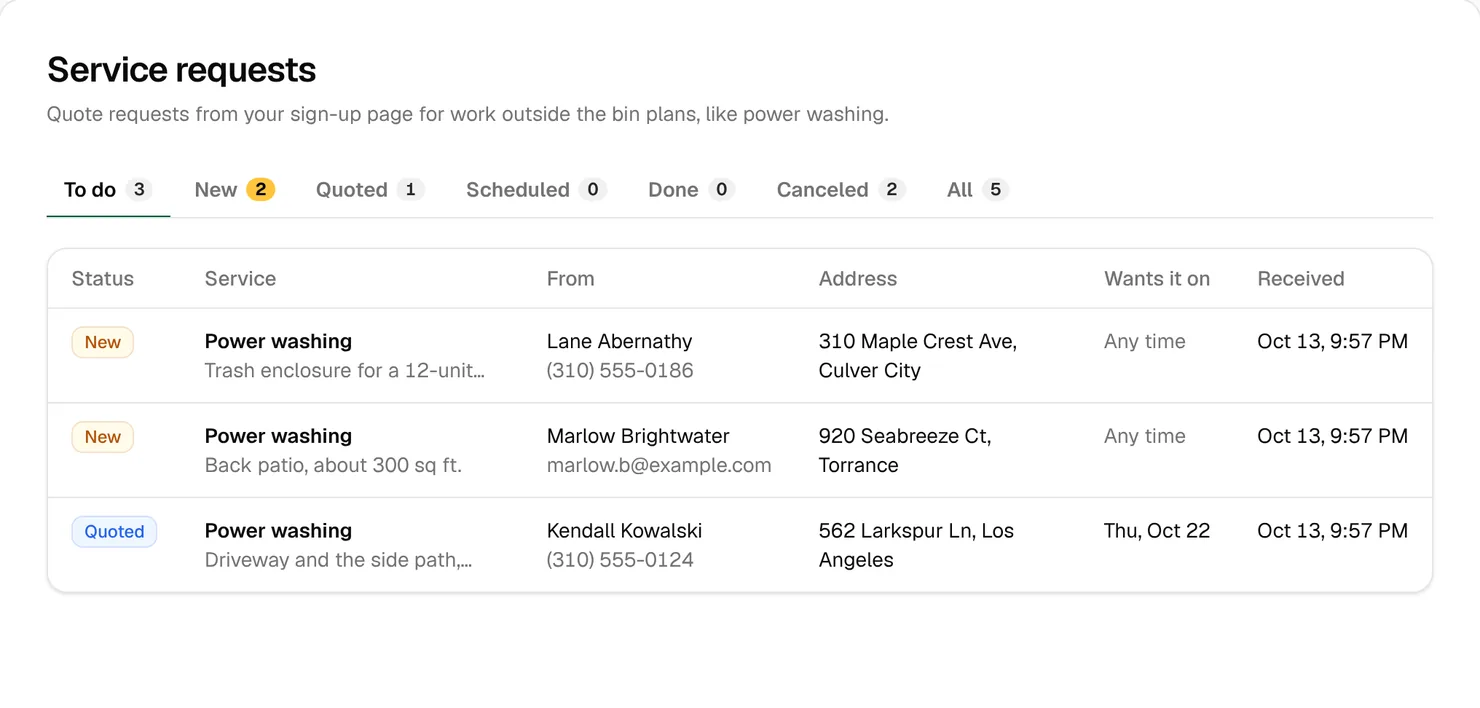
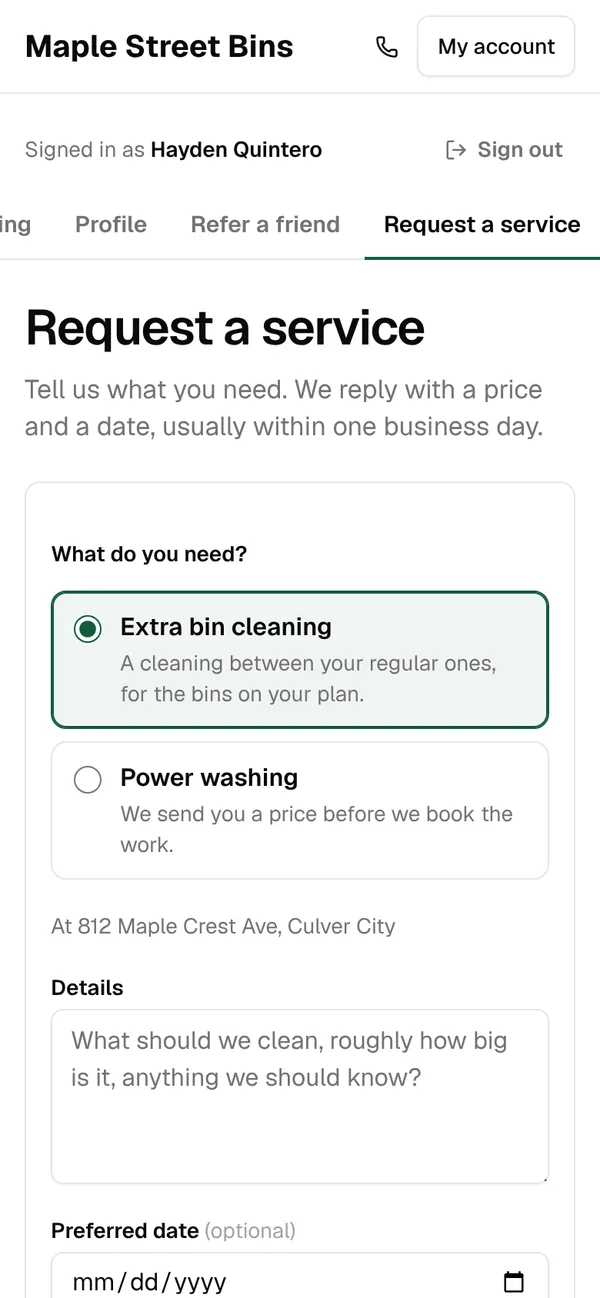
Quote requests from your sign-up page and from the Request a service tab in customers’ accounts land in Customers › Service requests. The yellow number in the menu counts the new ones.
- Open the request. You don’t need to make them a customer first.
- Click Create quote. It fills in with your add-ons for that service. Send it, and the customer accepts, declines or asks for changes online.
- Or, under Book a visit, book a free Estimate visit to look at the job first, or book the work itself. Leave Tell the customer ticked.
- When the work is done, click Charge $X now on the visit in the customer’s Money tab, or send an invoice.
- Set the status to Done and click Save status. It never changes to Done by itself.
Extra work is worth chasing. The startup course quotes The Trash Can Cleaners in San Antonio, who say emailing customers about pressure washing often books “thousands of extra dollars” (keeping-customers lesson). You’re already on their street with the equipment.
Watch out: A priced service visit is never charged by itself, even after it’s done. Charge it or invoice it, or it stays unpaid.
Referral rewards
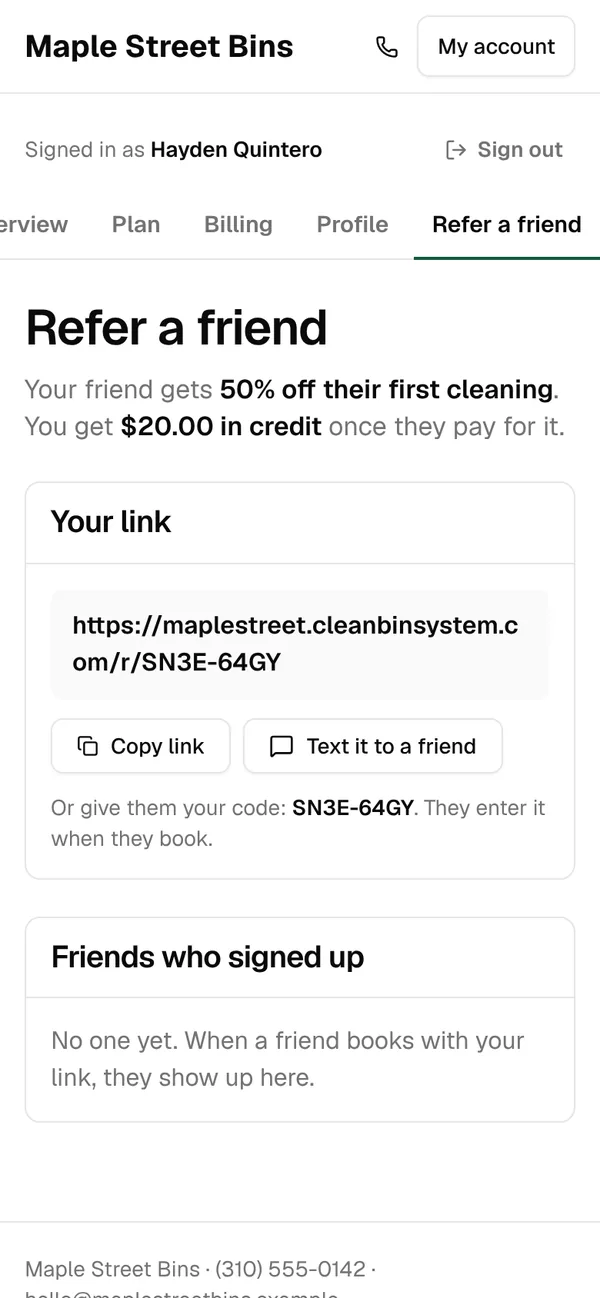
Referral rewards are on from the start, in Business › Settings › Billing under Referrals. Credit for the customer who shares is $20.00 unless you change it, added once their friend pays for a first cleaning. Friend’s discount is 50% off the friend’s first cleaning.

Each customer gets a link and a code on the Refer a friend tab of their account, and Text it to a friend opens their messages app with a ready-made text. The link is remembered for 60 days, so the friend can book later. When the friend pays, your customer gets an email and the credit comes off their next cleaning.
Example: With the defaults, a friend booking a $32 cleaning pays $16 for their first one, and your customer gets $20 off their next. That’s $36 to win a customer someone already vouched for. The startup course puts Fresh Bins LA’s cost per customer from Google Ads at $41 (money lesson).
The startup course’s referral advice is to reward both people, credit the account automatically and ask right after a cleaning. The first two happen by themselves. For the third, add {{referral_link}} to your Cleaning done email from Details you can add (Lesson 11). Never tie a reward to a review.
Signing up a neighbor at the curb
When a neighbor walks over while you clean next door, sign them up on the spot from the driver app’s Sign up tab: address, plan, bins and trash day, their details, then their card. If you drive routes, Clean now lets you clean their bins before you leave the street (Lesson 9). Tick The customer agrees to texts only when they say yes. Each sign-up is saved as “Door to door” and credited to whoever signed them up. There’s no coupon or referral code box in the driver app, so anyone with a code should book on your sign-up page.
QR codes for print
- Open Business › QR codes.
- Choose Where you’ll print it: Door hangers, Flyers and mailers, Yard signs, Truck or trailer, Business cards or Something else.
- If you like, pick a Plan and a Coupon, and type a Campaign name, like spring-2027.
- Click Update the code, then Test it to check the right page opens.
- Click Download PNG for prints up to about 4 inches wide, or Download SVG for a yard sign or your truck. Print it at least an inch wide, with the white border.
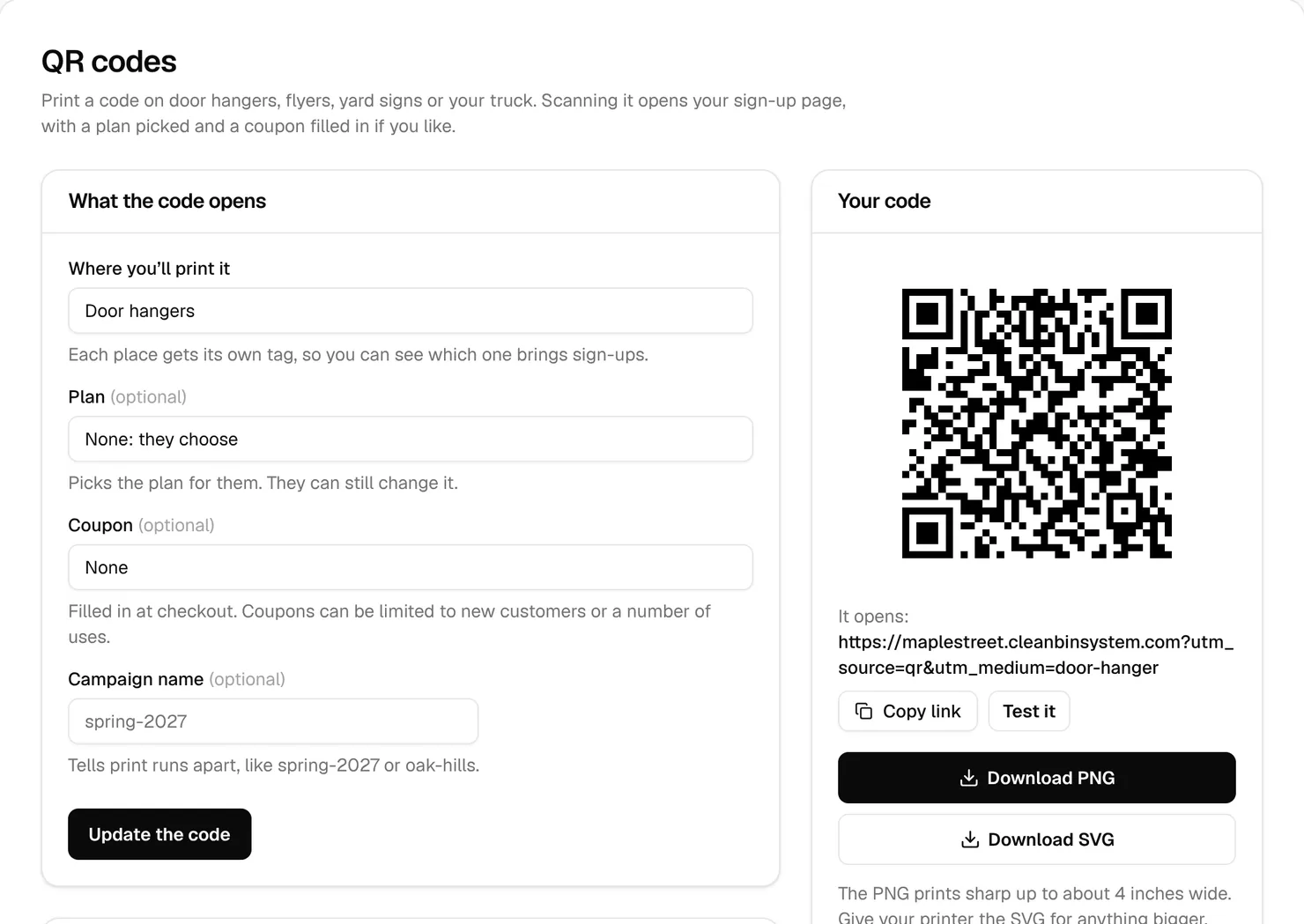
Sign-ups from the code show in Business › Reports under “Online sign-ups by ad and link tracking”, as source qr with the place and campaign name. People who scan and stop show up in Leads. The startup course found almost no published data on door hangers for bin cleaning, so it suggests a code for each batch to count your own results (first customers lesson). That’s what Campaign name is for.
Tip: Codes aren’t saved. Bookmark the page after Update the code, or pick the same choices again to get the same code.
Get more customers
Business › Get more customers puts three things on one page:
- Where your customers come from: the last 90 days of new customers, their most common answers to “How did you hear about us?”, and how many signed up online or from Google or Facebook ads. A yellow line names the towns of people outside your area who asked for service.
- Do it yourself: a website with a Book button, a review link, ad tracking, referral rewards and QR codes, each ticked once it’s set up, with a link to where you do it.
- Done for you: websites, Google Business Profiles and Google ads from Bin Clean Marketing, from the team behind Clean Bin System. There’s no setup fee, you keep everything if you stop, and ad budgets are paid straight to Google. Asking costs nothing.
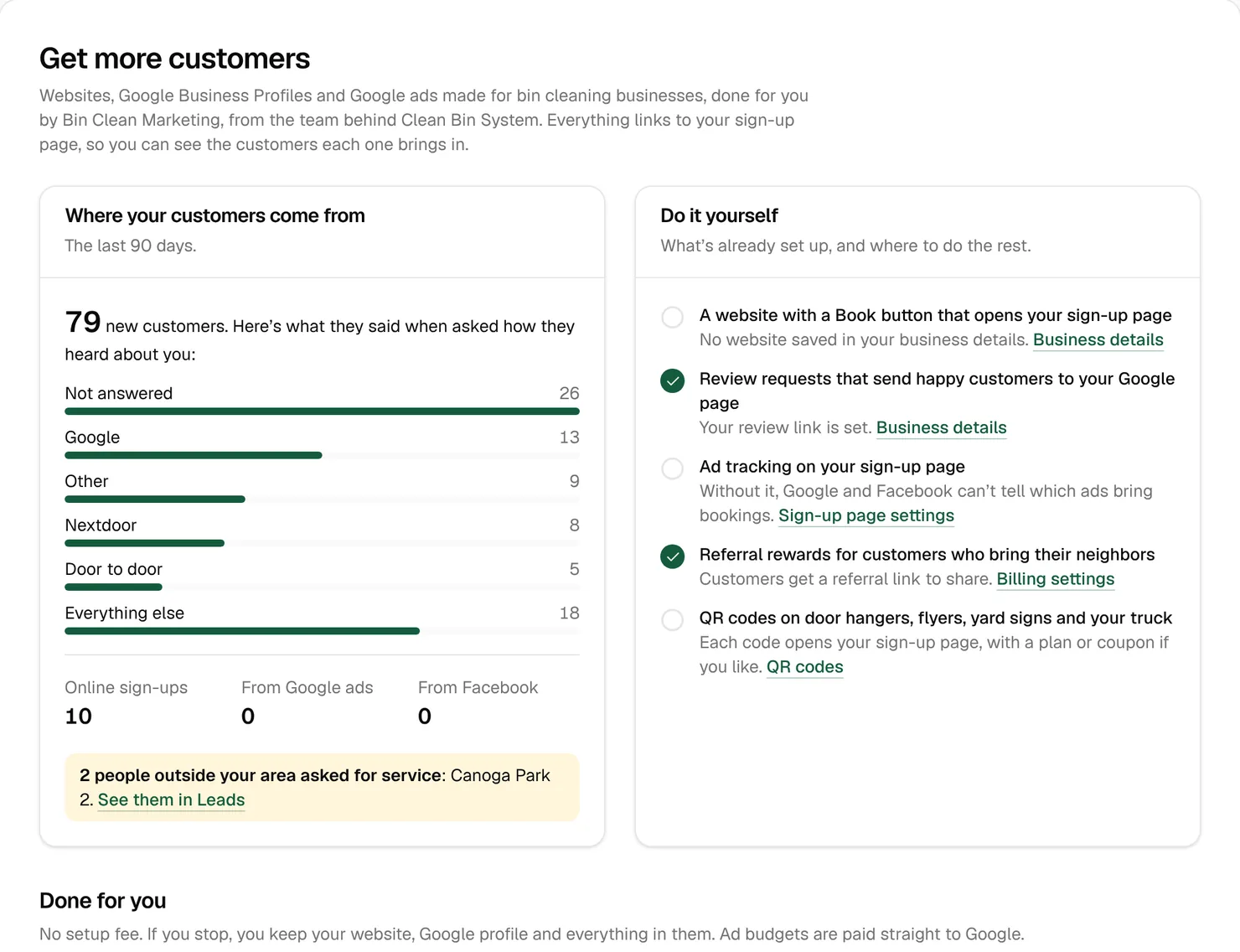
In the sample business, the biggest answer is Not answered. Everyone with no answer lands there, including customers you added without picking one. If it tops your list too, tick Customers must answer under “How did you hear about us?” in Business › Settings › Sign-up link (Lesson 6).
Key takeaways
- Leads reminds people who stopped booking three times, by itself. Call the ones who got to Payment.
- Grow a zone, then message the Outside our area leads it now covers.
- Quote extra work from Service requests, and charge it yourself when it’s done.
- Referral rewards are on by default: $20 credit for the customer, 50% off for the friend.
- Give every print run its own QR Campaign name, so Reports can count what it brings in.
FAQ
How do I stop the reminders for one lead?
Click Dismiss, or Mark signed up if they booked another way. The reminders also stop on their own when the person finishes booking.
When does a customer get their referral credit?
When their friend pays for a first cleaning. The credit goes on their account and comes off their next cleaning, and they get an email about it.
Can I see which flyer brought in sign-ups?
Yes, if each print run had its own Campaign name. Look in Business › Reports under “Online sign-ups by ad and link tracking”.
Do I have to use Bin Clean Marketing?
No. Everything under Do it yourself works on its own, and Clean Bin System works the same either way.