Lesson 8 of 147 min read
Routes: the calendar, dispatch and route sheets
How to read the month on the calendar, build and order each day’s routes in Dispatch, print route sheets, close out missed stops and set your route limits.
Routes are where a bin cleaning business makes or loses its money. In the startup course’s income model, the same hot-water trailer brings in about $1,480 a day when stops are two minutes apart, and about $490 when they’re twenty minutes apart (routes lesson).
Clean Bin System does most of the routing before you look. Every customer is placed on their trash day in their zone (Lesson 4), cleanings are booked ahead, and many arrive already given to a technician. What’s left for you is short: check the month, build each day, print the sheets and close out anything left unfinished. The screens are from Maple Street Bins, a sample business.
The calendar: your month at a glance
Open Routes › Calendar. The Zones tab shows each day with one line per zone and its booked stops. Under them, each technician’s chip shows their stop count, colored green, yellow or red by how full the route is. A yellow Open chip counts stops nobody has been given. Closures show on their day: Closed for a shutdown, Holiday for a day nobody new starts, and a hauler’s name with “+1d” when trash day moves later (Lesson 4).
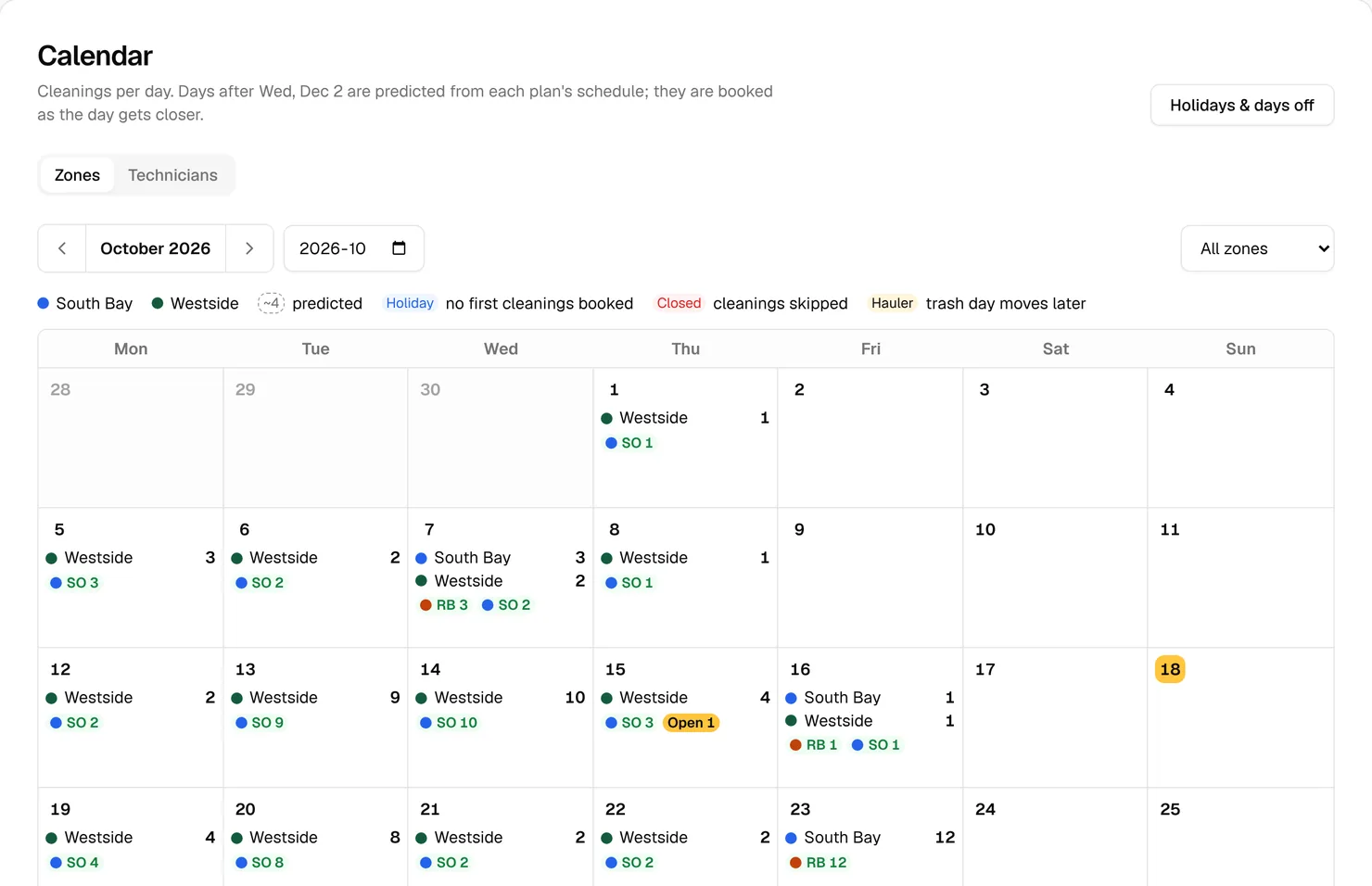
Days past your Put cleanings on the calendar setting, 45 days ahead unless you change it, are predictions, marked “~4” in a dashed box. The Technicians tab shades each person’s days Good, Busy or Too much.
The calendar only shows numbers: click a day to fix it in Dispatch. Use it to see trouble coming. A run of red days for one technician means stops need to move, or it’s time to plan a hire (hiring lesson). A light day is one to fill: hang door hangers on those customers’ streets.
Dispatch: one day, every route
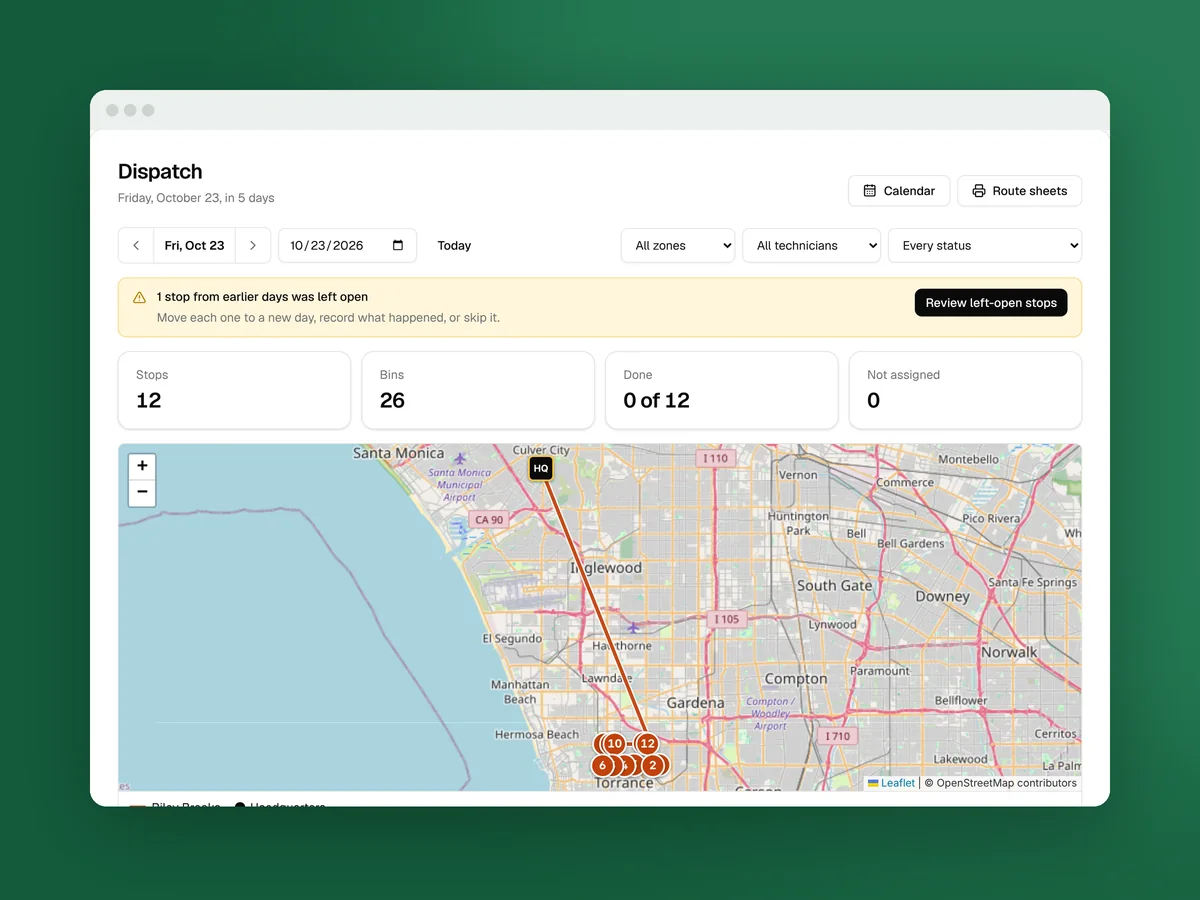
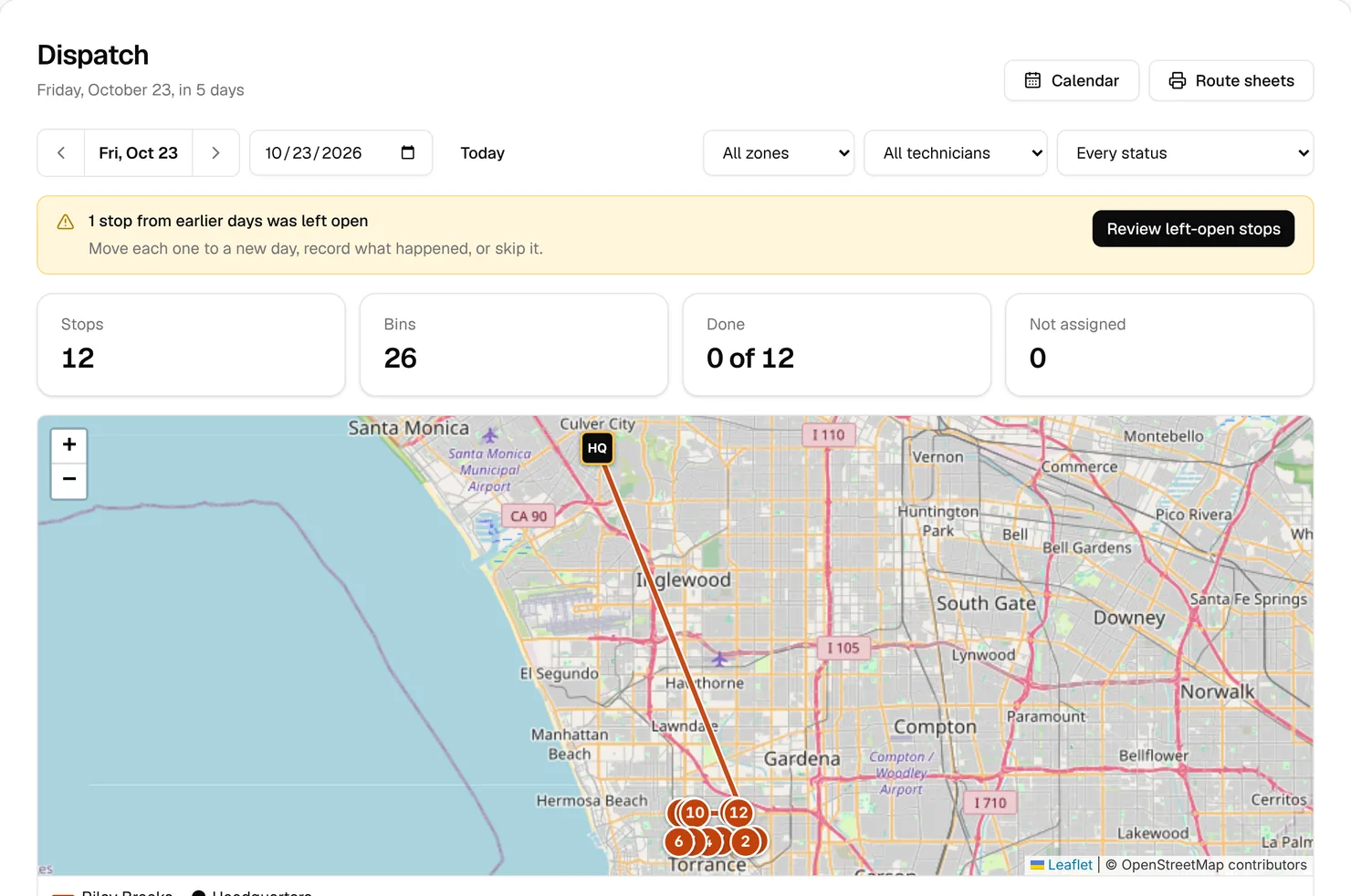
Routes › Dispatch opens on today. Arrows and a date box change the day, and menus filter by zone, technician or status. Four figures sit on top, Stops, Bins, Done and Not assigned, and they always count the whole day.
The map shows each technician’s stops as numbered pins in their color, joined by a line from HQ, your yard address in Business › Settings › Business. Grey pins have no technician yet. Under the map, each technician has a panel with a health badge, the day’s stops, bins, driving and time on site, and the buttons Optimize order and Route sheet. The Not assigned panel holds the rest.
How to build a day’s routes
- Open Routes › Dispatch and pick the day. The afternoon before is a good time.
- If a yellow notice says stops were left open, click Review left-open stops and clear them first (see below).
- In the Not assigned panel, click Auto-assign, or pick a technician on a row and click Assign.
- On each technician’s panel, click Optimize order. Fine-tune with the up and down arrows.
- Check the badges. To lighten a Too much route, tick some stops, choose Give to a technician, pick someone and click Apply.
- Click Route sheets, then Print all sheets (Print sheet when only one technician has stops).
There’s no “send” step. Each technician’s driver app shows their stops in the order on Dispatch (Lesson 9).
Watch out: Auto-assign balances by minutes only. It ignores preferred technicians, doesn’t set the order and leaves any Optimized badge on. Optimize again after it.
Why the order matters
Optimize order puts a technician’s open stops in driving order and shows the estimate, like “Route optimized for Riley: 12 open stops, about 3h 37m with driving.” It uses three settings in Business › Settings › Scheduling and routes:
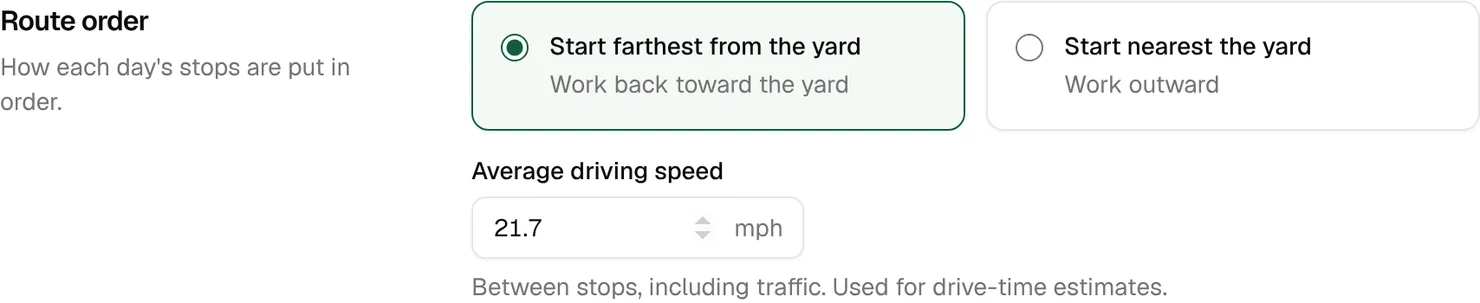
- Route order: Start farthest from the yard, the default, works back toward the yard, so the day ends near it. Start nearest the yard works outward.
- Average driving speed: 21.7 mph to start, “between stops, including traffic.”
- Time at each stop: 7 minutes for the first bin and 2 for each extra one.
Optimizing can’t move customers closer together; zones and trash days do that. It stops the zigzag, and every minute of driving it saves goes back into stops. Distances show in km, though the speed is set in mph.
Moving and skipping stops
Rain, a truck in the shop, a sick technician: tick the stops on Dispatch and pick under What to do.
- Move to another day: choose the New day, and add a Reason (optional, the customer sees it) like “Truck repair” if you want. Each customer gets the “Cleaning rescheduled” text or email with the new date and your reason.
- Skip: a Reason is required and kept on the customer’s record. No message goes out, and unpaid stops become “No charge”.
The move tells customers for you, and that matters: bins only get cleaned if they’re at the curb on the new day.
Watch out: Dispatch takes any date, so pick one with trash day in mind. A cart is only reliably empty right after pickup. For one customer, Move on their page suggests their next trash days (Lesson 10).
Stops left open
Each morning, stops from earlier days that are still Scheduled or On the way become Incomplete, and the office gets an email about them. Click Review left-open stops, then for each one:
- Move it to a new day. The customer is told.
- Mark done if it was cleaned. The customer gets the usual “cleaning done” message, and the card is charged if you bill after the cleaning.
- Mark not done or Skip. Neither sends a message, and Mark not done doesn’t book a free retry.
Clear them every morning. An open stop is either a cleaning nobody recorded, so no done message went out, or a missed customer nobody has told.
Route sheets
Click Route sheets, then Print all sheets (Print sheet when only one technician has stops). Each technician gets a page with the stops in order, each customer’s phone, gate code and access notes, the bins, and an empty Done box to tick by hand. Optimize first, because the sheet follows Dispatch. Skipped stops are left off, so numbers can differ.
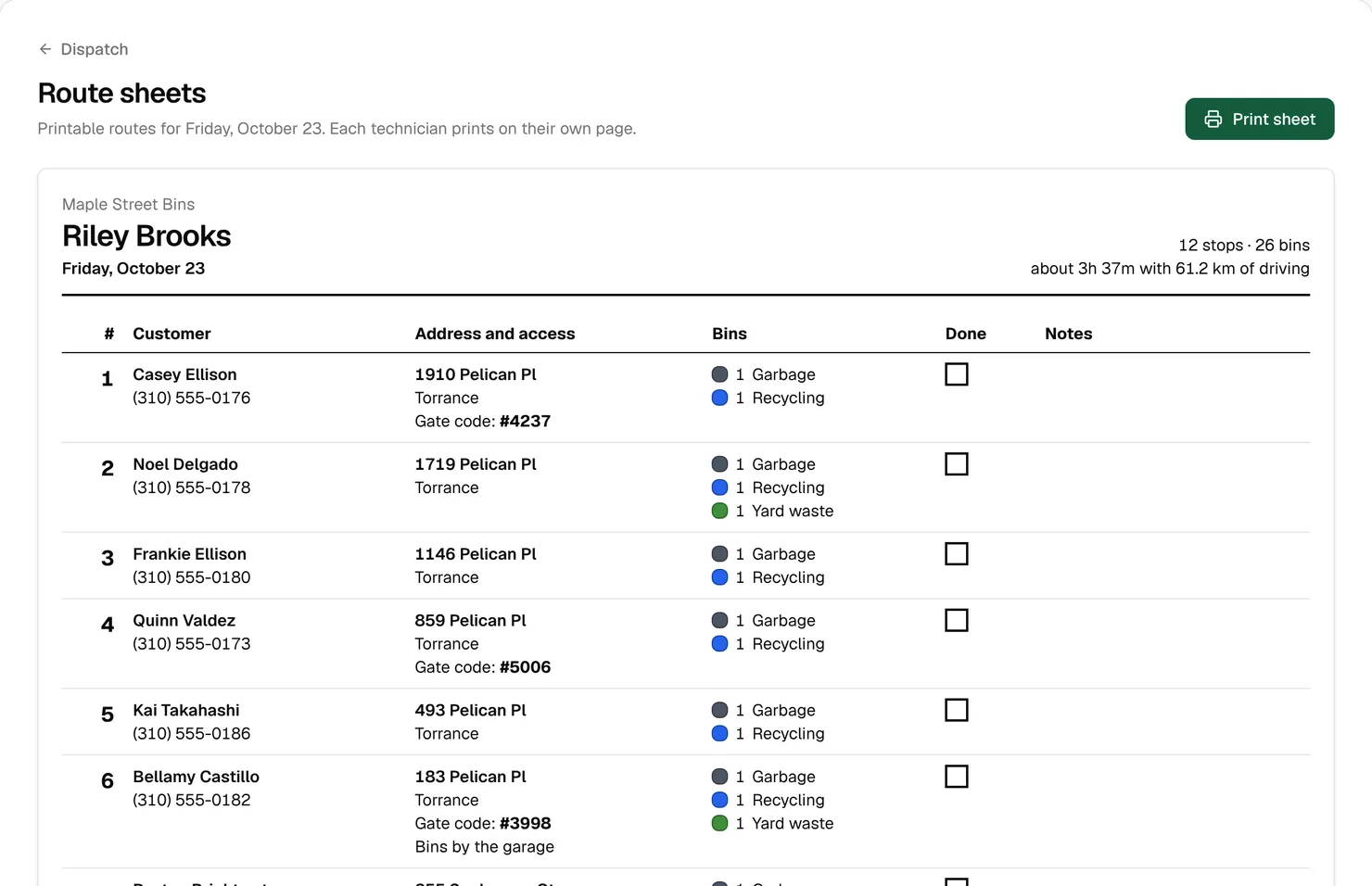
Phones die and signal drops. A sheet in the truck keeps the route going.
The settings that shape every route
These live in Business › Settings › Scheduling and routes. Click Save scheduling settings after a change.
Time at each stop. Every estimate and health badge starts here, and the defaults are only a starting point. Time a week of real stops, including first cleans, which the startup course says take two or three times as long, then set these to match.

When a route is full. A route turns Busy at 20 stops or after 5 hours, and Too much at 24 stops or after 8 hours. The startup course suggests first routes of 25 to 30 stops, so these defaults are cautious. Once you’ve timed a few days, set them to what one truck really covers.

New customers. Earliest first cleaning, 2 days after booking, gives you time to fit a new stop in. Put cleanings on the calendar, 45 days ahead, sets how far ahead real cleanings are booked.

Missed cleanings. Come back the next day for free books a free visit with the same technician when a stop ends Not cleaned. It costs a stop and keeps a promise customers notice. The default is Wait for the next regular cleaning.
Daily timing. The 5 am Daily billing and scheduling run charges cards that are due and fills in the calendar. Day-before reminders go out at 9 am (Lesson 11).
Key takeaways
- The calendar shows the month’s load by zone and technician. Click a day to fix it in Dispatch.
- A day’s routes take four moves: clear left-open stops, assign, Optimize order, print. There’s no send step.
- Moving stops tells customers; skipping doesn’t. Pick new days with trash day in mind.
- Close out left-open stops every morning, so records, messages and charges match what happened.
- Set Time at each stop and the route limits from your own timed days.
FAQ
Do I need to send routes to my technicians?
No. Each technician’s driver app shows their stops in the order on Dispatch, and assigning or reordering doesn’t message customers.
Does the customer find out when I move or skip a stop?
A move sends the “Cleaning rescheduled” text or email with the new date and your reason. A skip sends nothing, so message them yourself if they should know.
Why don’t the calendar’s numbers match Dispatch?
Days past your Put cleanings on the calendar window are predictions from each plan’s schedule. They don’t allow for hauler holidays and aren’t split by technician. Dispatch shows booked stops.
Why does a route with only 15 stops show Busy?
Route health counts time as well as stops. With the defaults, a route turns Busy after 5 hours of driving and time on site.