Lesson 7 of 147 min read
Billing: cards on file, failed cards and invoices
How Clean Bin System bills your customers: when saved cards are charged, what happens when one fails, refunds, invoices and quotes, tips and payouts.
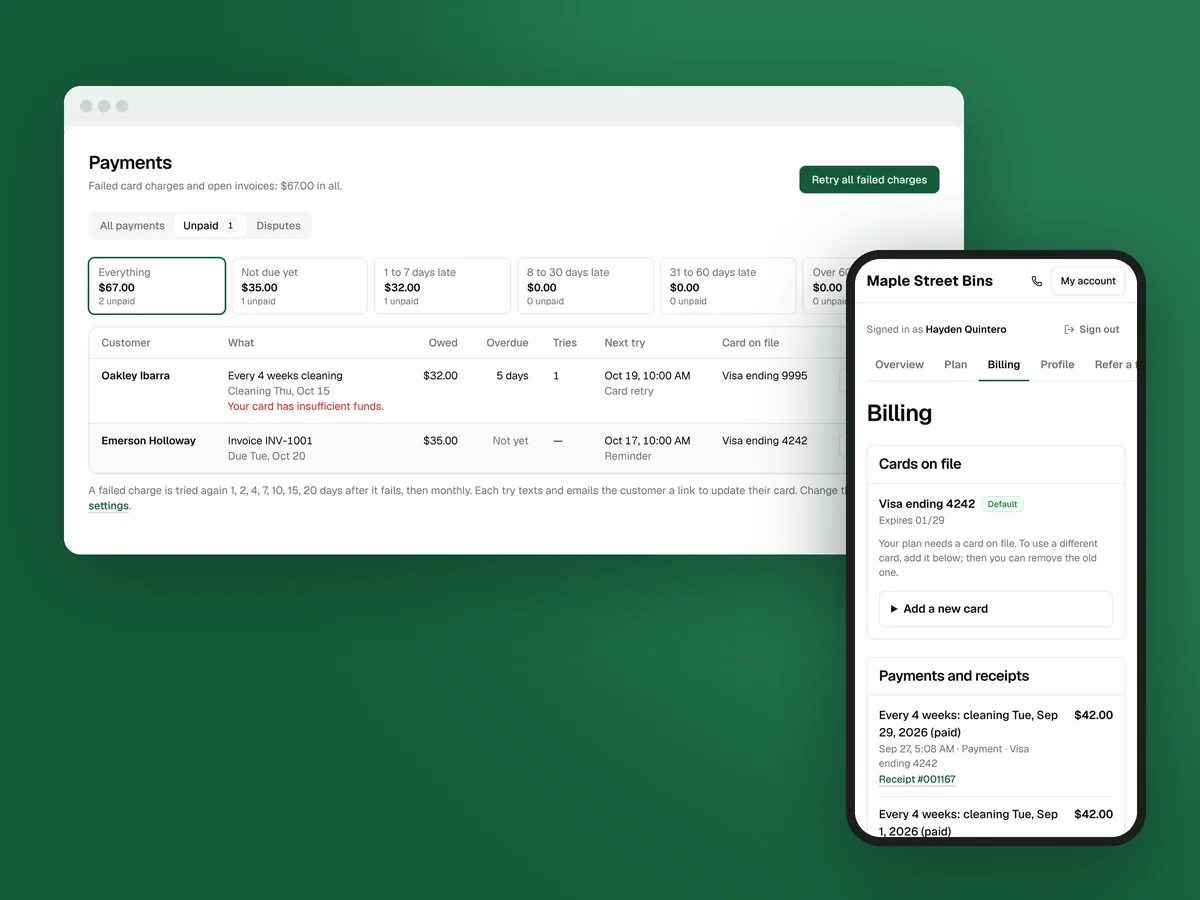
Bin cleaning is a subscription business, and the startup course counts failed cards among the leaks that cost bin cleaners the most. Clean Bin System charges each customer’s saved card on your schedule, retries a failed card by itself, and keeps everyone who owes you on one tab.
Connect Stripe
Cards are saved with Stripe, and the money goes to your own Stripe account. Stripe pays it out to your bank on your payout schedule.
- Open Business › Settings › Card payments and click Connect Stripe.
- Sign in to Stripe, or create an account, and allow Clean Bin System.
- Back on Card payments, check for “Payments run on: Stripe connected” and “Charges: Enabled”. If it says Waiting for Stripe, click Open Stripe dashboard and finish your business details and bank account.

Until you connect, cards go through a test processor and nothing is real, which is how you make test bookings (Lesson 2). Moving from Jobatory? Connect the same Stripe account, and imported customers keep their saved cards. Standard card processing costs 2.9% plus 30 cents a charge, about $1.20 on a $31 cleaning. The pricing page says whether Clean Bin System adds a platform fee. It never takes one from tips.
When cards are charged
Open Business › Settings › Billing. Two choices decide most of it.
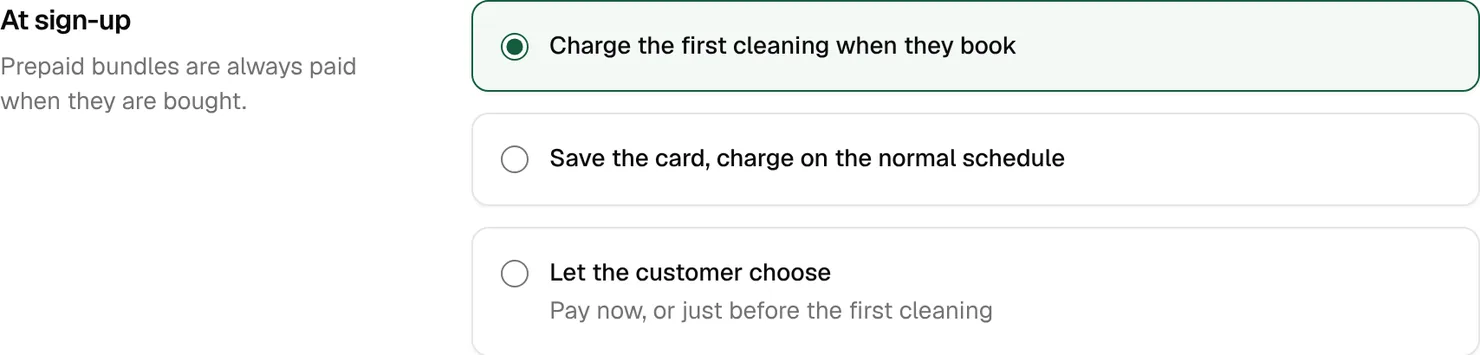
At sign-up: Charge the first cleaning when they book (the default), Save the card, charge on the normal schedule, or Let the customer choose. Prepaid bundles are always paid when they’re bought.
Each cleaning: Before the cleaning (the default) or After the cleaning, once the stop is marked done. Then A set number of days before (2 by default) or On the same day each month, which covers that month’s cleanings.
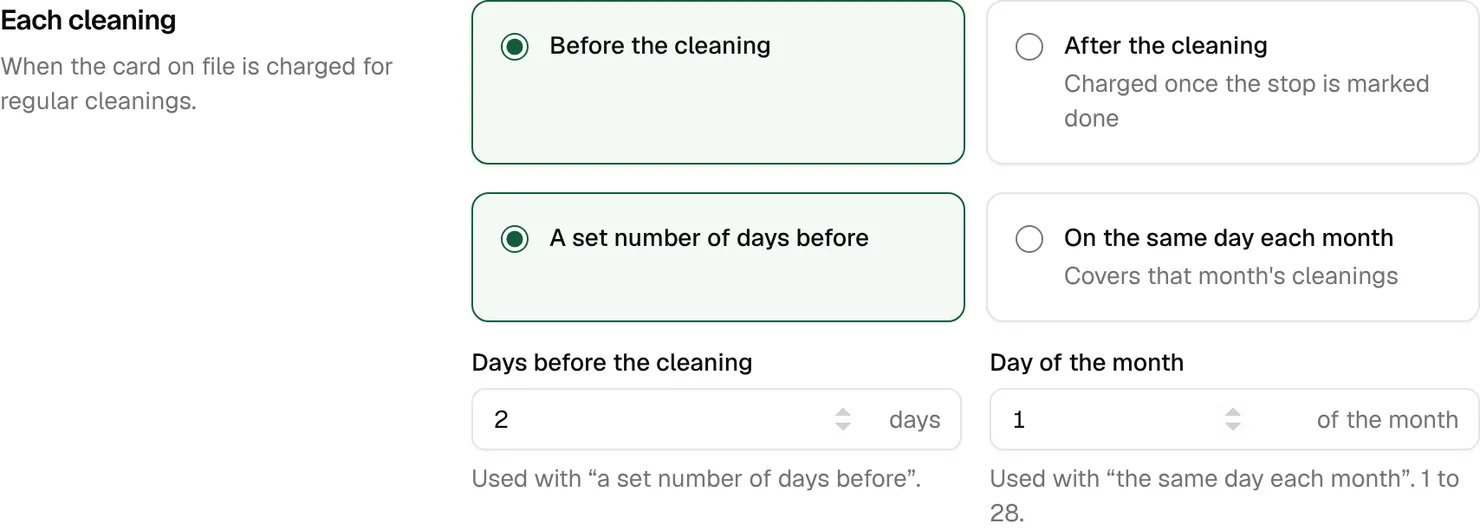
Cards are charged at the daily billing run, 5 am unless you change it in Business › Settings › Scheduling and routes. Each charge sends an email receipt, and a paid plan cleaning also sends a “payment received” text and email.
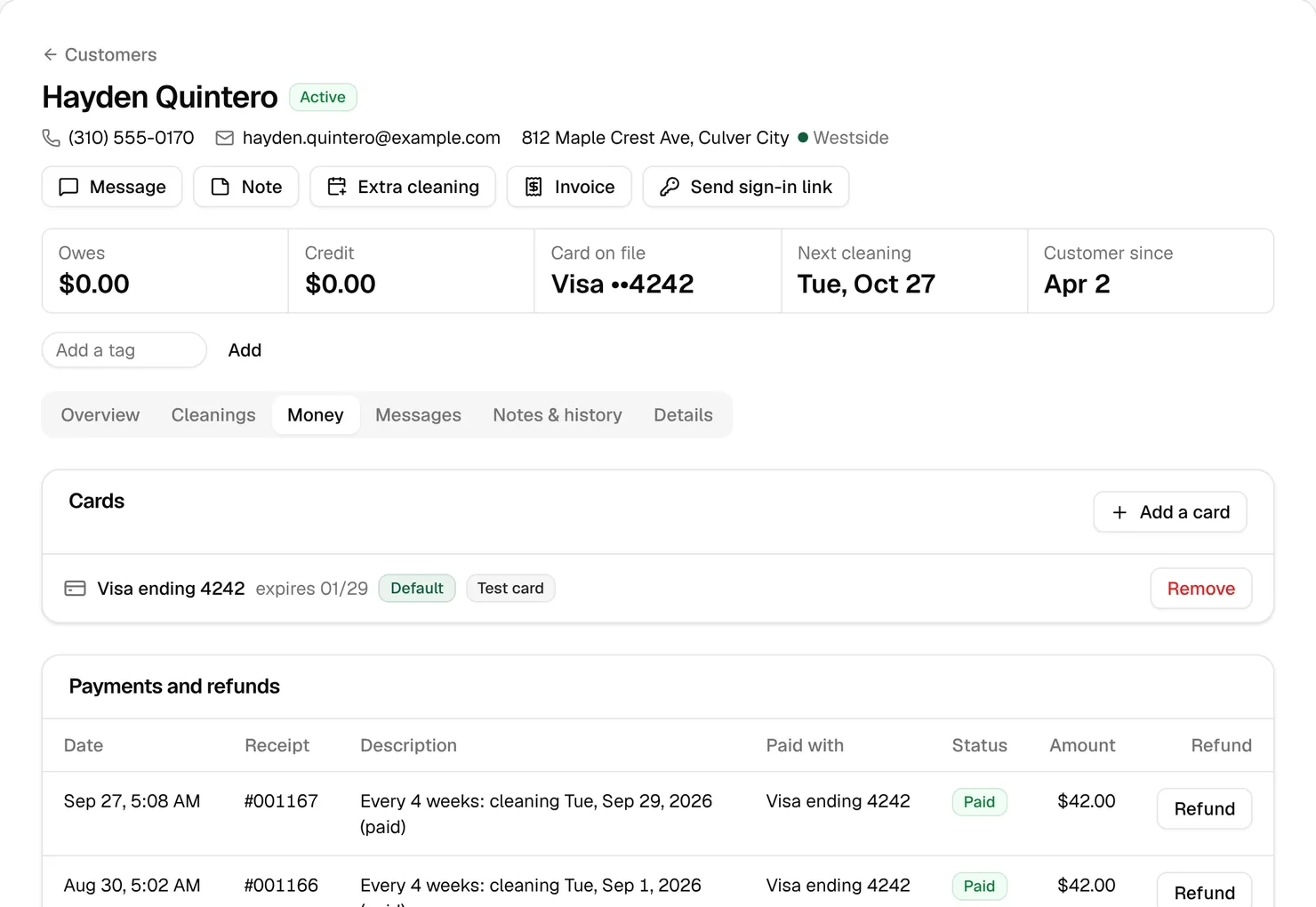
Example: Hayden, a made-up customer in the sample, pays $42 a cleaning on Tuesday trash. His September 29 cleaning was charged at 5:08 am on Sunday, September 27: two days before.
Why charge before? With the default, a dead card shows up two days before the stop. It’s retried the next day and again on cleaning day, and the customer gets an update-card link each time. Charging after the cleaning is an easy yes for customers, and some companies do it. You just learn about a dead card after the work is done.
When a card fails
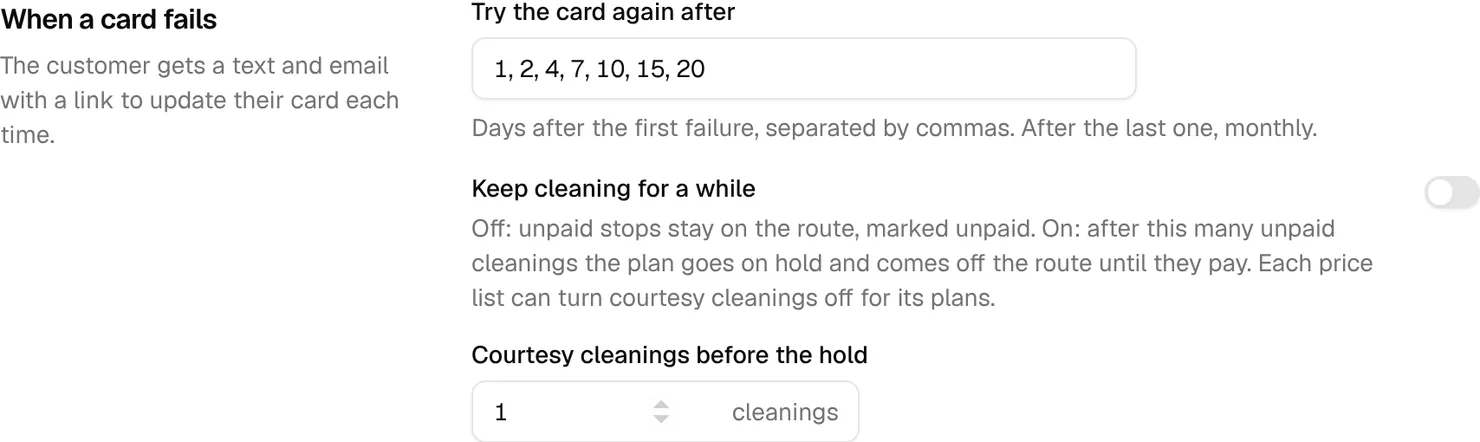
The first time a cleaning charge fails, the customer gets the Card charge failed text and email, with a link that signs them in to update their card. The card is then tried again at 10 am on days 1, 2, 4, 7, 10, 15 and 20 after that first failure. If it still fails, it’s tried every 30 days after that until it’s paid. Each failed automatic try sends the message again.
This is money worth chasing. One source in the startup course puts failed payments at about 8% of subscription charges, and says businesses recover 40% to 60% of them. Automatic retries and a card-update link do the recovering (keeping customers lesson).
The same section has Keep cleaning for a while, off by default. Off, unpaid stops stay on the route, marked unpaid. On, a plan goes on hold after your number of courtesy cleanings (1 to 6) and comes off the route until a charge goes through.
The Unpaid tab
The Unpaid tab on Money › Payments lists failed card charges and open invoices, grouped by how late they are: not due yet, 1 to 7 days, 8 to 30, 31 to 60 and over 60. Each row shows what’s owed, how many tries failed, the next try and the card on file.
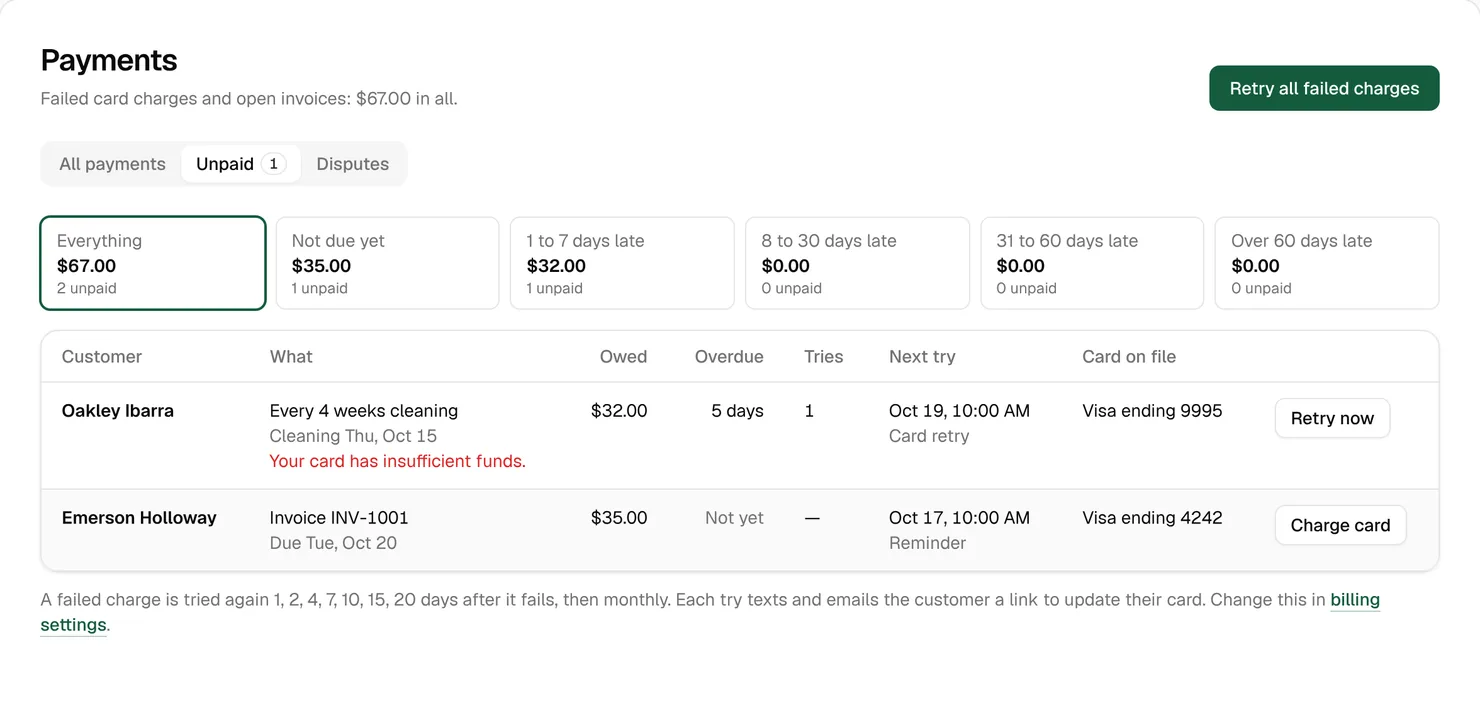
- Retry now charges all of that customer’s failed cleanings on their default card.
- Retry all failed charges tries everyone at once.
- “No card” in red means the customer has to add a card before anything can go through.
Retries you start yourself don’t text or email the customer when they fail, and the automatic ones keep going.
Tip: Look at Unpaid once a week. Someone in 8 to 30 days late has already had several texts and emails. That’s the time for a phone call.
Refunds and account credit
To give money back, open the payment from Money › Payments or the customer’s Money tab and use Refund. Choose the card, which takes 5 to 10 days to show on their statement, or account credit, which comes off their next cleaning automatically. Add a reason, click Refund payment (just Refund on the Money tab, where you can also change the amount), then Yes, refund.
The startup course’s advice is to re-clean first, refund only when you can’t, and refund as credit, which keeps the customer. Customers aren’t texted or emailed about a refund: they see it on their Billing page. Refunds can’t be undone.
Invoices and quotes for one-off work
Power washing, a dumpster pad, anything off the plan goes on an invoice or a quote, in Money › Invoices & quotes.
- Click New invoice or New quote and choose the customer. For someone new, click New customer and add their name and email or mobile number.
- Add the lines yourself, or pick from Add from your add-ons….
- Check the Due date (14 days out to start) or Good until (30 days). A quote can ask for a Deposit to accept, like 25% or 50%.
- Click Save and send invoice or Save and send quote.
The customer gets a text and email with a link to pay or accept online. Reminders go out 1, 2, 4, 7 and 14 days after an invoice is sent, and 2, 7 and 14 days after a quote, until it’s paid or answered.
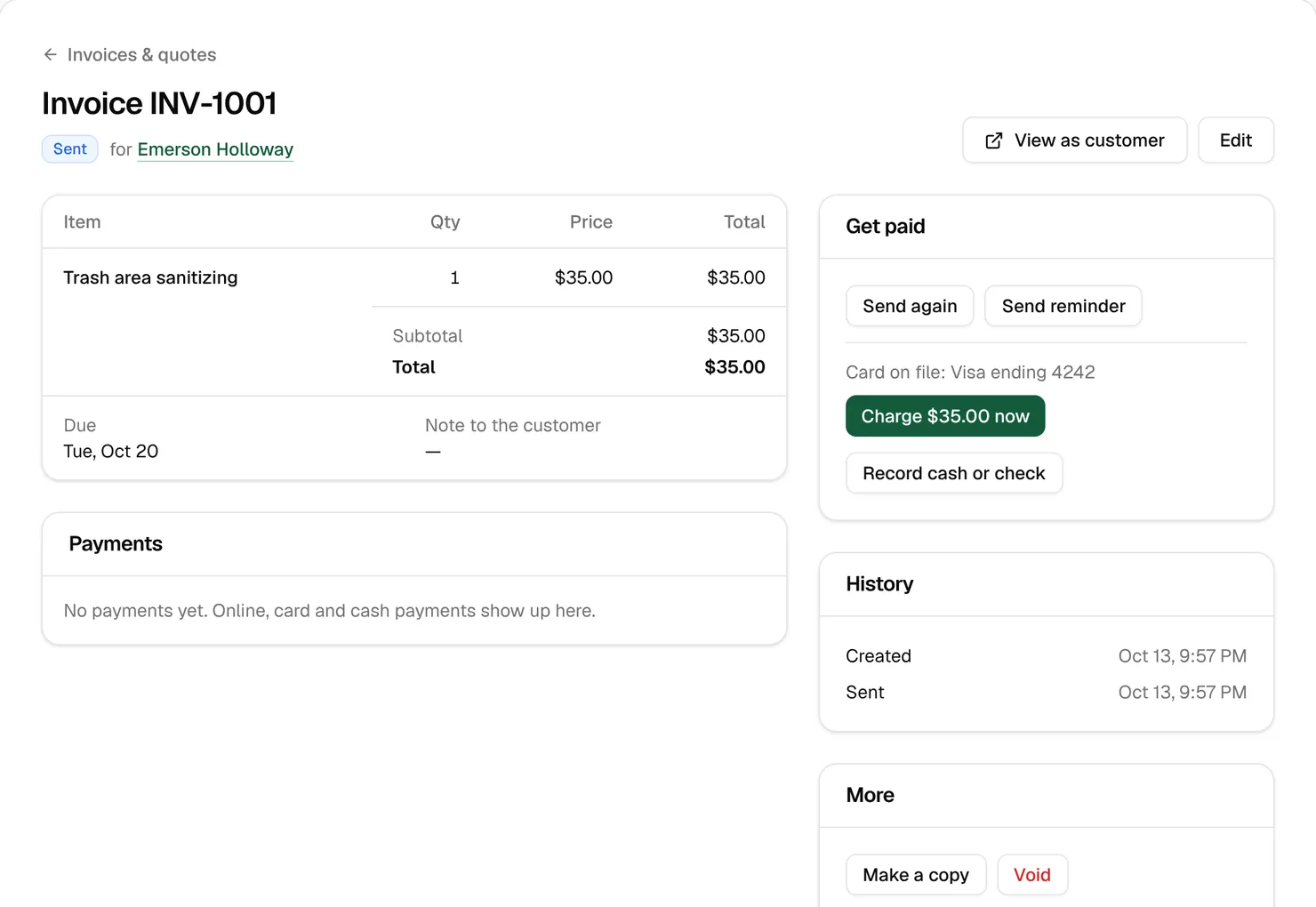
To collect it yourself, use the charge button under Get paid for the card on file, or Record cash or check.
Tips, referrals and cancellation fees
These are in billing settings too:
- Tips are on by default. Customers tip from the cleaning-done message, all of it goes on the technician’s tip balance, and you record payouts on Money › Tips (Lesson 9).
- Referrals: the customer who shares gets $20 of credit once their friend pays for a first cleaning, and the friend gets 50% off it. Both amounts are yours to change.
- Charge a fee for canceling a contract early is off by default. For plans with a contract or a minimum number of cleanings, the fee is what the cleanings would have cost at one-time prices minus what they paid, capped at $75 a bin. Fresh Bins LA charges the same way and spells it out on its pricing page, FAQ, terms and welcome email. If you charge one, say so before people pay.
- Send a win-back message is on: 75 days after a one-time cleaning, with a coupon if you pick one.
Disputes
A dispute is a customer asking their bank to reverse a card payment. It shows on the Disputes tab of Money › Payments, and you get an email. Click Respond in Stripe and send your evidence before the deadline: cleaning dates, before and after photos, the texts you sent, and their sign-up and terms. While a dispute is open, you can’t refund that payment in Clean Bin System.
The Billing settings, How and when customers are charged, and Failed cards and unpaid balances guides in your Learning center cover every field.
Key takeaways
- Connect Stripe before your first real customer. Until then, nothing is charged for real.
- By default the first cleaning is charged at booking, and each one after that 2 days before, at the 5 am run.
- A failed card is retried 7 times over 20 days, then monthly. The customer gets an update-card link each time.
- Unpaid shows everyone who owes you by how late they are, and Retry now charges the card on file.
- Refund as account credit when you can. It comes off the next cleaning and keeps the customer.
FAQ
Why was a customer charged two days before their cleaning?
That’s the default: Before the cleaning, 2 days before. Change it under “Each cleaning” in Business › Settings › Billing.
Can I turn off the failed-card messages?
No. Card charge failed is required. You can change its wording and the retry days.
Is the customer told when I refund them?
Not by text or email. They see the refund on their Billing page under “Payments and receipts”.
Where’s my money?
In your Stripe account, which pays out to your bank on your payout schedule. Open Stripe payouts on Money › Payments shows the payouts.