Lesson 10 of 147 min read
Customers: records, changes and their own accounts
How to find any customer, read their page, skip, move, pause or cancel a plan, add or import customers, and what customers can change in their own account.
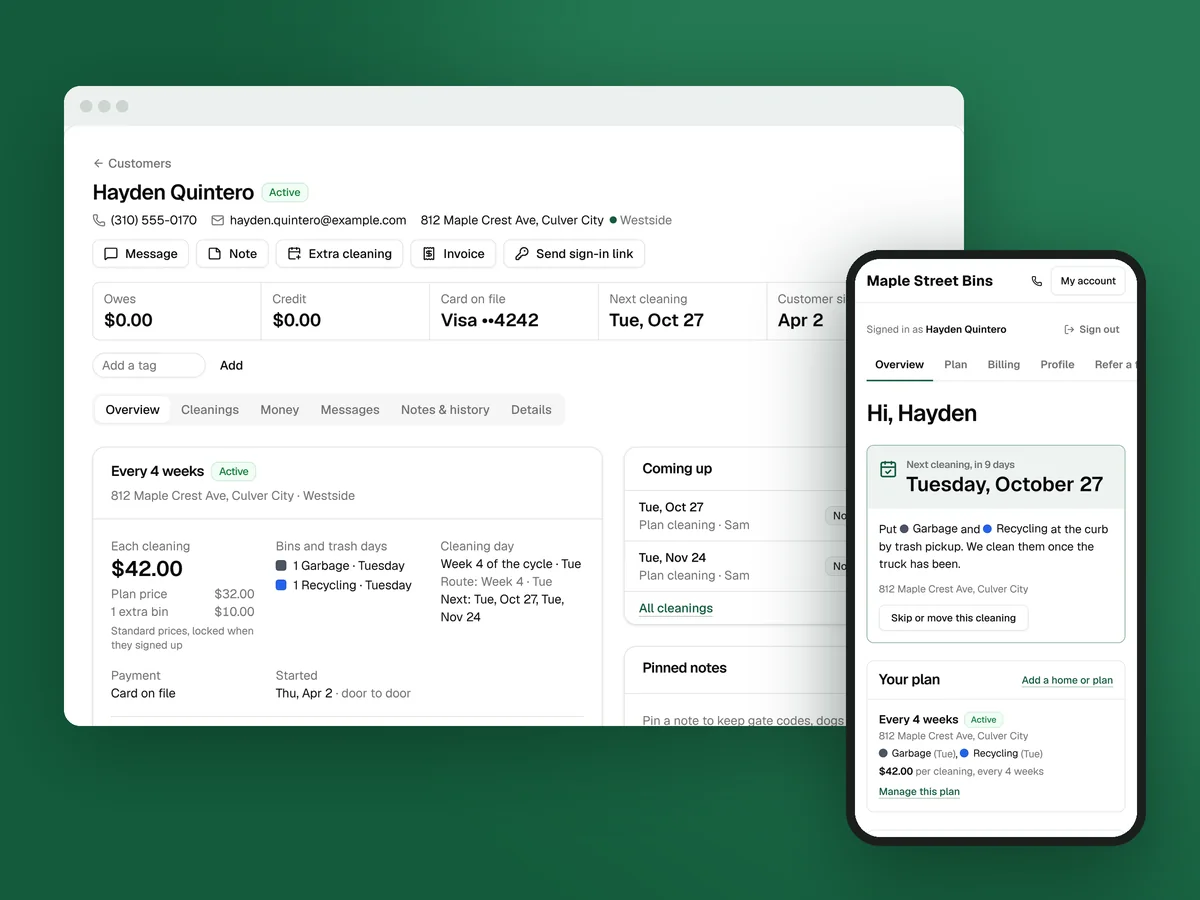
Bin cleaning is a subscription business. A customer who stays four years is worth about four times one who leaves after one (keeping customers), and what keeps them is mostly small: skipping a week, pausing for a trip, adding a bin, moving house, fixing a card. In Clean Bin System each of those changes lives on one page, and customers can make most of them in their own account without calling you.
The customers shown are made up, from the sample business Maple Street Bins.
The customer list
Customers › Customers lists every customer, however they joined. Chips at the top count each status, and Payment problems turns yellow when it’s above zero. Search finds a name, email, phone number, address or the ID from your old system. Menus filter by zone, plan, payment, tag and how they heard about you.
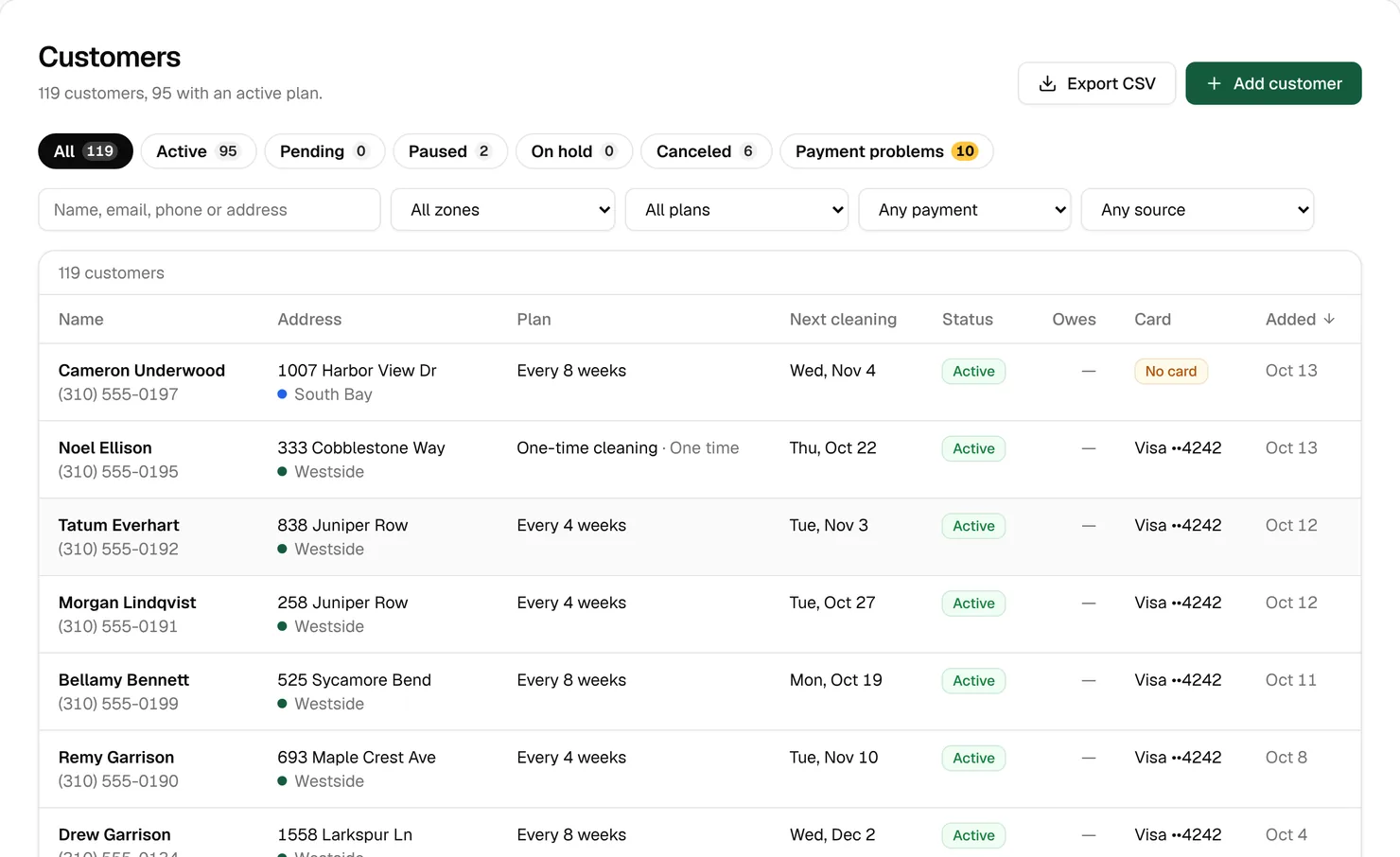
Two views are worth a regular look. Payment problems shows failed charges and running plans with no card. One secondary source puts failed subscription payments at about 8%, with 40% to 60% recovered, so work this list. Outside every zone, in the zone menu, shows homes with no cleaning days until a zone covers them. Export CSV downloads whatever the list shows.
Pending means a customer started booking online or at the door but didn’t finish the payment step: no card saved yet, or the first charge failed. Customers you add yourself start Active.
One customer’s page
Click a name. The top of the page stays the same on every tab: contact details, the buttons Message, Note, Extra cleaning, Invoice and Send sign-in link, and a strip with what they owe, their credit, card, next cleaning and how long they’ve been a customer.
The Overview tab has a card for each plan. Hayden’s shows what a cleaning costs and why, $32 for the plan plus $10 for an extra bin, at prices “locked when they signed up”. It shows his bins and trash day, his week of the four-week cycle, and that he started door to door. The buttons under it make every change to the plan.
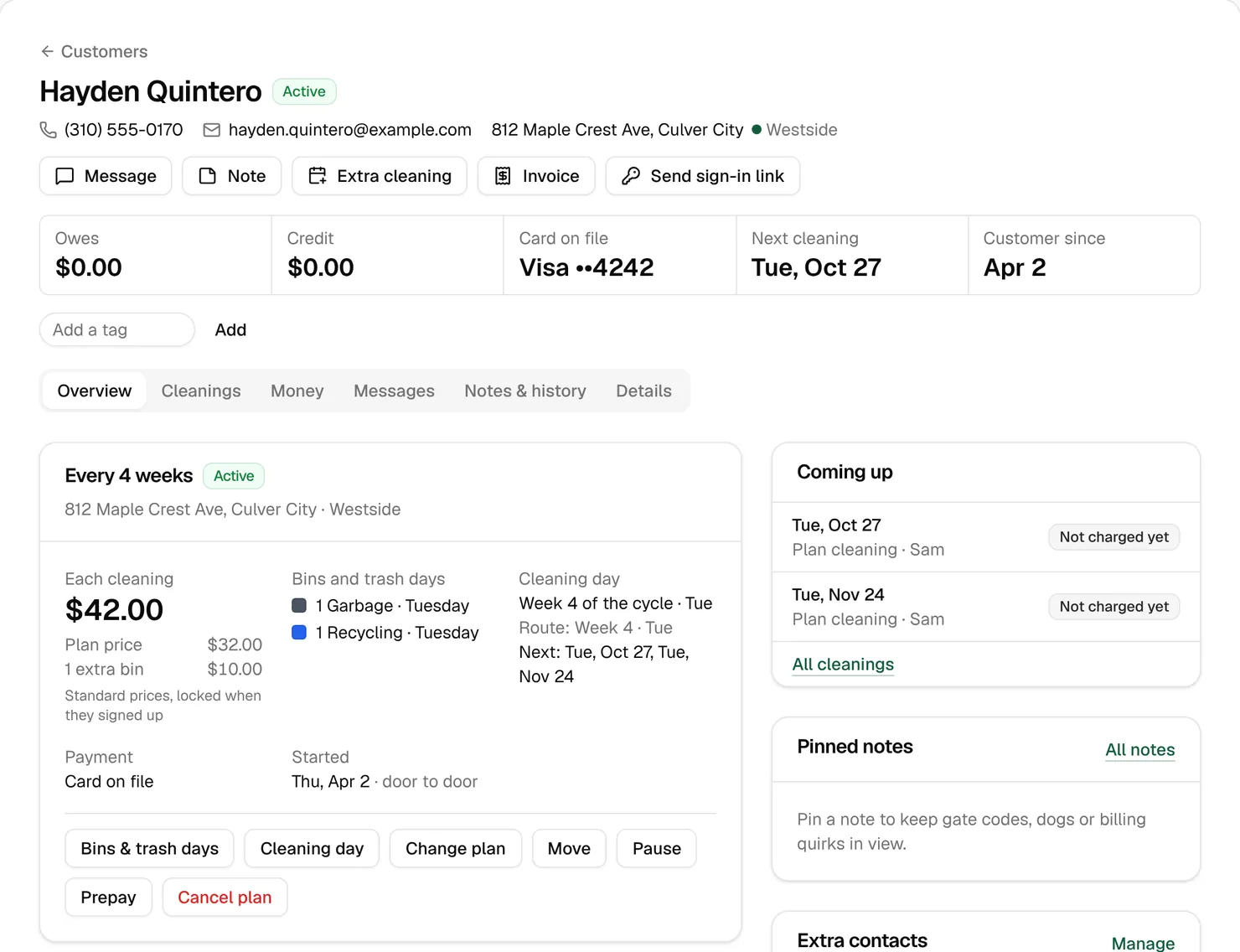
On the right are his next cleanings, pinned notes and extra contacts:
- Pinned notes hold the gate code, the dog, the bins by the side gate. Up to five show here, and the technician sees them on the stop as “From the office”. Customers never see notes.
- Extra contacts copy a spouse, tenant or property manager on reminders and service messages, never receipts or marketing. In a rental, the person who puts the bins out often isn’t the one who pays.
The other tabs:
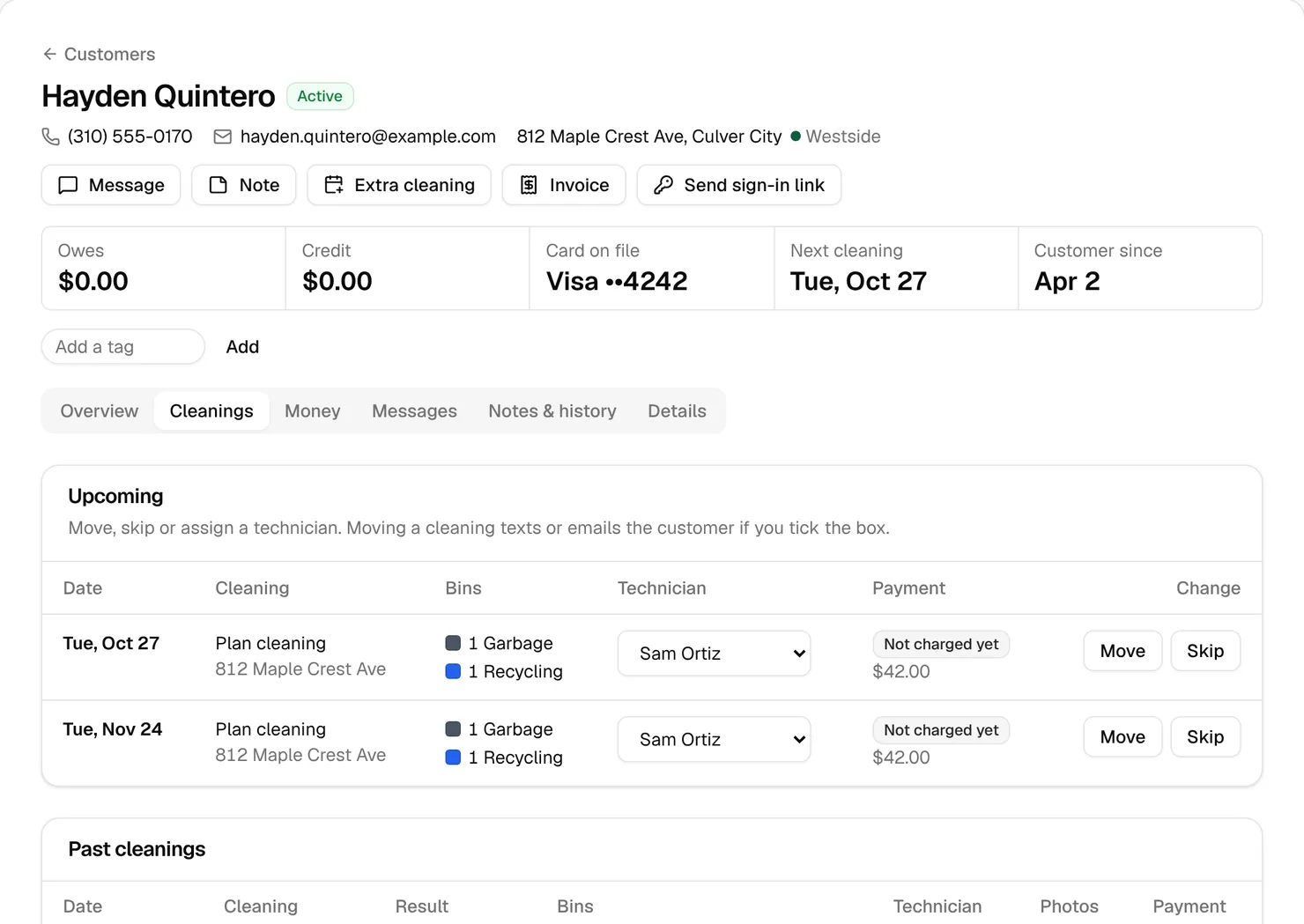
- Cleanings: upcoming cleanings with Move, Skip and a technician menu, then past cleanings with each bin’s result and photos.
- Money: failed charges with Charge now, cards, refunds, credit and invoices (Lesson 7).
- Messages: every text and email sent, texts they sent back, and a form to send one.
- Notes & history: notes, contacts and a log of every change and who made it.
- Details: contact details, text consent, each home and its zone, and merging duplicates.
A message from the Messages tab or the Message button goes out by text, email or both, as “Message from the office”. Texts start with your business name and still wait for quiet hours.
Changes, and what the customer is told
Most changes send nothing. When the customer should know, tell them with Message.
| Change | Where | The customer gets |
|---|---|---|
| Skip one cleaning | Cleanings tab, Skip | Nothing. It isn’t charged unless already paid. |
| Move one cleaning | Cleanings tab, Move | “Cleaning rescheduled”, if Tell the customer is ticked |
| Pause the plan | Pause | Nothing |
| Change plan, bins or cleaning day | Change plan, Bins & trash days, Cleaning day | Nothing |
| Move to a new address | Move on the plan card | Nothing |
| Cancel | Cancel plan | “Cancellation confirmed”, if you leave the box ticked |
A few things to know:
- Skip or pause? Skip takes one cleaning off. Pause takes every unpaid cleaning off until Start cleaning again on, then restarts by itself. When someone calls to cancel for a trip or the winter, offer the pause. The startup course’s rule: a paused customer comes back; a canceled one rarely does.
- Move one cleaning offers their next trash days as quick picks. To change their day for good, use Cleaning day on the plan card.
- Change plan uses today’s price for the new plan. Move to a new address keeps the price and finds the new zone and cleaning day.
- Cancel plan takes a reason for your dashboard and shows any early cancellation fee, with Waive the fee. Restart plan under Past plans brings a plan back at today’s prices.
Watch out: Changing the plan or bins rebuilds the unpaid cleanings ahead, and that can bring back a cleaning that was skipped. Check the next date afterward.
Adding a customer yourself
For a booking on the phone, click Add customer. Type the address and the zone appears. Pick the plan and bins, and the price per cleaning shows while they’re still on the line. Under First cleaning, the Suggested day joins the nearest route, which keeps routes tight. Then choose how they pay: their card now, a link to add their own card, or an invoice after each cleaning.
Tick They agreed to get texts about their cleanings only if they said yes on the call. If the email already belongs to a customer, the form links to their record, so you add a plan instead of a duplicate.
Importing your customers
Coming from Jobatory or a spreadsheet? Customers › Import reads Jobatory’s migration sheet on its own, and lets you match the columns of any other CSV. Plans, bins, trash days, credit and saved Stripe cards come along. You check the first rows before anything is saved, and rows with problems are listed for you to fix and upload again.
Nothing goes on the calendar and nobody is messaged until you click Activate & notify. Then each plan’s next cleaning is set from its last one, and customers get a welcome email, or a link to add a card if there’s none. The switching page walks through it.
Watch out: Turn off charging in your old system before you activate, so nobody is charged twice. Coming from Jobatory, connect the same Stripe account before you import, so saved cards come over.
What customers do in their own account
Customers sign in with Sign in at the top of your sign-up page (it reads My account once they’re in), or from the links in your texts and emails, with no password needed. Their account has tabs for Overview, Plan, Billing, Profile, Refer a friend (when referrals are on) and Request a service.
- Overview: the next cleaning and which bins to put out, the plan, and recent cleanings with photos and a tip button.
- Plan: move the next cleaning to one of up to five dates, skip it, pause for up to 90 days, change bins or trash day, switch plans, prepay or cancel.
- Billing: cards and receipts. A new card becomes the default, and anything due is charged to it right away.
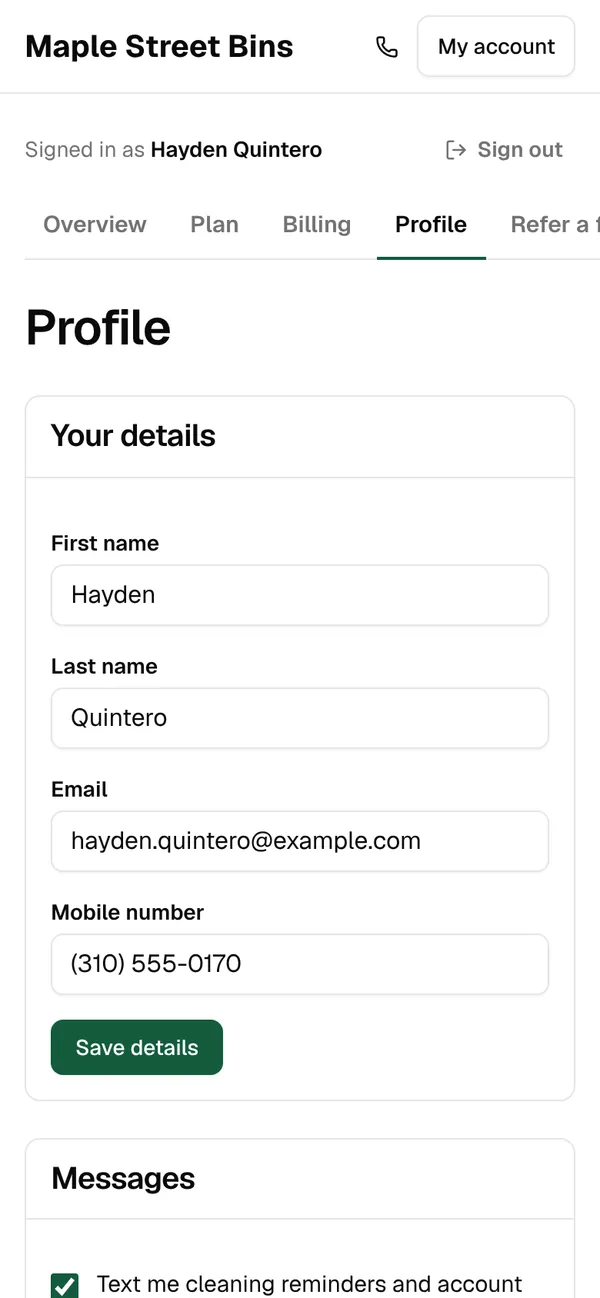
- Profile: contact details, text settings and notes for the technician.
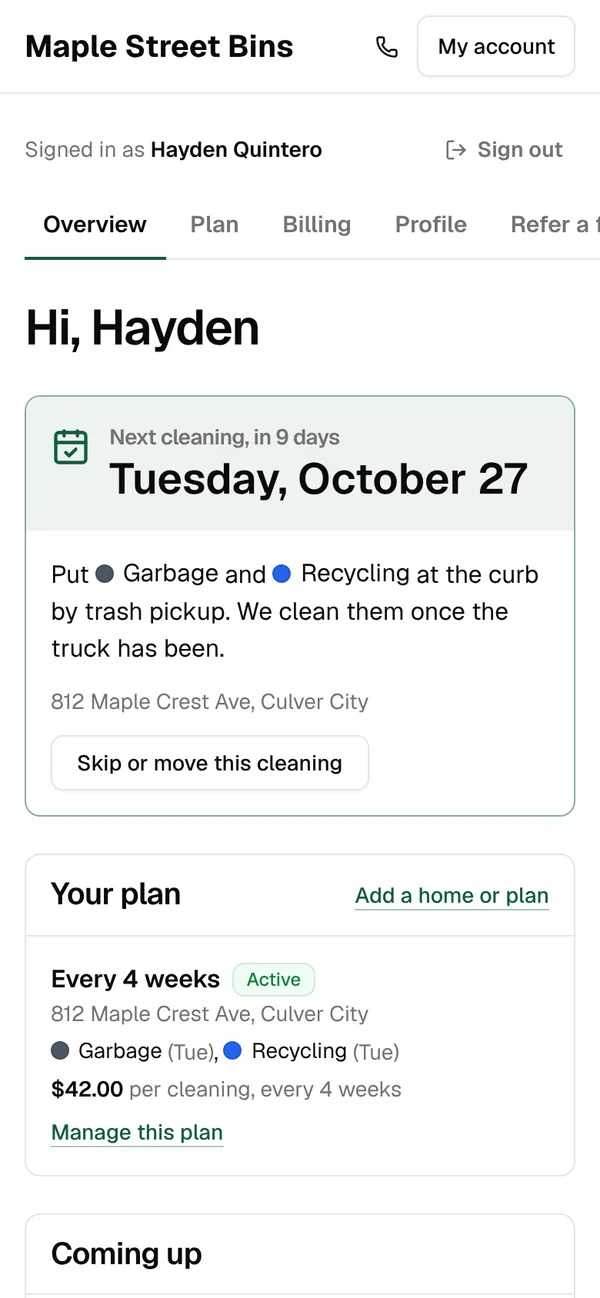
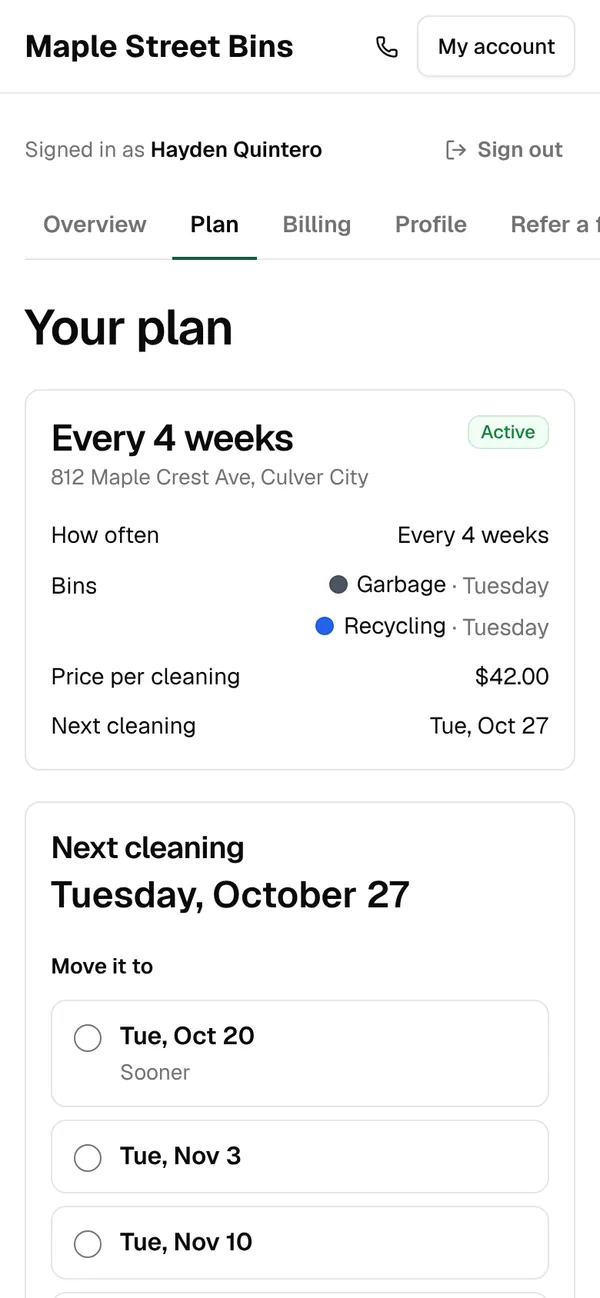
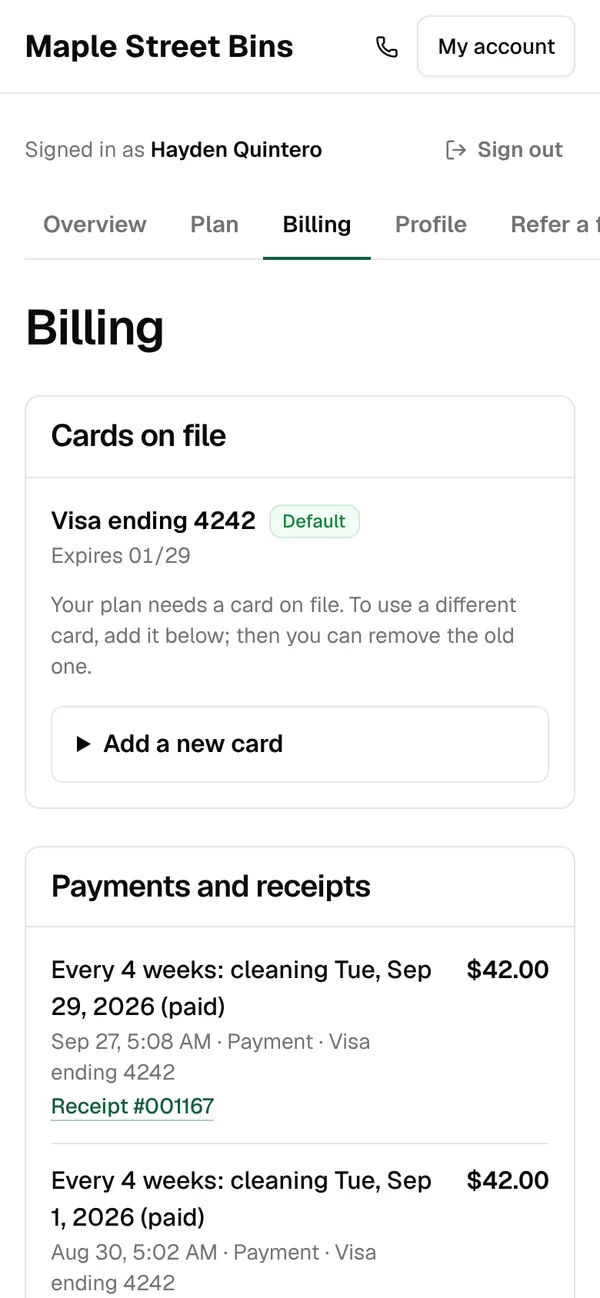
Only the next cleaning can be changed online, and not on the day itself. A move texts and emails the customer the new date. You get an email when someone cancels, but not when they skip or move.
Every change made here is a call you didn’t take, and self-service skips and pauses are on the startup course’s list of what keeps customers. A gate code typed on Profile shows on the technician’s stop, too.
Tip: When a customer can’t get in, click Send sign-in link on their page. The link signs them into their account and works for 24 hours.
Key takeaways
- The customer list’s chips and filters pull out who needs you: payment problems, homes outside your zones, a tag.
- Every customer has one page, and the plan card on its Overview makes every change.
- Most changes don’t message the customer; moves and cancellations do. Use Message for the rest.
- Offer a pause before a cancellation. It restarts by itself.
- Imports stay quiet until Activate & notify. Turn off your old system’s charging first.
- Customers can move, skip, pause, change bins and update their card themselves.
FAQ
Does the customer find out when I skip a cleaning?
No. Skipping sends nothing, and the cleaning isn’t charged unless it was already paid. Send a Message if they should know.
I skipped a cleaning they’d paid for. Do they get their money back?
Not from the skip. Refund it on their Money tab, to the card or as account credit.
Can a customer change a cleaning that’s today?
No. Only the next cleaning can be changed online, and not on the day itself, so they need to call you.
Will my customers get a message when I import them?
No. Nobody hears from you until you click Activate & notify and confirm.