Lesson 3 of 147 min read
Make it look like your business: logo, colors and words
How to brand your Clean Bin System sign-up page and emails: the right logo files, a brand color that passes the readability check, and your own words.
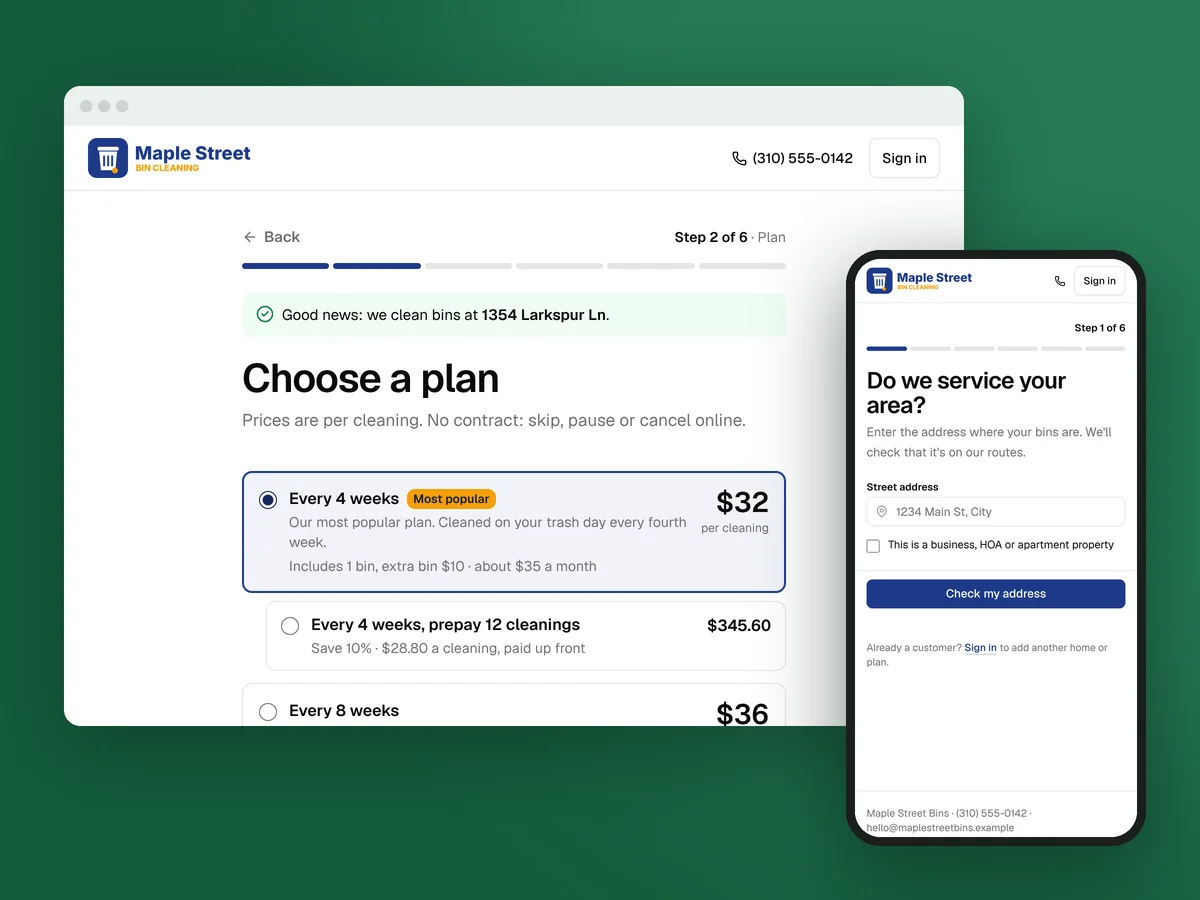
Your sign-up page is where people decide to hand you their card, and every reminder and receipt after that carries your name. Out of the box it works, but it looks like everyone else’s: your name in plain type and Clean Bin System’s green. A few minutes on one settings page makes it match your truck and your door hangers, so someone who scans your code knows they’re in the right place.
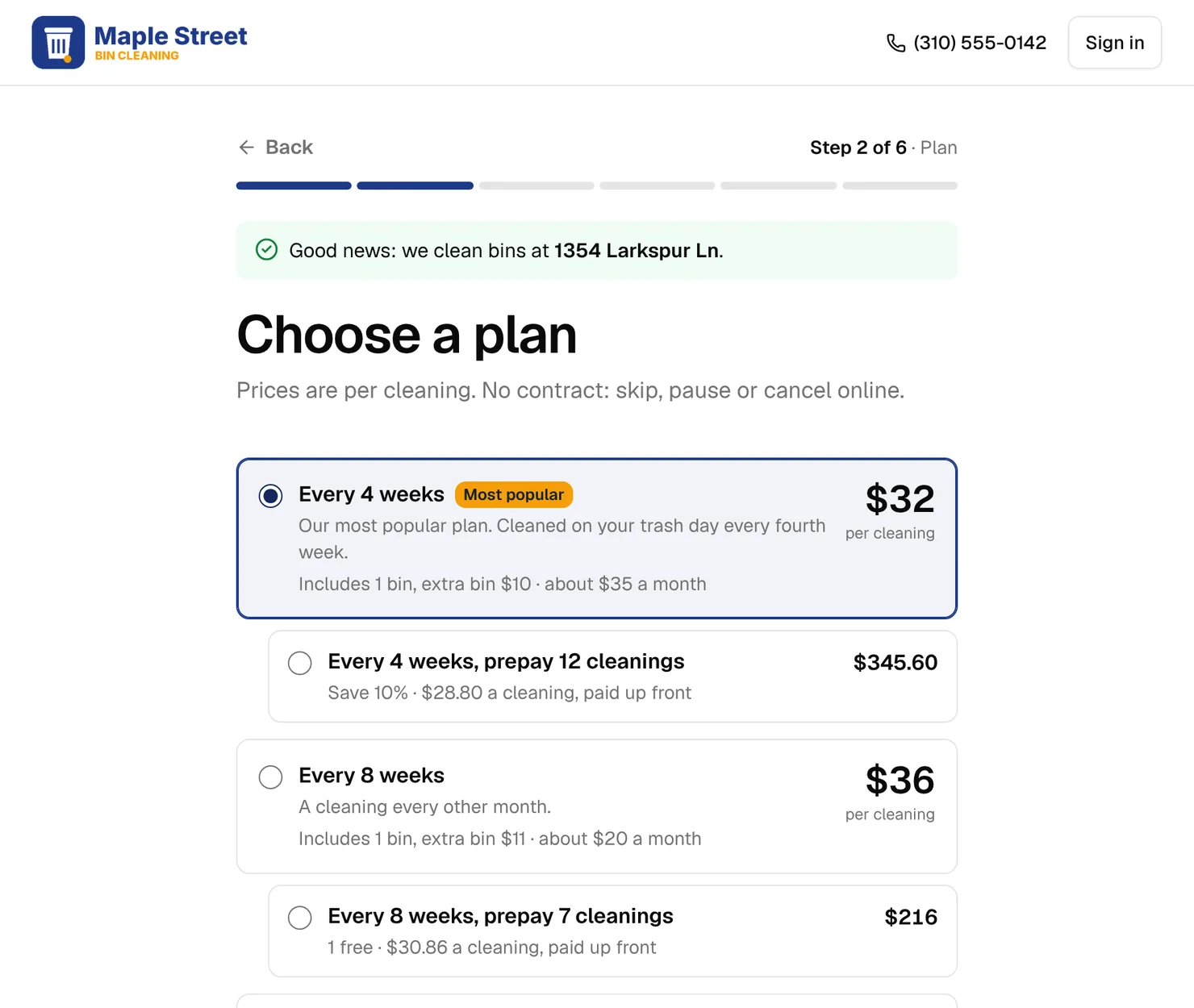
Before and after
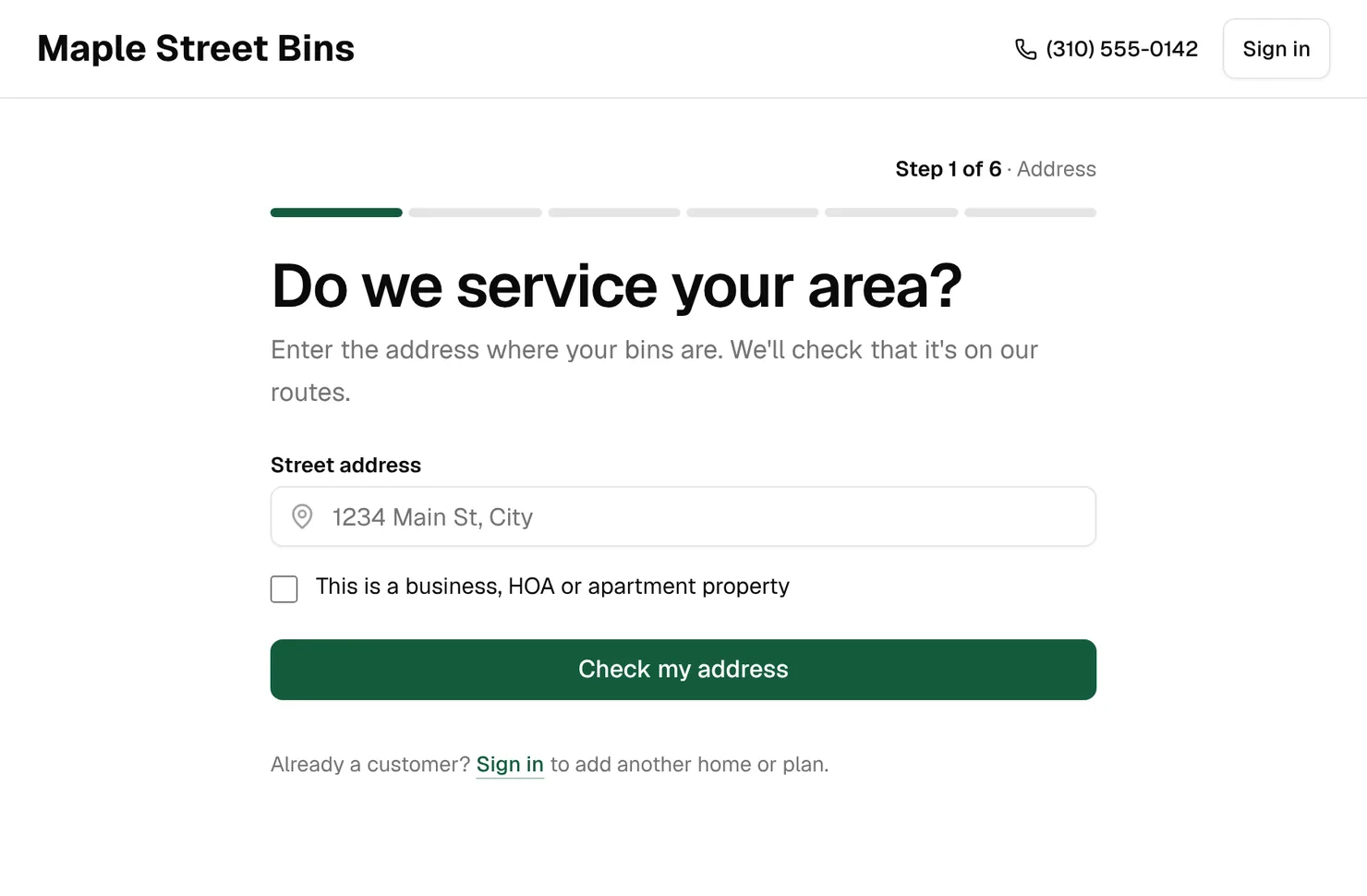
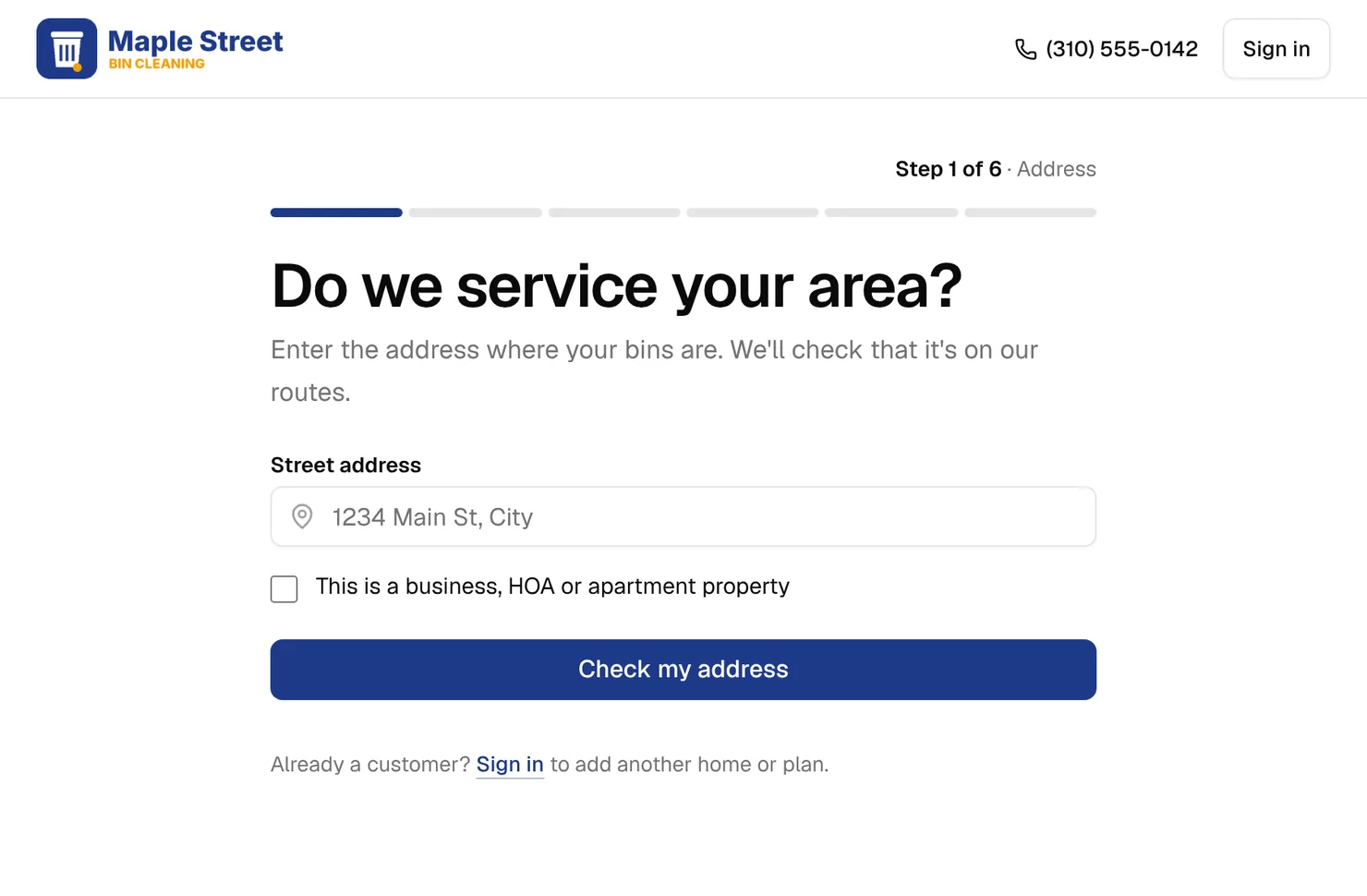
Same sample business, same page. The only changes are a logo, a square icon and two colors.
Where to change it
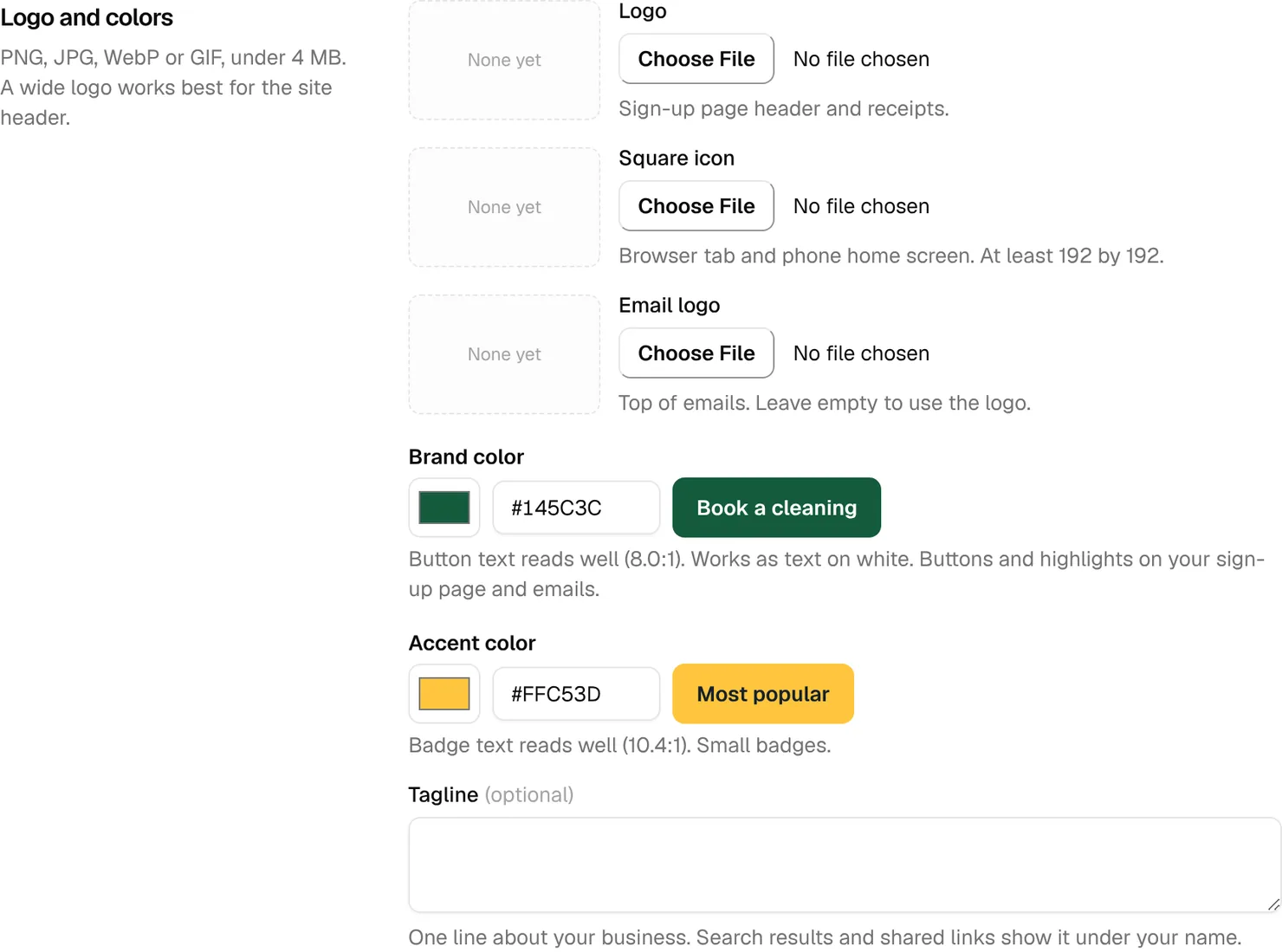
Open Business › Settings and click Business, then scroll to “Logo and colors”, or click Add logo on the setup checklist. Images can be PNG, JPG, WebP or GIF, under 4 MB. Save business details at the bottom saves the whole page.
Your logo: wide, and made for white
The Logo goes in your sign-up page header and on receipts. The header is white, and the logo shows about 40 pixels tall and up to 180 wide (150 on a phone). So:
- Use a wide version, about four times as wide as it is tall. A square logo shows as a small block.
- Use a PNG with a transparent background, so there’s no box around it.
- Make it at least 400 by 100 pixels, so it stays sharp on phone screens.
With your Website saved under “Links”, the logo links back to it.
The square icon
The Square icon shows in the browser tab, on a customer’s phone home screen and at the top of your back-office sidebar. Make it at least 192 by 192 pixels, and use your mark without the words: it shows as small as a browser tab.
The email logo: a light version for dark colors
Every email starts with a bar in your brand color, with your logo on it. Leave Email logo empty and emails use your main logo, so a dark logo on a dark brand color disappears:
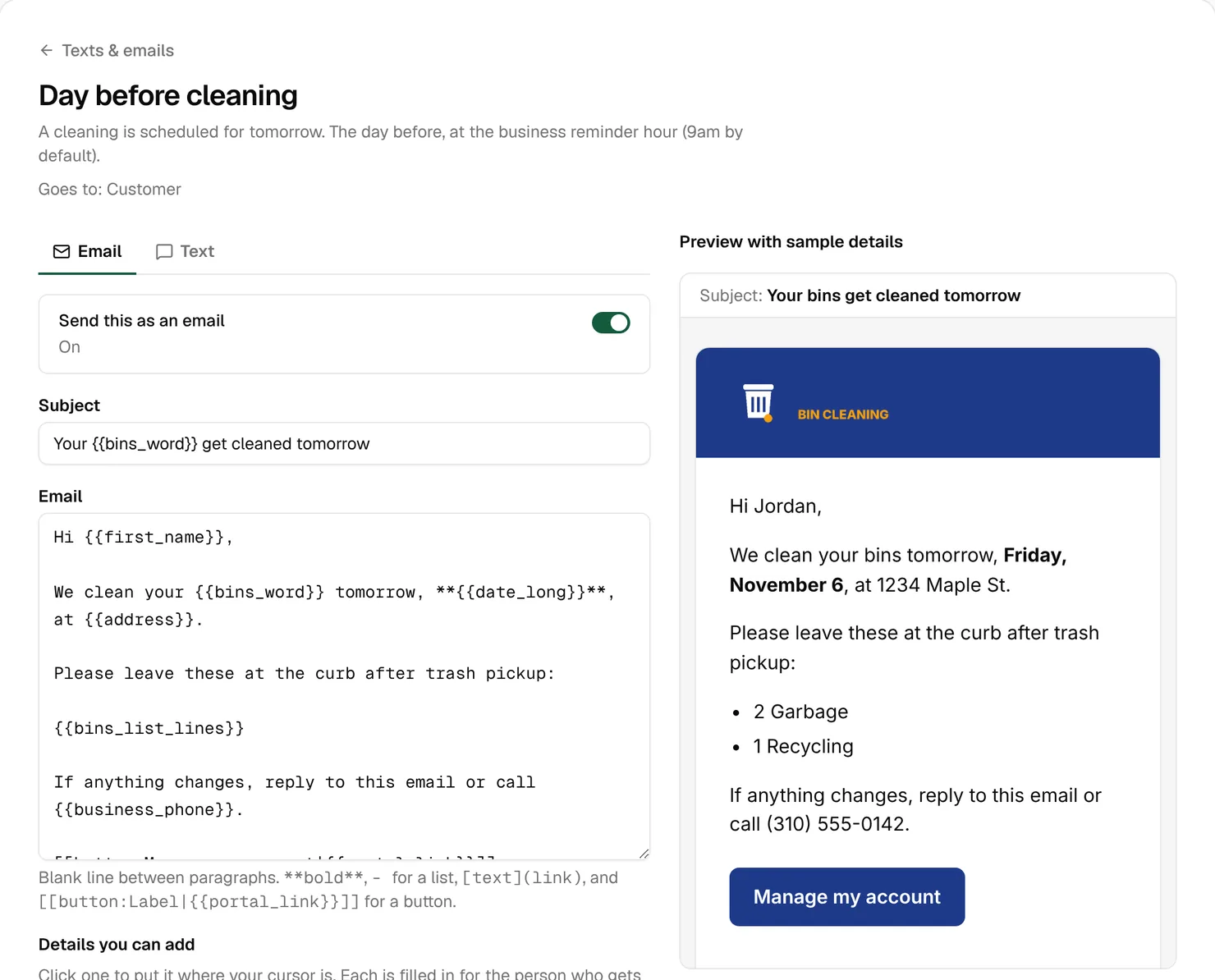
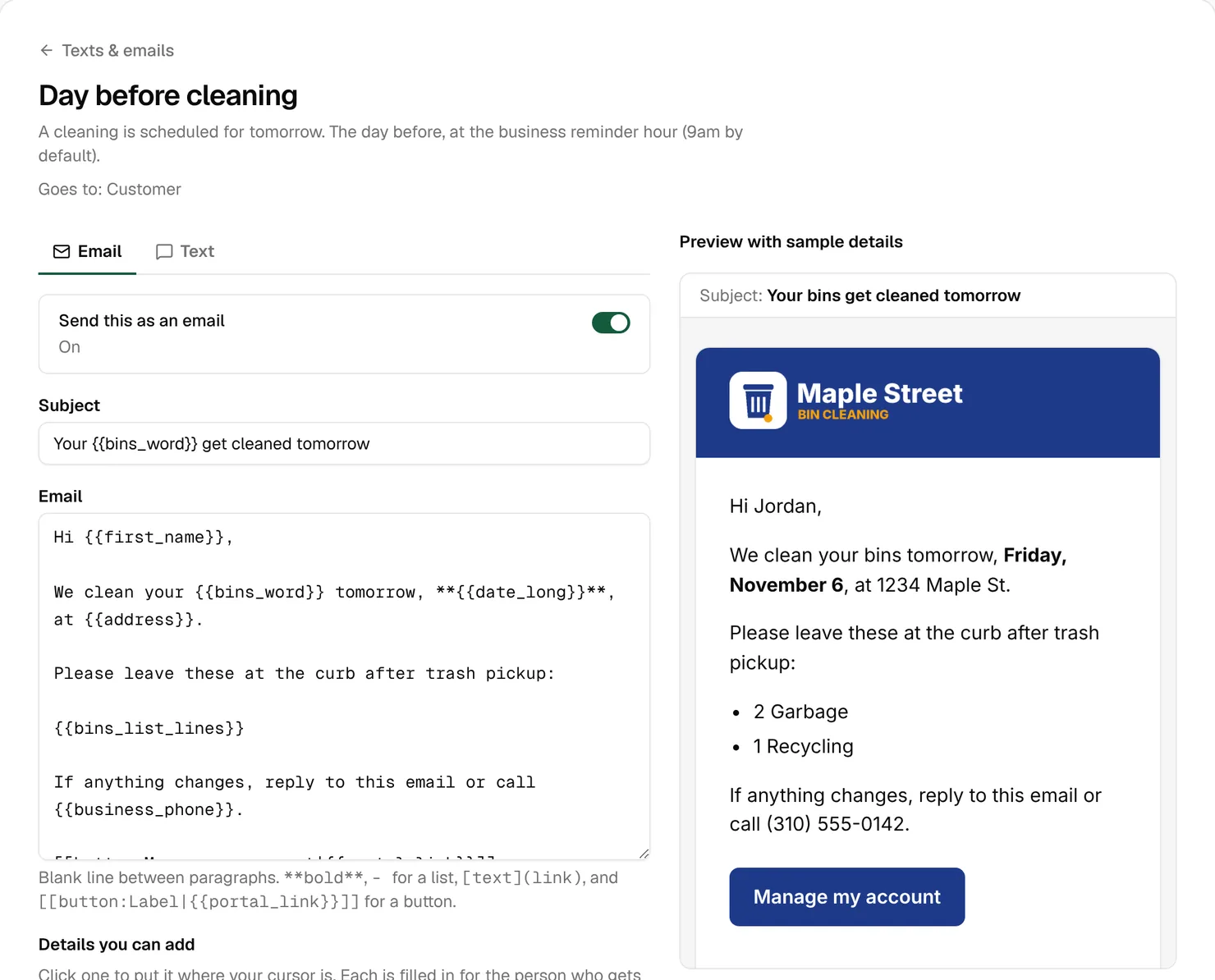
Upload a white or light version as the Email logo. A logo that works in one color, as the startup course’s first customers lesson recommends, makes this easy. The preview of any email in Messages › Texts & emails shows your header.
Brand color and the readability check
The Brand color fills the buttons, the progress bar and the selected plan on your sign-up page, and the header and buttons in your emails. It starts as dark green, #145C3C. The check under it answers two questions:
- Can people read the button text? Buttons get white or dark text, whichever reads better. The check says “Button text reads well”, “is readable at large sizes only” or “is hard to read”, with the contrast, like “(4.8:1)”. You want “reads well”.
- Does it work as text on white? Links on your sign-up page, like Sign in, are your brand color on white. A dark enough color gets “Works as text on white.” A light one gets “Too light for text on white, so links use a darker shade of it.”
Emails pick the same way: white or dark text on your brand color, on buttons and in the header when you have no logo. So a light brand color reads in both places.
Try it here. Pick Sky blue to see a light color at work: its buttons get dark text, and its links get a darker shade.
Try your colors
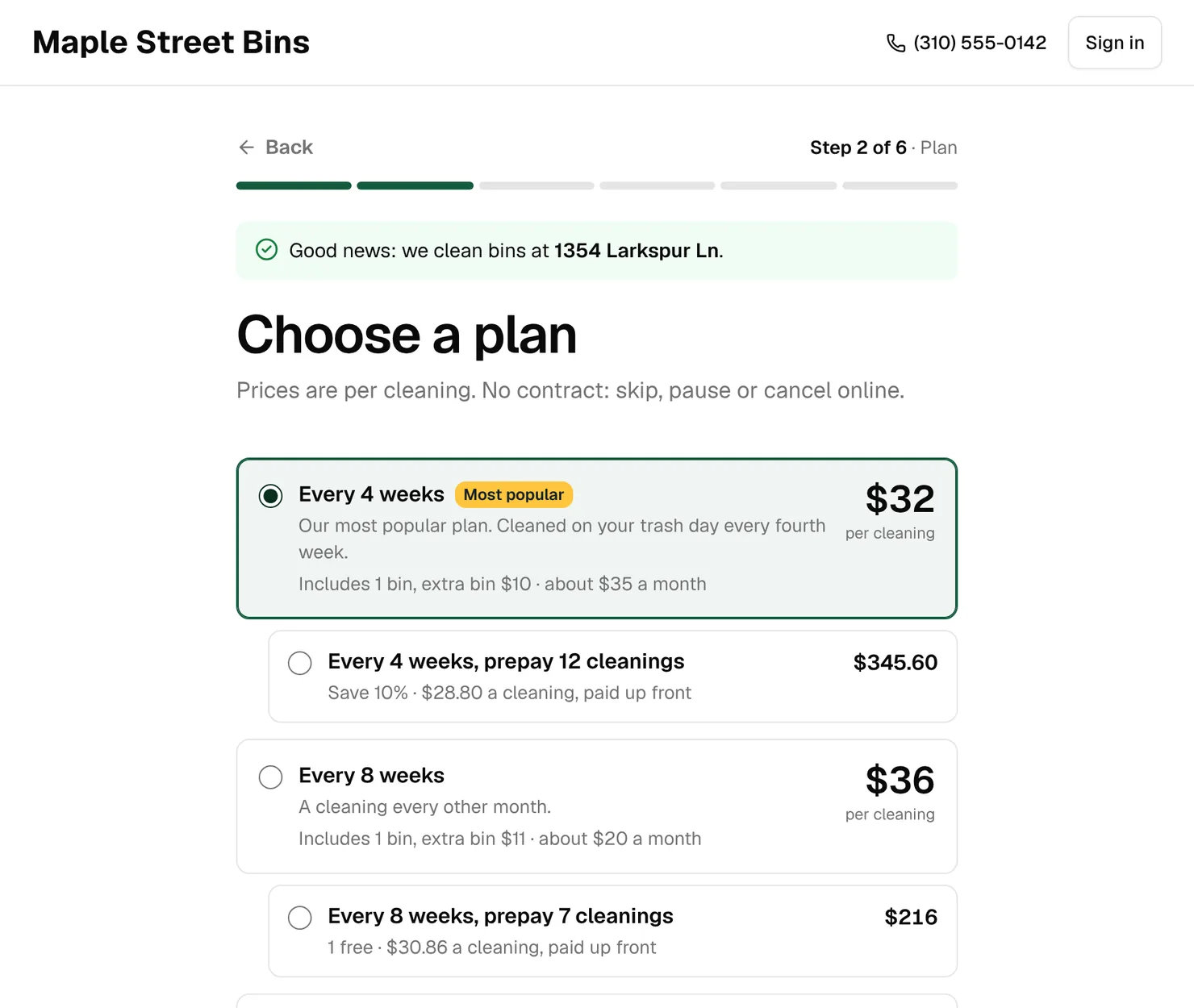
A copy of the plan step of a sign-up page. Pick a brand color and an accent color, or start from one of these. Nothing you pick leaves this page.
- Button text reads well (8.0:1).
- Works as text on white.
- Badge text reads well (10.4:1).
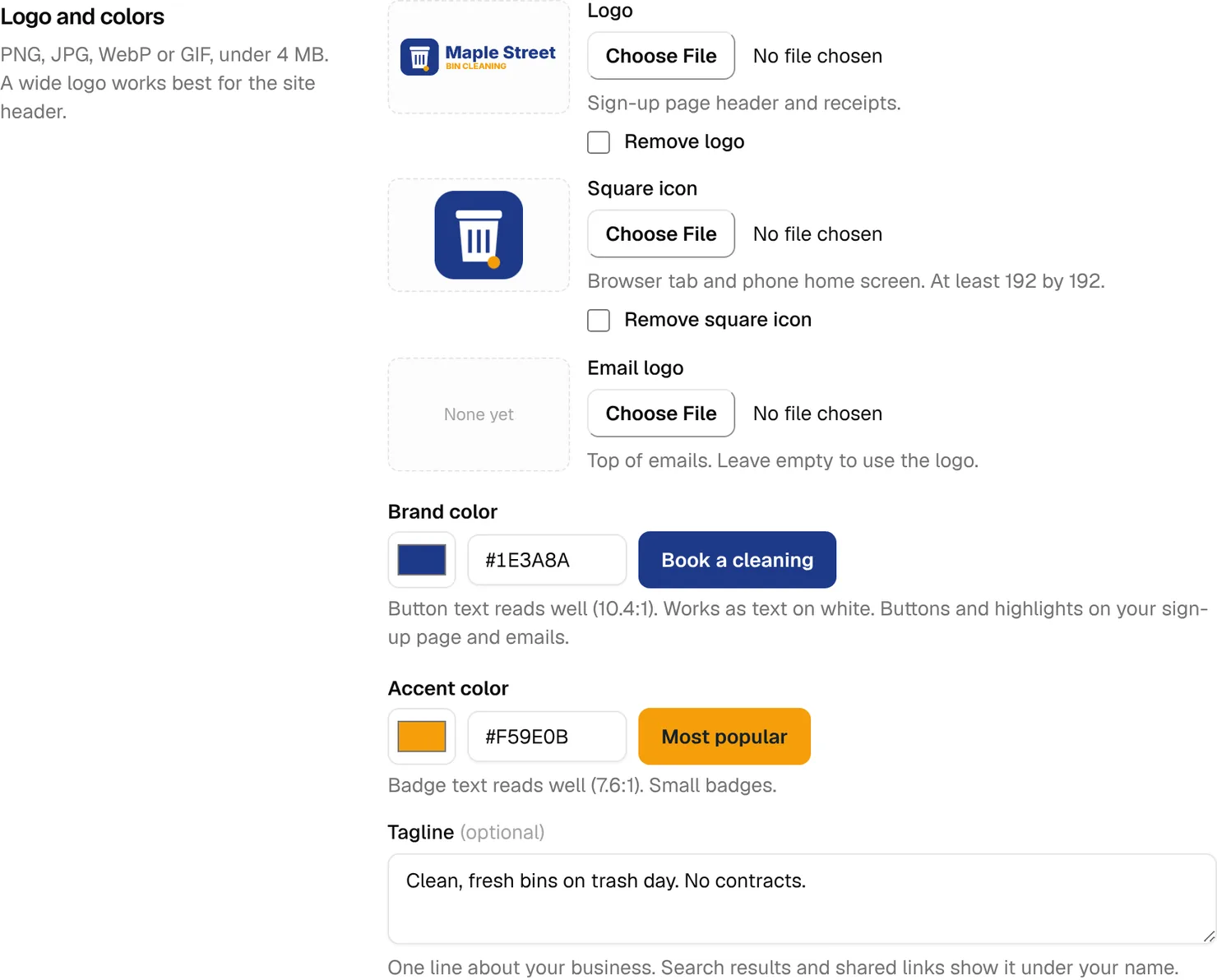
Example: Maple Street’s navy, #1E3A8A, reads 10.4:1 and works as text on white. The default green reads 8.0:1. Both are safe on the page and in emails.
Accent color: the badge
The Accent color colors small badges, like Most popular on a highlighted plan, with white or dark text, whichever reads better. Bright colors like amber work here even though they’re too light for a brand color. Pick one that stands out from your brand color. Its check only asks whether the badge text reads well, since the accent is never used for links.
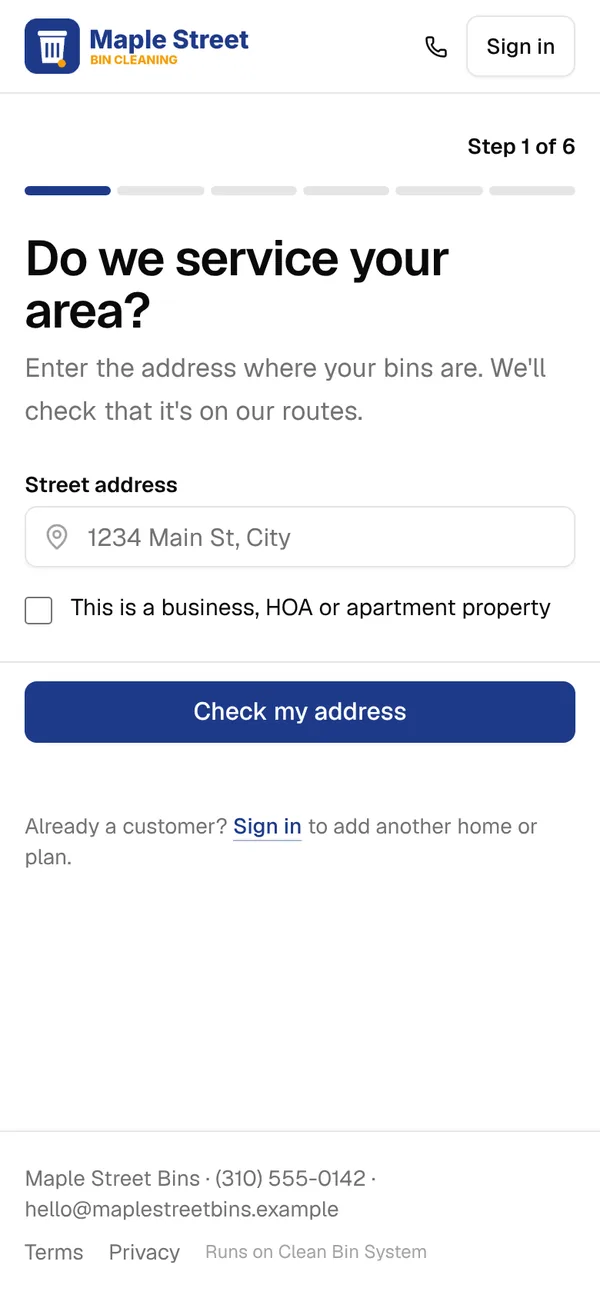
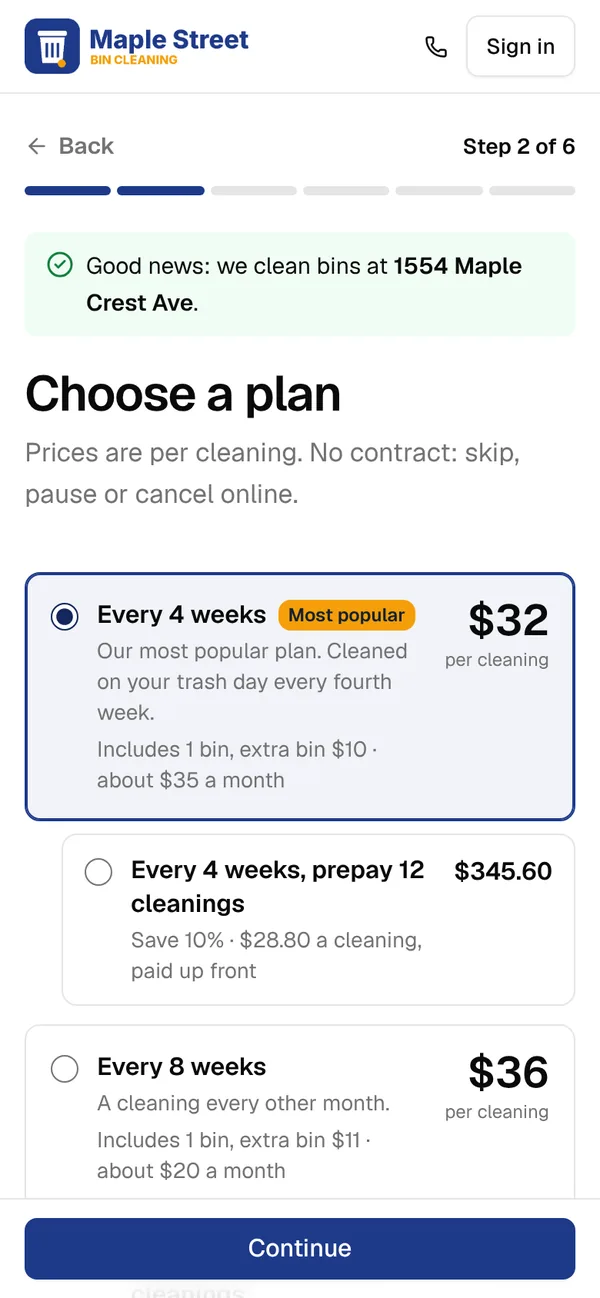
On a phone
Anyone who scans a code or taps a link in a text sees your page on a phone, where the logo shows a little smaller. Check yours on your own phone after you save.
Your words
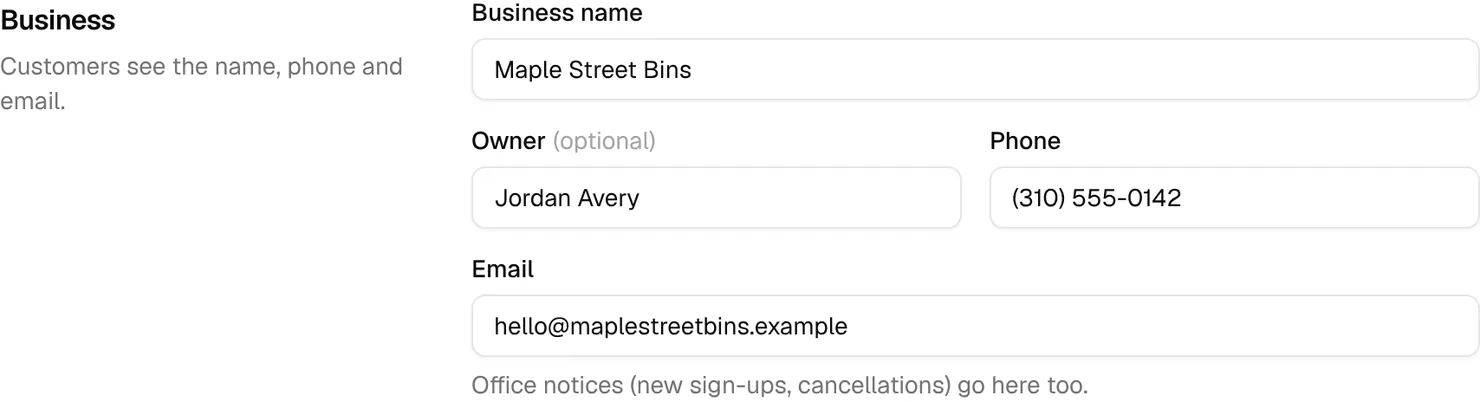
- Business name starts most texts, like “Maple Street Bins: we clean your bins tomorrow…”, and shows in emails and at the bottom of your sign-up page. Use the name on your truck, and keep it short: a text over 160 characters counts as two.
- You call them: bins, cans, carts, totes or containers. Your texts, emails, sign-up page and back office all use the word, so pick the one your customers say.
- Tagline: one sentence, up to 160 characters. It becomes your sign-up page’s description, the line search engines can show under its name. Say what you do and where.
To reword the messages themselves, open one in Messages › Texts & emails, watch the preview and its text count, and click Send me a test (Lesson 11).
Emails and links
Under “Emails”, From name is the sender customers see, and Replies go to is where their replies land. Left empty, they use your business name and business email.
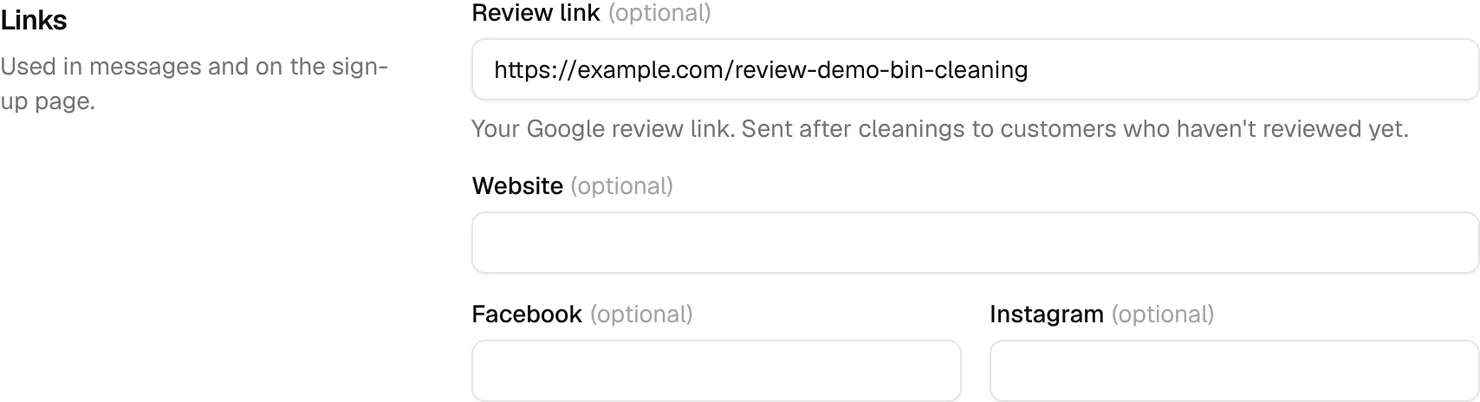
- Review link: your Google review link. Each customer is asked once, by text at 8 pm on the day of their first finished cleaning, with two later follow-ups you can turn on. The startup course’s Google lesson covers what Google allows.
- Website: the logo on your sign-up page links to it, and so does a back link on the first step of the booking form.
- Facebook and Instagram: linked at the bottom of every page of your sign-up site, next to your phone and email.
Plan names, descriptions and badges
Customers choose by your plans’ names and descriptions, so write them in your own voice. In Business › Plans & prices, click a plan:
- Name, up to 80 characters, says how often, like “Every 4 weeks”.
- Description, up to 500 characters, says what they get, like “Cleaned on your trash day every fourth week.”
- Highlight this plan adds your accent-color badge, and the sign-up page opens with that plan selected. Badge text takes up to 40 characters and reads “Popular” when left empty. Highlight one plan, and keep the badge true.
Your own web address
Instead of yourname.cleanbinsystem.com, your sign-up page can run on your own address, like book.yourbusiness.com, so it matches your website.
- Open Business › Settings › Your own web address, type the address and click Use this address. A subdomain like book. keeps your main website where it is.
- Where you bought your domain, add the DNS record the page shows, usually a CNAME from “book” to cname.vercel-dns.com.
- Click Check again until the badge says Working. DNS changes can take up to a day.
Then your texts, emails, QR codes and checklist links switch over by themselves, and your Clean Bin System address keeps working.
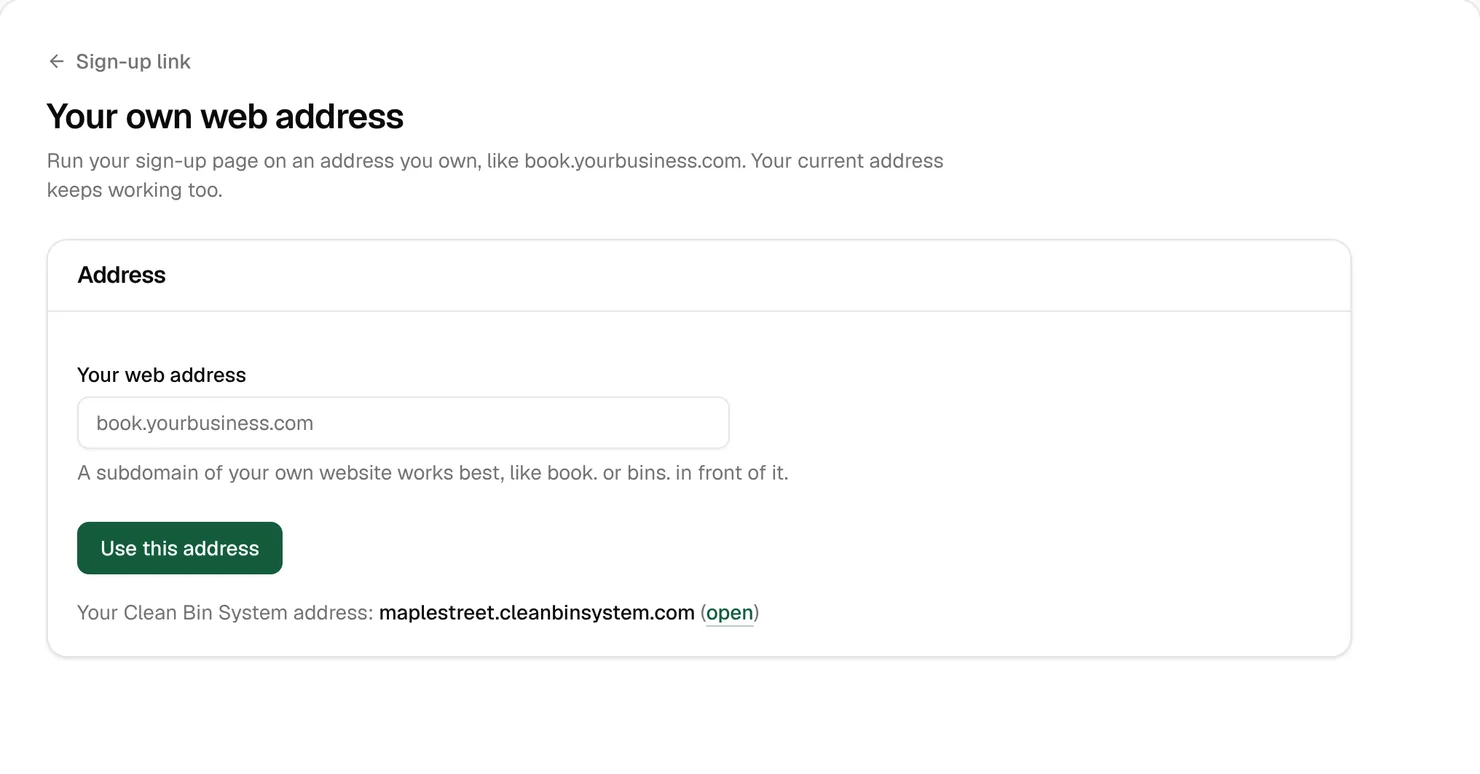
Tip: Do this before you print QR codes. A code only uses your own address once it works, and a printed code can’t change.
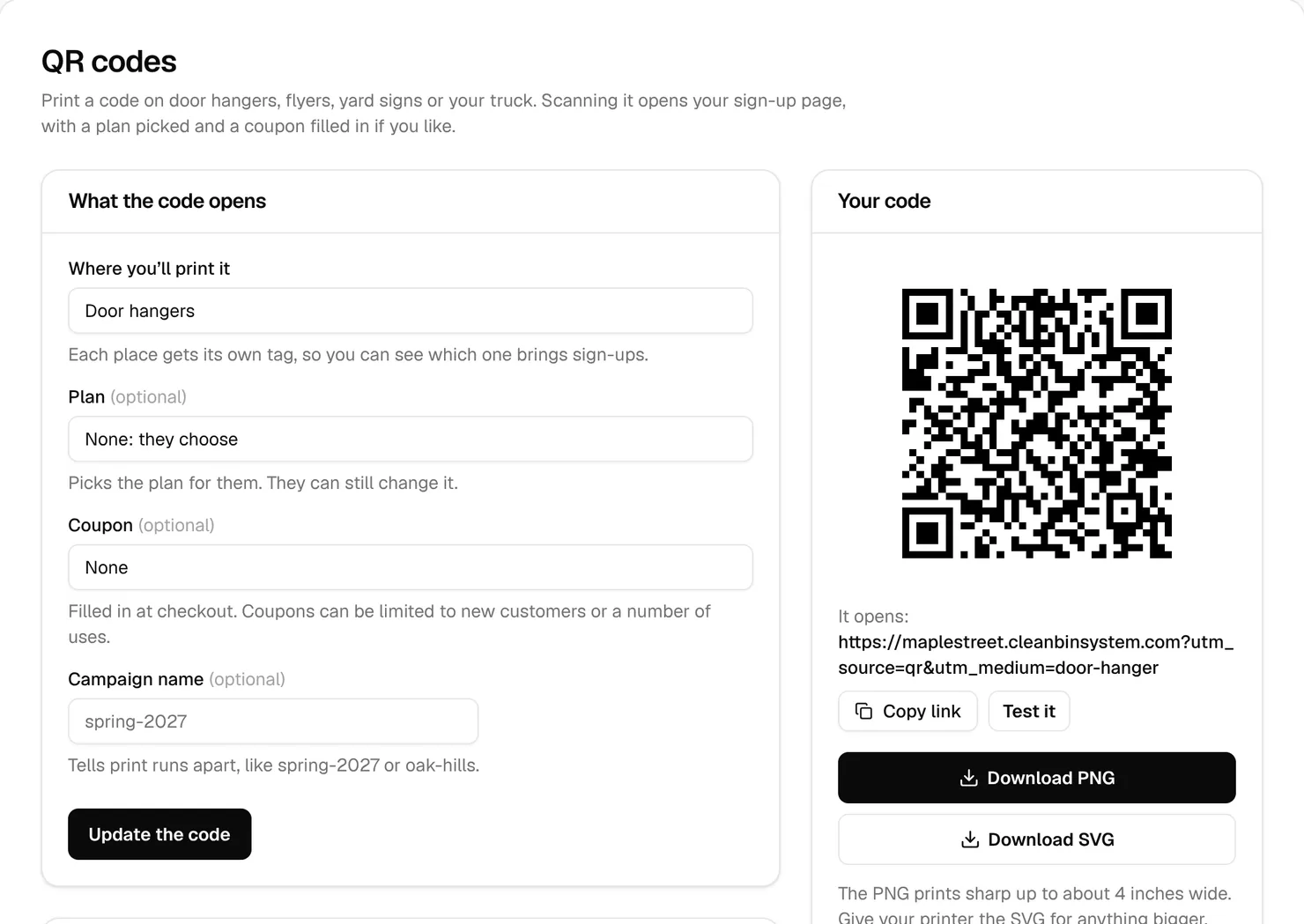
QR codes for door hangers and your truck
In Business › QR codes, choose Where you’ll print it, and if you like a Plan, a Coupon and a Campaign name, like spring-2027. Click Update the code, then Test it. Download PNG prints sharp up to about 4 inches wide. Give your printer the SVG for yard signs and trucks. Print it at least an inch wide, with its white border. Each place and campaign shows on its own in Business › Reports (Lesson 12).
Key takeaways
- Use a wide logo, about four times as wide as it is tall, as a PNG with a transparent background.
- If your logo and your brand color are both dark, upload a white Email logo, or your logo disappears in emails.
- Pick a brand color whose check says “Button text reads well”. Light colors work too: buttons and emails switch to dark text.
- For the badge, pick a bright accent color that stands out from your brand color.
- Keep your business name short: it starts most texts, and a text over 160 characters counts as two.
- Set up your own web address before you print QR codes.
FAQ
Why does my logo disappear in emails?
Emails put it on a bar of your brand color, and a dark logo on a dark color vanishes. Upload a white or light version as the Email logo.
My brand color is light. Is that a problem?
No. Buttons on your sign-up page and in your emails switch to dark text, and links on the page use a darker shade, so it still reads. Just check that the line under it says “Button text reads well”.
Do I need my own web address?
No. Your Clean Bin System address works on its own and keeps working. Your own address is worth it if you have a website, so the address customers see matches it.