Lesson 2 of 147 min read
Set up Clean Bin System in the right order
Set up Clean Bin System in the order that saves time: start your texting number early, make a test booking before Stripe, then import and go live.
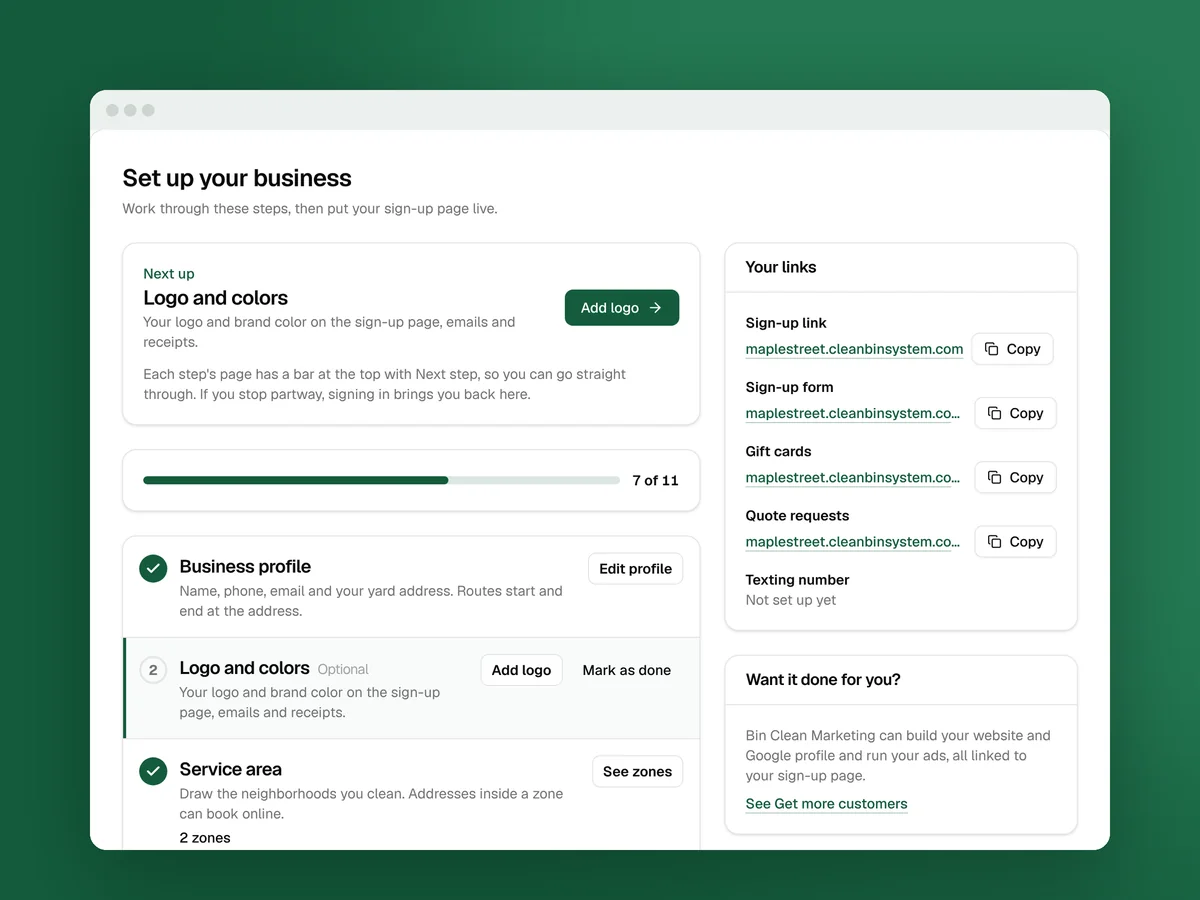
Setting up Clean Bin System takes 15 steps, from an empty account to real bookings. Most take a few minutes. The order matters for three reasons:
- Your texting number takes days. Carriers review it first, so you start it second and keep working while you wait.
- Test cards only work before Stripe. Once card payments are live, test cards are declined.
- Imports match against your setup. Imported customers are matched to your plans, bins, zones and trash haulers, so those come first.
What to have ready
- Your business phone, email and yard address, where every route starts and ends.
- Your logo, if you have one (Lesson 3).
- The neighborhoods you serve, the trash day in each, and the trash haulers with their holiday schedules.
- Your price for each plan and each bin.
- Your Stripe login, if you already use Stripe.
- For texting: your legal business name and address exactly as registered, and your EIN unless you’re a sole proprietor.
- Your customer list, if you’re moving from Jobatory or a spreadsheet.
The setup checklist
Open it from the Finish setting up panel on the Dashboard with See every step. The green panel at the top names the step to do now.
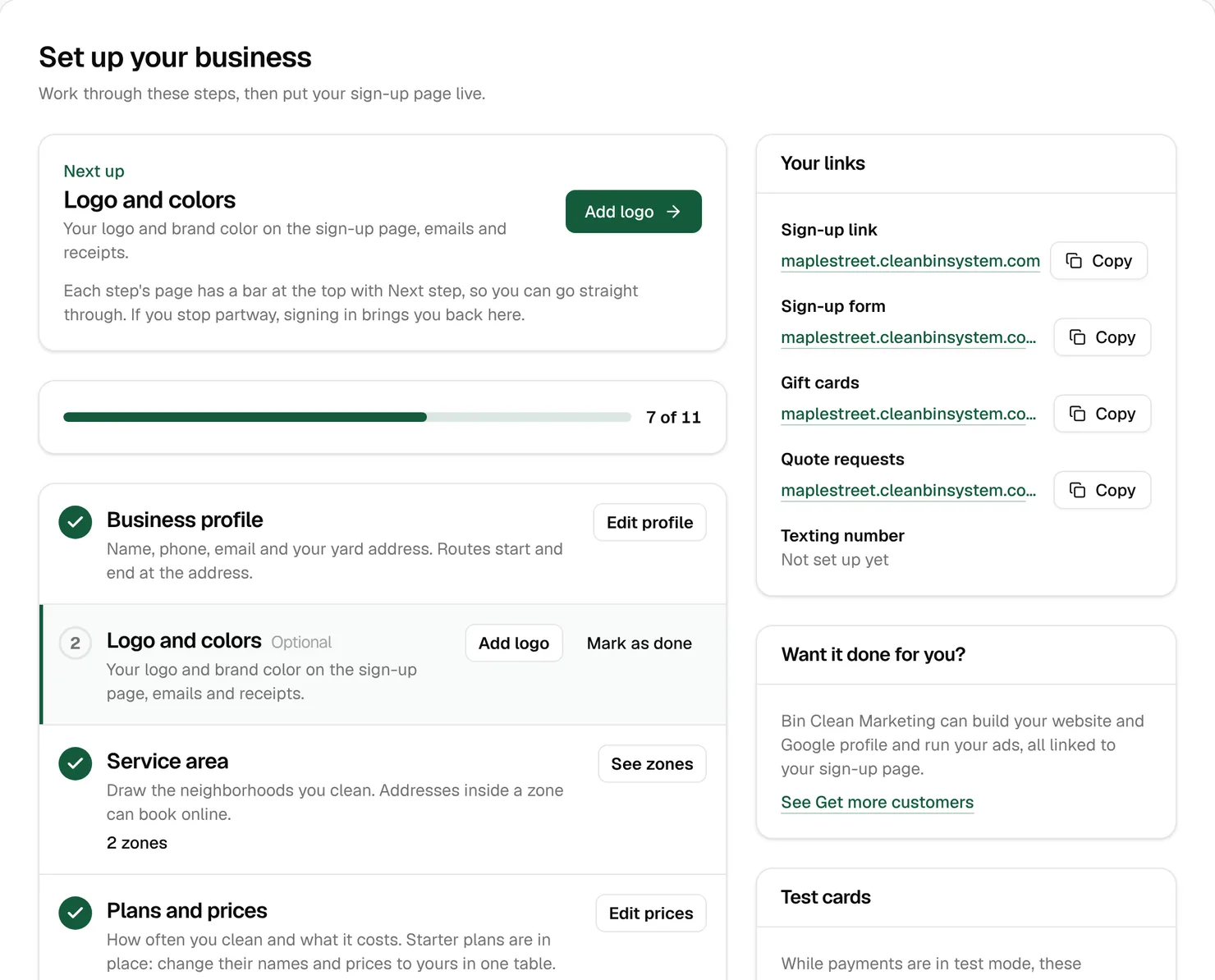
Business profile, Service area and Plans and prices are required, and Card payments too when Clean Bin System has Stripe set up. They tick themselves off once the work is done. The rest are optional: Mark as done ticks one off (Skip for now on Texting number).
While you’re setting up, each step’s page has a setup bar at the top. Next goes to the next unfinished step, Skip for now skips an optional one, and All steps opens the checklist. Stop partway, and signing in brings you back to the step you were on.
Watch out: New businesses start with four plans already on the sign-up page, but Plans and prices isn’t done until you click Keep these prices or save your own with Edit prices.
The 15 steps
The checklist on your dashboard counts 11 of these, in its own order. Billing, scheduling, your texts and emails, importing and Claude aren’t on it, so they’re yours to remember.
| # | Step | Where | Why it’s here |
|---|---|---|---|
| 1 | Business details, logo and colors | Business › Settings › Business | Everything customers see uses them (Lesson 3) |
| 2 | Texting number | Business › Settings › Texting | Carrier review takes days |
| 3 | Trash haulers and days off | Routes › Trash haulers and Routes › Holidays & days off | Each zone gets a hauler (Lesson 4) |
| 4 | Zones | Routes › Zones | Only addresses in a zone can book online |
| 5 | Plans and prices | Business › Plans & prices | What customers choose from (Lesson 5) |
| 6 | Billing rules | Business › Settings › Billing | When cards are charged (Lesson 7) |
| 7 | Scheduling | Business › Settings › Scheduling and routes | The defaults are a good start (Lesson 8) |
| 8 | Texts and emails | Messages › Texts & emails | Every customer reads them (Lesson 11) |
| 9 | Sign-up page and QR codes | Business › Settings › Sign-up link and Business › QR codes | Terms, “How did you hear about us?” and your own address (Lessons 3 and 6) |
| 10 | Test booking | Start a booking on the checklist | Test cards stop working after step 11 |
| 11 | Connect Stripe | Business › Settings › Card payments | From here, cards are charged for real |
| 12 | Invite your team | Business › Team | Zones and routes need their technicians |
| 13 | Bring over your customers | Customers › Import | Rows are matched to steps 3 to 5 |
| 14 | Go live | Put my sign-up page live on the checklist | Marks setup as finished |
| 15 | Claude or ChatGPT (optional) | Business › Settings › Claude and ChatGPT | Look things up and make changes by asking (Lesson 14) |
Start your texting number on day one
Reminders, receipts and card-failure notices go out as texts from your own toll-free number, and carriers review every number first. That usually takes a few days and can take up to two weeks. Until then, texts are saved in Messages › Sent messages with the status “Test mode” but not sent. Emails go out as normal.
The day-before text matters most, because it gets bins to the curb. The Bin Trash Spa in Reno credits its day-before text with getting bins left out (keeping customers lesson). You want it working before your first route.
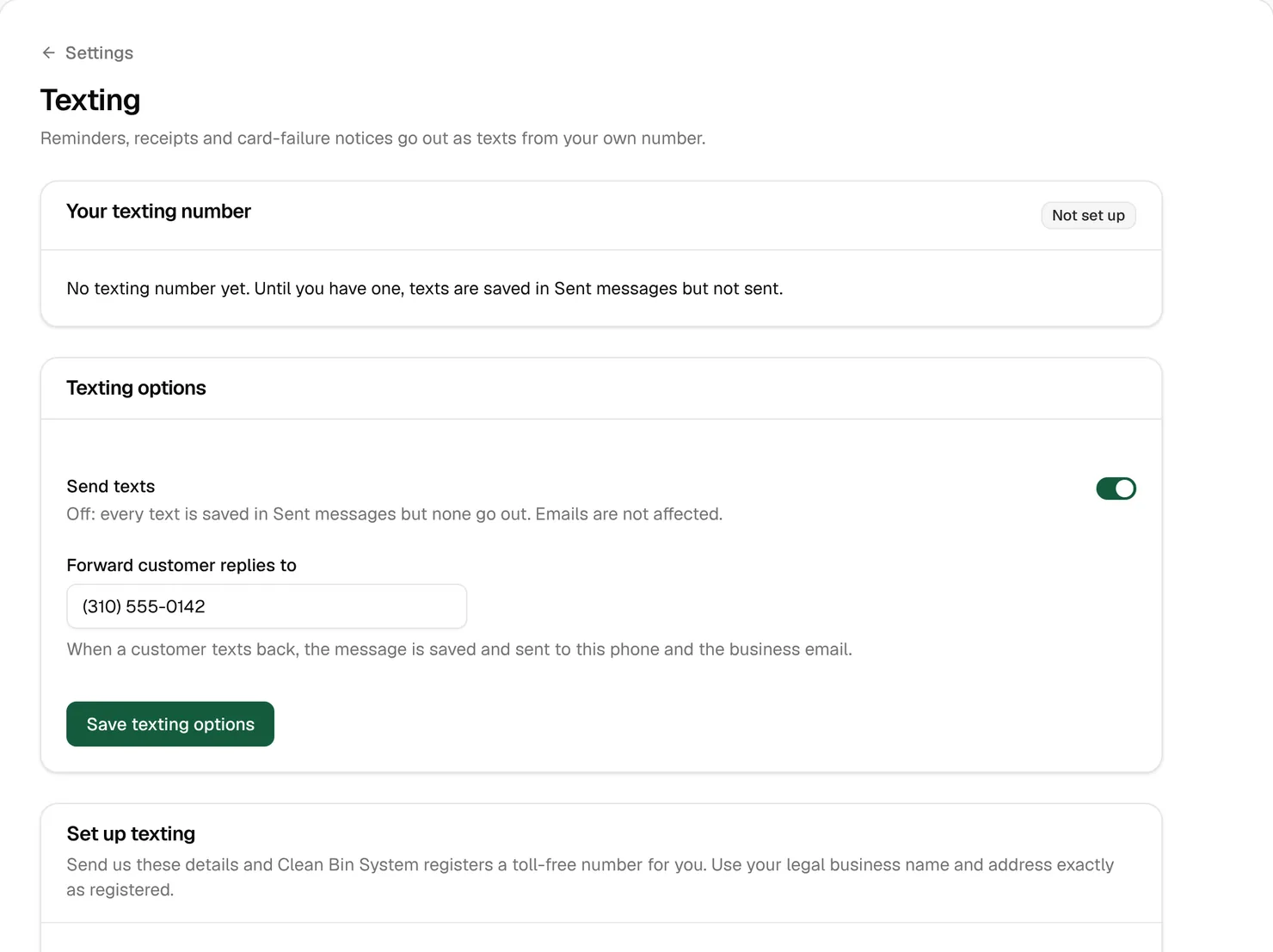
- Open Business › Settings › Texting and fill in your legal business name and address, your EIN, a contact person and about how many texts you send a month.
- Click Get my number and submit it (or Send my details).
- Every few days, click Check approval now. Texting switches on by itself the first time it finds your number approved.
Watch out: Your details lock once you submit. If carriers turn the registration down, you fix the details and submit again, and the review starts over.
Make a test booking before you connect Stripe
Until Stripe is connected, cards go through a test processor and test card numbers act like real cards. Book yourself while that’s true:
- On the checklist, click Start a booking.
- Book a cleaning at your own address with card 4242 4242 4242 4242, any future expiry date and any security code. Use your own email and phone, so the messages come to you.
- Read the emails you get, and find the texts in Messages › Sent messages.
- Cancel it: open the new customer in Customers › Customers, click Cancel plan, then Cancel plan again and Yes, cancel the plan.
Tip: Book a second test with 4000 0000 0000 9995. That card saves, but charges on it fail, so you see the card-failure messages.
Connect Stripe
In Business › Settings › Card payments, click Connect Stripe, sign in to Stripe or create an account, and allow Clean Bin System. Back on the page, look for “Payments run on: Stripe connected” and “Charges: Enabled”. If it says Waiting for Stripe, click Open Stripe dashboard and finish your business details and bank account. Customers aren’t sent anything when you connect.
Tip: Moving from Jobatory? Connect the same Stripe account you used there, before you import, and imported customers keep their saved cards.
Invite your team
In Business › Team, click Invite employee. Each person gets an email, and a text if you add their phone, with a link to set their password. The link works for 7 days. Once technicians have set it, they show up in Routes › Dispatch, and you can go back and give each zone its technician.
Your plan sets how many technicians you can have: 1 technician on Starter, up to 4 technicians on Growth and any number of technicians on Pro. Office managers and sales reps don’t take a spot.
Bring over your customers
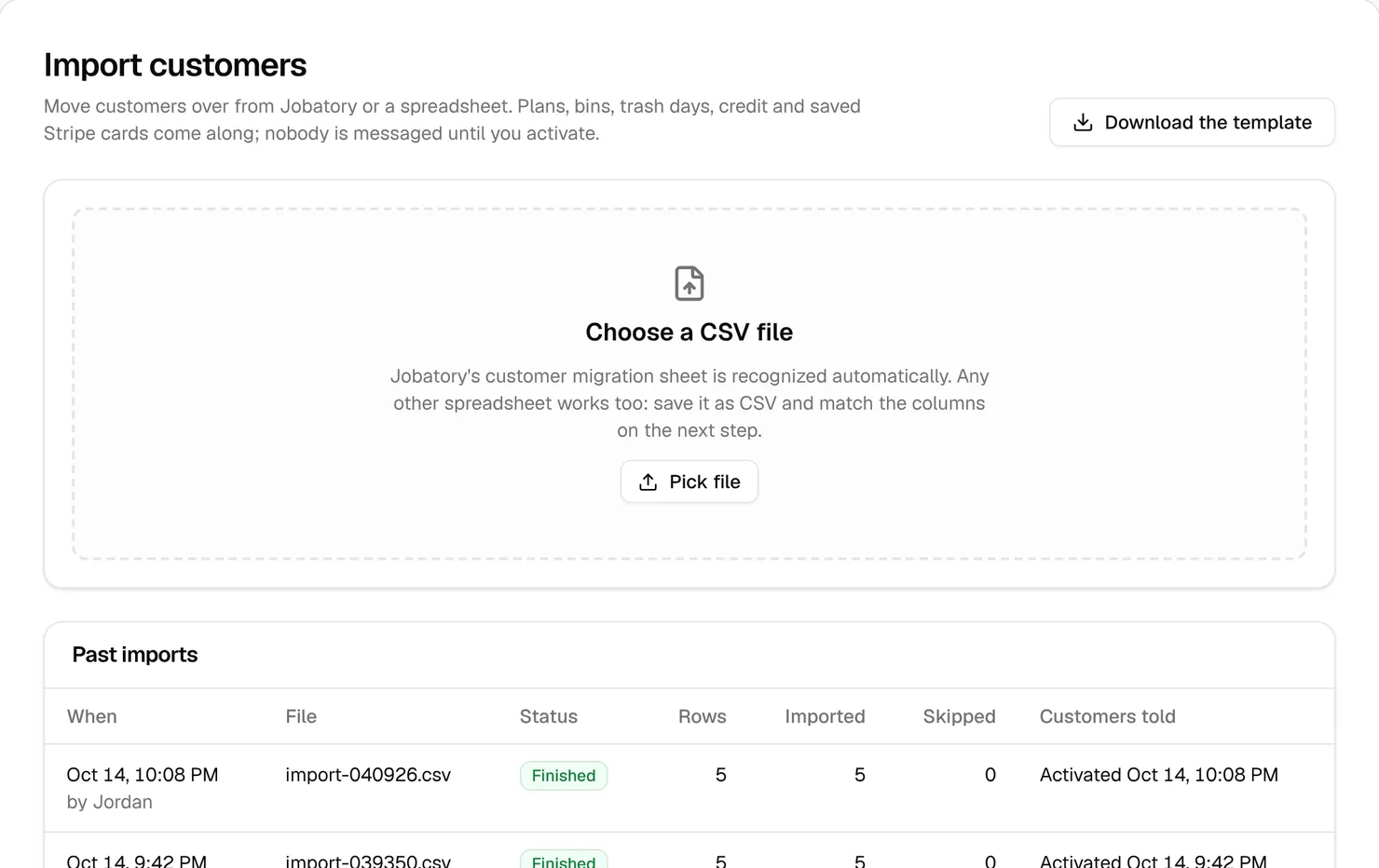
In Customers › Import, pick your Jobatory export or a spreadsheet saved as CSV. Match the columns, bins, plans and trash haulers, click Check the first N rows, then Import N customers. Plans, bins, trash days, credit and saved Stripe cards come along. Switching to Clean Bin System has the whole move on one page.
Nobody hears from you yet, and nothing goes on the calendar. When you click Activate & notify and Yes, activate, cleanings are scheduled and each customer gets one welcome: an email if they have a card on file, or a text and email asking them to add one.
Watch out: Turn off charging in Jobatory before you activate, so nobody is charged twice, and run both systems side by side for one 4-week cycle. Customers who were paused in your old system come in active, so check with them first.
Go live and share your link
When nothing is listed under Finish these first, click Put my sign-up page live at the bottom of the checklist. Nothing is sent to customers. Your sign-up page already takes bookings before this. Going live marks setup as finished.
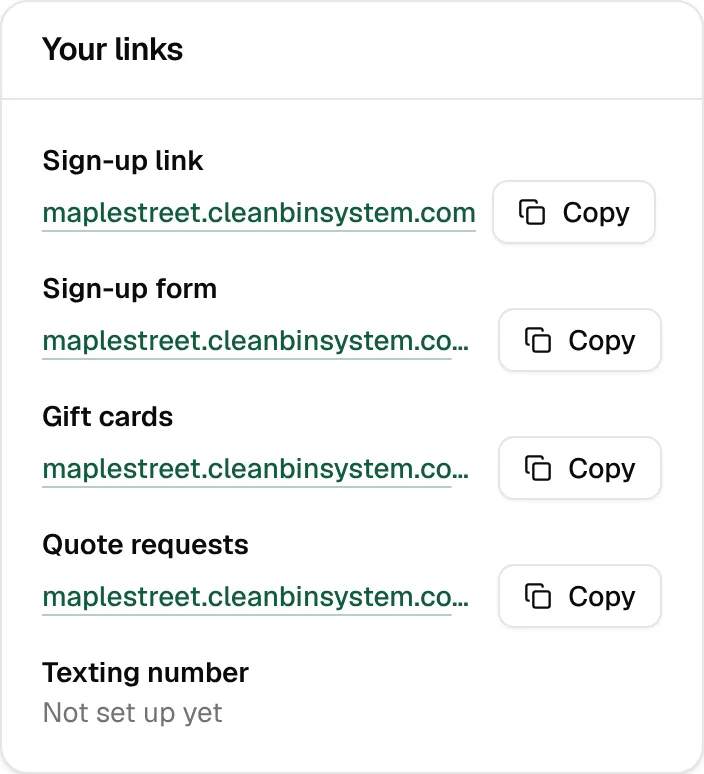
Copy your sign-up link from Your links and put it on your website, your Google listing, your social pages and your door hangers. The first customers lesson covers where to start.
Your first week
Once customers are booking, go through these each day:
- Dashboard: what needs attention, like Incomplete stops and Failed payments.
- Routes › Dispatch: today’s and tomorrow’s routes, with a technician on every stop.
- Messages › Sent messages: replies from customers.
- The Unpaid tab of Money › Payments: failed cards to follow up.
- Customers › Leads and Customers › Service requests.
Key takeaways
- Start your texting number second. Carrier review takes a few days to two weeks, and texts wait until it’s approved.
- Add trash haulers, zones and plans before you import, because every imported customer is matched to them.
- Make your test booking with 4242 4242 4242 4242 before you connect Stripe. After that, test cards are declined.
- Imported customers hear nothing until you click Activate & notify. Turn off charging in your old system first.
- Going live sends nothing to customers. It marks setup as finished.
FAQ
Do I have to do every step?
No. Only Business profile, Service area and Plans and prices are required, plus Card payments when Stripe is set up. Tick off the rest with Mark as done (Skip for now on Texting number) and come back to them later.
My test card was declined. Why?
Your card payments are live, and live payments don’t take test cards. Book with your own card and refund it on the customer’s Money tab, or click Mark as done to skip the test booking.
Can I change things after I go live?
Yes. Everything on the checklist can be changed later, and Back to setup mode on the checklist takes your sign-up page off live if you need to.